
Shopify Order Editing API: Build a Safe Begin-to-Commit Flow
Shopify Order Editing API: Build a Safe Begin-to-Commit Flow
Shopify Order Editing API: Build a Safe Begin-to-Commit Flow

By Shubham Vats, Founder of Revize · Sep 26, 2026
Quick answer: The Shopify order editing API uses a 3-stage flow: call
orderEditBegin, stage changes, inspectuserErrors, then callorderEditCommit. In API 2026-07, staging and commit accept eithercalculatedOrder.idororderEditSession.id. Commit saves the edit, but an increased balance or refund still needs settlement.
Why three API stages matter
Order editing is a transaction, not a single update. Shopify creates a calculated version of the order, lets the app stage changes against it, then applies that version when the app commits.
Across 10 million+ orders on stores running Revize, about 1 in 19 orders, or 5.2%, was edited after checkout (Revize, 2026). That is enough volume to design editing as a routine operating workflow rather than a support exception.
The CalculatedOrder is like a proof copy of a warehouse pick list. You can add and remove lines on the proof, inspect the result, then publish one final version.
Timing matters as much as correct API calls. The median edit on stores running Revize lands 4.6 minutes after checkout (Revize, 2026). If picking starts during that interval, technically valid code can still produce the wrong parcel.

How the Shopify order editing API works
For Shopify Admin API 2026-07, the workflow is orderEditBegin, one or more staging mutations, then orderEditCommit. Shopify's mutation references accept either the calculated-order ID or the order-edit-session ID for staging and commit. This guide consistently uses calculatedOrder.id.
Call
orderEditBeginwith the Shopify order ID.Store
calculatedOrder.idas$calculatedOrderId.Run each staging mutation against that ID.
Inspect the calculated lines, totals and every
userErrorsarray.Pass the same ID to
orderEditCommit.
Shopify documents this begin, stage and commit model. The app requires the write_order_edits access scope.
A minimal begin mutation can request both objects for diagnostics while selecting one identifier for the remaining flow:
Code:
orderEditBeginmutation BeginOrderEdit($orderId: ID!) {
orderEditBegin(id: $orderId) {
calculatedOrder {
id
lineItems(first: 50) {
nodes {
id
quantity
}
}
}
orderEditSession {
id
}
userErrors {
field
message
}
}
}
Stop if userErrors is not empty. A successful network request proves only that Shopify received the request, not that it accepted the operation.
The versioned editing guide documents staging operations for variants, quantities, custom items, line-item discounts and shipping lines. Check the relevant 2026-07 mutation reference before implementation and again before changing API versions.

How to build a complete variant swap
A variant swap adds the replacement and sets the original calculated line item to zero inside one editing session. Commit only after both operations succeed and the calculated result matches what the customer confirmed.
Say a customer ordered a medium and needs a large.
Begin the edit and store
calculatedOrder.id.Add the large variant with that ID:
Code:
orderEditAddVariantmutation AddReplacement(
$calculatedOrderId: ID!
$variantId: ID!
$quantity: Int!
) {
orderEditAddVariant(
id: $calculatedOrderId
variantId: $variantId
quantity: $quantity
) {
calculatedLineItem {
id
quantity
}
userErrors {
field
message
}
}
}
Find the original medium in the calculated order. Use its calculated line-item ID rather than copying an original order line ID without checking the returned calculated state.

Set the original line to zero:
Code:
orderEditSetQuantitymutation RemoveOriginal(
$calculatedOrderId: ID!
$lineItemId: ID!
) {
orderEditSetQuantity(
id: $calculatedOrderId
lineItemId: $lineItemId
quantity: 0
) {
calculatedLineItem {
id
quantity
}
userErrors {
field
message
}
}
}
Query the calculated order again. Confirm the replacement exists, the original quantity is zero and the totals match the customer confirmation.
Commit using the same calculated-order ID:
Code:
orderEditCommitmutation CommitOrderEdit(
$calculatedOrderId: ID!
$notifyCustomer: Boolean!
$staffNote: String
) {
orderEditCommit(
id: $calculatedOrderId
notifyCustomer: $notifyCustomer
staffNote: $staffNote
) {
order {
id
updatedAt
}
userErrors {
field
message
}
}
}
Warning: Do not commit after the addition succeeds but before the removal succeeds. That converts a swap into an extra item.
Reject duplicate confirmation clicks, record which stage completed and refetch before commit if another process may have changed the order.
Which mutation handles each edit
Use the calculated-order workflow for line items, quantities, discounts and shipping-line changes. Use orderUpdate, cancellation and refund mutations only for the jobs their versioned references document.
Customer request | Primary Shopify operation | Application decision |
|---|---|---|
Change quantity or remove an item |
| Validate the calculated result |
Swap a variant |
| Stage both changes before commit |
Add a product |
| Validate availability and balance |
Change email, shipping address, tags, note or metafields | Check the returned order and errors | |
Cancel the whole order | Validate cancellation inputs and response | |
Create a refund | Validate amount and returned failures |
The 2026-07 orderUpdate reference covers attributes such as customer email, shipping address, tags and metafields, and documents note updates in its examples. It directs significant changes such as adding or removing line items, changing quantities or modifying discounts to orderEditBegin.
Shopify's order-editing considerations state that discount codes, automatic discounts and script discounts cannot be edited. Order-level discounts also cannot be added, removed or changed. Line-item discount mutations do not erase those limits.
Where the Shopify order editing API stops
A committed edit and financial settlement are separate checkpoints. Shopify notes that an edit changing the total may leave the customer needing to pay a balance or receive a refund.
For an increased total, refetch the committed order and verify how the balance will be collected before releasing it to fulfillment. Do not treat a successful orderEditCommit response as proof that payment has completed.
For a decreased total, commit does not replace a deliberate refund workflow. Calculate the intended amount, call the appropriate refund operation and inspect its response. A zero-difference edit needs neither collection nor refund, but still needs a final order-state check.
Subscribe to Shopify's orders/edited webhook, then refetch before a downstream system acts. Webhooks are signals to read the current record, not permission to trust an earlier local copy.
Never let a third-party logistics provider, or 3PL, pick an order whose edit or financial state is unresolved. Test the hold, payment-status rule or release signal against the warehouse system that actually downloads orders.
How to diagnose edit failures
Start with eligibility, identifiers, validation and concurrent changes. Log the mutation name, Shopify order ID, selected edit ID and complete userErrors array without recording customer or payment secrets.
Symptom | Likely investigation | Next test |
|---|---|---|
Begin returns an eligibility error | Archived, old or otherwise ineligible order | Test a recent, active order |
Null | Scope, ID or eligibility failure | Inspect every |
Stage rejects the ID | Wrong object or stale edit session | Use an ID returned by the current begin call |
Commit fails after valid staging | Order changed after begin | Refetch and begin again |
Commit succeeds but money is unresolved | Settlement was assumed | Inspect the balance |
Warehouse receives stale lines | Picking started too early | Test hold and release timing |
Shopify's order-editing requirements say apps need write_order_edits, can edit only unfulfilled line items, and cannot edit archived orders or orders placed before January 1, 2019. Apps have order access for the last 60 days by default; querying older orders requires read_all_orders.
Those are separate rules. read_all_orders expands access to older records, but it does not make an archived or pre-2019 order editable.
Do not match application behavior to a guessed error string. Read the returned field and message for the specific request, then reproduce the failure with a controlled test order.
Build on Revize or start from APIs
Revize is the stronger default when the outcome is customer self-service before fulfillment; custom code fits proprietary internal orchestration. The decision is between a packaged customer journey and owning every interface, transition and warehouse safeguard.
Decision criterion | Custom Shopify API build | Revize |
|---|---|---|
Begin, stage and commit logic | Full implementation ownership | Customer-facing workflow provided |
Customer entry point | Designed by your team | Embedded on Shopify's order-status page |
Increased order value | Collection path must be built | Pay now opens Shopify checkout for the difference |
Refund treatment | Policy and failures must be built | Uses the configured refund option |
Edit deadline | Custom timers and state | Merchant-set editing window |
Fulfillment safety | Warehouse integration required | Hold, capture fallback or release tag |
Proprietary orchestration | Complete implementation control | Flow triggers, edit tags and release tags |
Testing | Every path owned internally | Documented draft-order test path |
Custom code has a clear role when a merchant needs a proprietary staff console or an approval process spanning internal systems. Revize does not expose a general order-editing API or a merchant approval queue.
Agencies can connect documented Shopify Flow triggers to Revize edit events, use Revize edit and release tags in fulfillment logic, or use the Public Cancellation API for an external cancellation surface. The Public Cancellation API is Pro-only, requires support enablement and enforces the portal's edit window, restrictions and refund policy.
Across post-purchase edits on stores running Revize, 92.2% were completed by customers without a support agent (Revize, 2026). The agency post-purchase order-editing playbook covers the discovery work before implementation.
Feature availability varies by plan. Product additions and switching, store-credit refunds, discount, shipping and tax recalculation, the rules engine, Reverse Unpaid Edits and the Public Cancellation API are Pro-only, as detailed in the Revize billing documentation.
Install Revize: Order Editing & Upsell when the goal is a working self-serve layer rather than another internal editing interface.

How Revize completes the workflow
Revize gives customers a controlled editing flow on Shopify's order-status page. The merchant sets the window, available actions, refund policy and order-processing mode.
When an edit increases the total, Revize presents Pay now and redirects the customer to Shopify checkout solely to pay the difference. A decrease presents Refund, while an unchanged total presents Confirm. Shopify executes the payment or refund, as described in the Revize customer workflow.
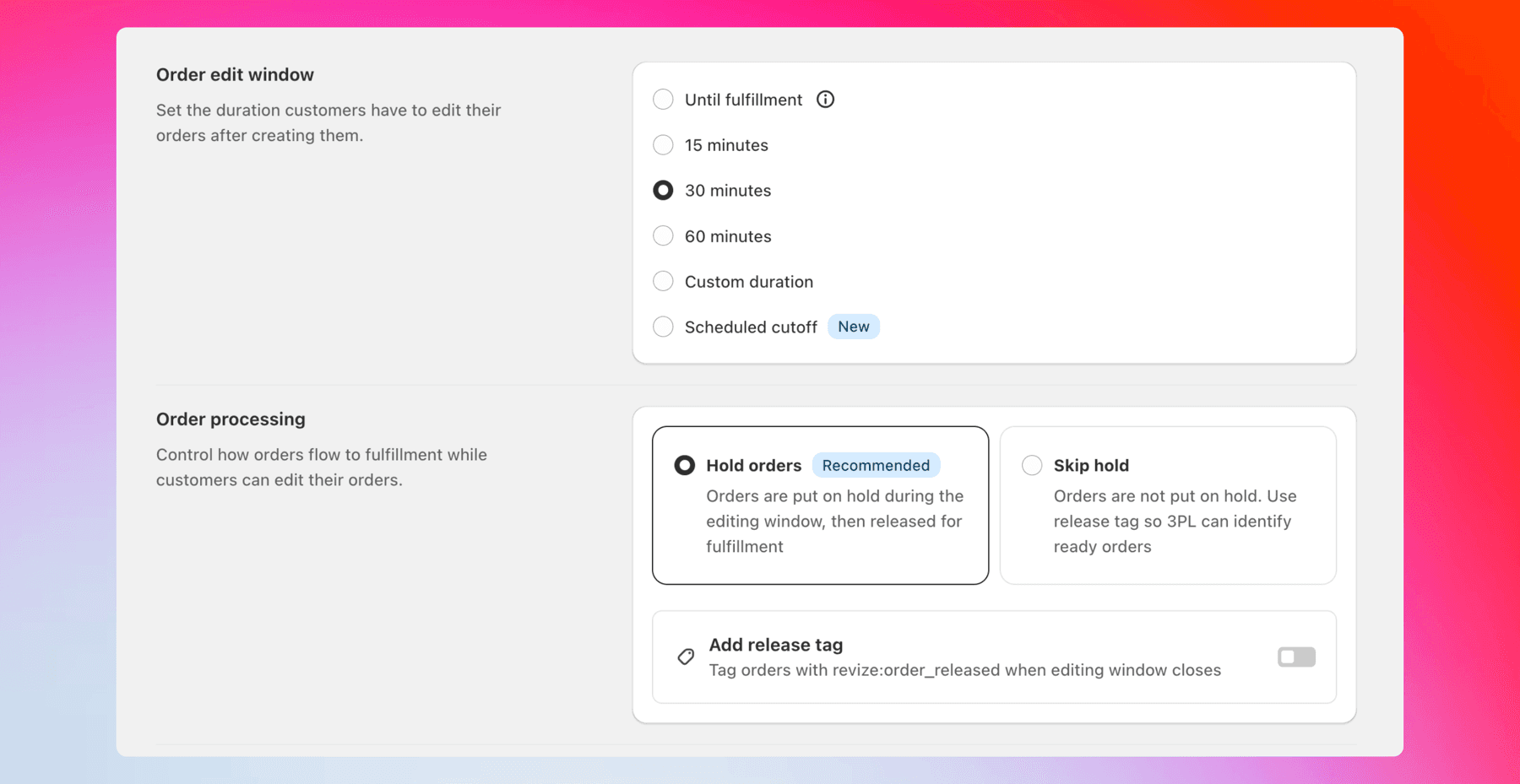
The merchant sets timing under Order Editing > Order edit window. The edit-window setup guide documents fixed presets, custom durations, scheduled cutoffs and until-fulfillment mode. Until fulfillment does not place an order on hold by itself.
With the recommended processing mode, Revize places a Shopify fulfillment hold during the edit window and releases it when editing closes. Systems that ignore holds may need the documented manual-payment-capture fallback. A release tag can instead signal a fulfillment system configured to wait for that tag.
Revize checks live, shipping-zone-aware inventory before allowing a customer variant swap. The fulfillment-hold guide covers the warehouse side of the workflow.
What to test this week
Test one order from checkout through corrected fulfillment, including failures. A successful mutation in a GraphQL client is only the first checkpoint.
Create a representative development or draft order.
Test an even swap, a value increase and a value decrease.
Inspect
userErrorsafter begin, every staging mutation and commit.Confirm the calculated order before committing.
Verify collection and refund handling separately.
Send the edited order through the real fulfillment system.
Test an archived order, an older order, overlapping attempts and abandonment.
Review Shopify's native order-editing limits before production access.
Frequently Asked Questions
What is the difference between orderUpdate and orderEditBegin?
Use orderUpdate for supported order attributes and orderEditBegin for calculated line-item changes. In Admin API 2026-07, orderUpdate covers attributes such as email, shipping address, tags and metafields. Product additions, removals, quantity changes, swaps and discount modifications belong in an editing session followed by staging and commit.
Why does orderEditBegin return an eligibility error?
The order may be archived, pre-2019 or lack unfulfilled line items that Shopify can edit. Confirm the GraphQL order ID, required access scopes, order age, archive state, currency requirements and complete userErrors response. Test against a recent active order before changing application logic.
Can you edit fulfilled line items via the Shopify API?
Fulfilled line items are outside Shopify's order-editing workflow. A request arriving after fulfillment needs a support or returns process rather than a reopened calculated order. Revize is designed for customer changes before fulfillment and is not a post-delivery returns platform.
How do I remove a line item with the order editing API?
Begin an edit, find the calculated line item and call orderEditSetQuantity with quantity 0. Pass the calculated-order or edit-session ID accepted by the mutation, inspect userErrors, then query the calculated result before commit. Set and verify the mutation's restocking behavior deliberately.
How do I swap a variant on an existing Shopify order?
Add the replacement with orderEditAddVariant, set the original calculated line to 0, inspect the preview, then commit. Keep both operations inside the same editing session. If the addition succeeds but removal fails, stop. Revize's customer-facing swap flow also validates live inventory for the warehouse serving that shipping address.
Does orderEditCommit settle every payment or refund?
Commit applies staged order changes, while financial settlement remains a separate checkpoint. After commit, refetch the order and inspect the balance. An increase may require collection before fulfillment; a decrease may require a separate refund operation. Revize supplies a customer settlement flow through Shopify.
What access scopes are needed to edit orders?
The calculated order-editing workflow requires write_order_edits. Shopify also says apps need read_all_orders to query orders older than 60 days. That extra read access does not override edit eligibility: archived orders, orders before January 1, 2019 and fulfilled line items remain outside the documented workflow.
Does the customer get notified after an API edit?
The developer controls Shopify's commit notification with notifyCustomer on orderEditCommit. Set it deliberately and use staffNote when internal context is useful. If another system sends the message, refetch the committed order first so the customer does not receive stale variants, quantities or totals.
Related Articles
Use these next when moving from the Shopify order editing API to a safe operating model:
By Shubham Vats, Founder of Revize · Sep 26, 2026
Quick answer: The Shopify order editing API uses a 3-stage flow: call
orderEditBegin, stage changes, inspectuserErrors, then callorderEditCommit. In API 2026-07, staging and commit accept eithercalculatedOrder.idororderEditSession.id. Commit saves the edit, but an increased balance or refund still needs settlement.
Why three API stages matter
Order editing is a transaction, not a single update. Shopify creates a calculated version of the order, lets the app stage changes against it, then applies that version when the app commits.
Across 10 million+ orders on stores running Revize, about 1 in 19 orders, or 5.2%, was edited after checkout (Revize, 2026). That is enough volume to design editing as a routine operating workflow rather than a support exception.
The CalculatedOrder is like a proof copy of a warehouse pick list. You can add and remove lines on the proof, inspect the result, then publish one final version.
Timing matters as much as correct API calls. The median edit on stores running Revize lands 4.6 minutes after checkout (Revize, 2026). If picking starts during that interval, technically valid code can still produce the wrong parcel.
How the Shopify order editing API works
For Shopify Admin API 2026-07, the workflow is orderEditBegin, one or more staging mutations, then orderEditCommit. Shopify's mutation references accept either the calculated-order ID or the order-edit-session ID for staging and commit. This guide consistently uses calculatedOrder.id.
Call
orderEditBeginwith the Shopify order ID.Store
calculatedOrder.idas$calculatedOrderId.Run each staging mutation against that ID.
Inspect the calculated lines, totals and every
userErrorsarray.Pass the same ID to
orderEditCommit.
Shopify documents this begin, stage and commit model. The app requires the write_order_edits access scope.
A minimal begin mutation can request both objects for diagnostics while selecting one identifier for the remaining flow:
Code:
orderEditBeginmutation BeginOrderEdit($orderId: ID!) {
orderEditBegin(id: $orderId) {
calculatedOrder {
id
lineItems(first: 50) {
nodes {
id
quantity
}
}
}
orderEditSession {
id
}
userErrors {
field
message
}
}
}
Stop if userErrors is not empty. A successful network request proves only that Shopify received the request, not that it accepted the operation.
The versioned editing guide documents staging operations for variants, quantities, custom items, line-item discounts and shipping lines. Check the relevant 2026-07 mutation reference before implementation and again before changing API versions.
How to build a complete variant swap
A variant swap adds the replacement and sets the original calculated line item to zero inside one editing session. Commit only after both operations succeed and the calculated result matches what the customer confirmed.
Say a customer ordered a medium and needs a large.
Begin the edit and store
calculatedOrder.id.Add the large variant with that ID:
Code:
orderEditAddVariantmutation AddReplacement(
$calculatedOrderId: ID!
$variantId: ID!
$quantity: Int!
) {
orderEditAddVariant(
id: $calculatedOrderId
variantId: $variantId
quantity: $quantity
) {
calculatedLineItem {
id
quantity
}
userErrors {
field
message
}
}
}
Find the original medium in the calculated order. Use its calculated line-item ID rather than copying an original order line ID without checking the returned calculated state.
Set the original line to zero:
Code:
orderEditSetQuantitymutation RemoveOriginal(
$calculatedOrderId: ID!
$lineItemId: ID!
) {
orderEditSetQuantity(
id: $calculatedOrderId
lineItemId: $lineItemId
quantity: 0
) {
calculatedLineItem {
id
quantity
}
userErrors {
field
message
}
}
}
Query the calculated order again. Confirm the replacement exists, the original quantity is zero and the totals match the customer confirmation.
Commit using the same calculated-order ID:
Code:
orderEditCommitmutation CommitOrderEdit(
$calculatedOrderId: ID!
$notifyCustomer: Boolean!
$staffNote: String
) {
orderEditCommit(
id: $calculatedOrderId
notifyCustomer: $notifyCustomer
staffNote: $staffNote
) {
order {
id
updatedAt
}
userErrors {
field
message
}
}
}
Warning: Do not commit after the addition succeeds but before the removal succeeds. That converts a swap into an extra item.
Reject duplicate confirmation clicks, record which stage completed and refetch before commit if another process may have changed the order.
Which mutation handles each edit
Use the calculated-order workflow for line items, quantities, discounts and shipping-line changes. Use orderUpdate, cancellation and refund mutations only for the jobs their versioned references document.
Customer request | Primary Shopify operation | Application decision |
|---|---|---|
Change quantity or remove an item |
| Validate the calculated result |
Swap a variant |
| Stage both changes before commit |
Add a product |
| Validate availability and balance |
Change email, shipping address, tags, note or metafields | Check the returned order and errors | |
Cancel the whole order | Validate cancellation inputs and response | |
Create a refund | Validate amount and returned failures |
The 2026-07 orderUpdate reference covers attributes such as customer email, shipping address, tags and metafields, and documents note updates in its examples. It directs significant changes such as adding or removing line items, changing quantities or modifying discounts to orderEditBegin.
Shopify's order-editing considerations state that discount codes, automatic discounts and script discounts cannot be edited. Order-level discounts also cannot be added, removed or changed. Line-item discount mutations do not erase those limits.
Where the Shopify order editing API stops
A committed edit and financial settlement are separate checkpoints. Shopify notes that an edit changing the total may leave the customer needing to pay a balance or receive a refund.
For an increased total, refetch the committed order and verify how the balance will be collected before releasing it to fulfillment. Do not treat a successful orderEditCommit response as proof that payment has completed.
For a decreased total, commit does not replace a deliberate refund workflow. Calculate the intended amount, call the appropriate refund operation and inspect its response. A zero-difference edit needs neither collection nor refund, but still needs a final order-state check.
Subscribe to Shopify's orders/edited webhook, then refetch before a downstream system acts. Webhooks are signals to read the current record, not permission to trust an earlier local copy.
Never let a third-party logistics provider, or 3PL, pick an order whose edit or financial state is unresolved. Test the hold, payment-status rule or release signal against the warehouse system that actually downloads orders.
How to diagnose edit failures
Start with eligibility, identifiers, validation and concurrent changes. Log the mutation name, Shopify order ID, selected edit ID and complete userErrors array without recording customer or payment secrets.
Symptom | Likely investigation | Next test |
|---|---|---|
Begin returns an eligibility error | Archived, old or otherwise ineligible order | Test a recent, active order |
Null | Scope, ID or eligibility failure | Inspect every |
Stage rejects the ID | Wrong object or stale edit session | Use an ID returned by the current begin call |
Commit fails after valid staging | Order changed after begin | Refetch and begin again |
Commit succeeds but money is unresolved | Settlement was assumed | Inspect the balance |
Warehouse receives stale lines | Picking started too early | Test hold and release timing |
Shopify's order-editing requirements say apps need write_order_edits, can edit only unfulfilled line items, and cannot edit archived orders or orders placed before January 1, 2019. Apps have order access for the last 60 days by default; querying older orders requires read_all_orders.
Those are separate rules. read_all_orders expands access to older records, but it does not make an archived or pre-2019 order editable.
Do not match application behavior to a guessed error string. Read the returned field and message for the specific request, then reproduce the failure with a controlled test order.
Build on Revize or start from APIs
Revize is the stronger default when the outcome is customer self-service before fulfillment; custom code fits proprietary internal orchestration. The decision is between a packaged customer journey and owning every interface, transition and warehouse safeguard.
Decision criterion | Custom Shopify API build | Revize |
|---|---|---|
Begin, stage and commit logic | Full implementation ownership | Customer-facing workflow provided |
Customer entry point | Designed by your team | Embedded on Shopify's order-status page |
Increased order value | Collection path must be built | Pay now opens Shopify checkout for the difference |
Refund treatment | Policy and failures must be built | Uses the configured refund option |
Edit deadline | Custom timers and state | Merchant-set editing window |
Fulfillment safety | Warehouse integration required | Hold, capture fallback or release tag |
Proprietary orchestration | Complete implementation control | Flow triggers, edit tags and release tags |
Testing | Every path owned internally | Documented draft-order test path |
Custom code has a clear role when a merchant needs a proprietary staff console or an approval process spanning internal systems. Revize does not expose a general order-editing API or a merchant approval queue.
Agencies can connect documented Shopify Flow triggers to Revize edit events, use Revize edit and release tags in fulfillment logic, or use the Public Cancellation API for an external cancellation surface. The Public Cancellation API is Pro-only, requires support enablement and enforces the portal's edit window, restrictions and refund policy.
Across post-purchase edits on stores running Revize, 92.2% were completed by customers without a support agent (Revize, 2026). The agency post-purchase order-editing playbook covers the discovery work before implementation.
Feature availability varies by plan. Product additions and switching, store-credit refunds, discount, shipping and tax recalculation, the rules engine, Reverse Unpaid Edits and the Public Cancellation API are Pro-only, as detailed in the Revize billing documentation.
Install Revize: Order Editing & Upsell when the goal is a working self-serve layer rather than another internal editing interface.
How Revize completes the workflow
Revize gives customers a controlled editing flow on Shopify's order-status page. The merchant sets the window, available actions, refund policy and order-processing mode.
When an edit increases the total, Revize presents Pay now and redirects the customer to Shopify checkout solely to pay the difference. A decrease presents Refund, while an unchanged total presents Confirm. Shopify executes the payment or refund, as described in the Revize customer workflow.
The merchant sets timing under Order Editing > Order edit window. The edit-window setup guide documents fixed presets, custom durations, scheduled cutoffs and until-fulfillment mode. Until fulfillment does not place an order on hold by itself.
With the recommended processing mode, Revize places a Shopify fulfillment hold during the edit window and releases it when editing closes. Systems that ignore holds may need the documented manual-payment-capture fallback. A release tag can instead signal a fulfillment system configured to wait for that tag.
Revize checks live, shipping-zone-aware inventory before allowing a customer variant swap. The fulfillment-hold guide covers the warehouse side of the workflow.
What to test this week
Test one order from checkout through corrected fulfillment, including failures. A successful mutation in a GraphQL client is only the first checkpoint.
Create a representative development or draft order.
Test an even swap, a value increase and a value decrease.
Inspect
userErrorsafter begin, every staging mutation and commit.Confirm the calculated order before committing.
Verify collection and refund handling separately.
Send the edited order through the real fulfillment system.
Test an archived order, an older order, overlapping attempts and abandonment.
Review Shopify's native order-editing limits before production access.
Frequently Asked Questions
What is the difference between orderUpdate and orderEditBegin?
Use orderUpdate for supported order attributes and orderEditBegin for calculated line-item changes. In Admin API 2026-07, orderUpdate covers attributes such as email, shipping address, tags and metafields. Product additions, removals, quantity changes, swaps and discount modifications belong in an editing session followed by staging and commit.
Why does orderEditBegin return an eligibility error?
The order may be archived, pre-2019 or lack unfulfilled line items that Shopify can edit. Confirm the GraphQL order ID, required access scopes, order age, archive state, currency requirements and complete userErrors response. Test against a recent active order before changing application logic.
Can you edit fulfilled line items via the Shopify API?
Fulfilled line items are outside Shopify's order-editing workflow. A request arriving after fulfillment needs a support or returns process rather than a reopened calculated order. Revize is designed for customer changes before fulfillment and is not a post-delivery returns platform.
How do I remove a line item with the order editing API?
Begin an edit, find the calculated line item and call orderEditSetQuantity with quantity 0. Pass the calculated-order or edit-session ID accepted by the mutation, inspect userErrors, then query the calculated result before commit. Set and verify the mutation's restocking behavior deliberately.
How do I swap a variant on an existing Shopify order?
Add the replacement with orderEditAddVariant, set the original calculated line to 0, inspect the preview, then commit. Keep both operations inside the same editing session. If the addition succeeds but removal fails, stop. Revize's customer-facing swap flow also validates live inventory for the warehouse serving that shipping address.
Does orderEditCommit settle every payment or refund?
Commit applies staged order changes, while financial settlement remains a separate checkpoint. After commit, refetch the order and inspect the balance. An increase may require collection before fulfillment; a decrease may require a separate refund operation. Revize supplies a customer settlement flow through Shopify.
What access scopes are needed to edit orders?
The calculated order-editing workflow requires write_order_edits. Shopify also says apps need read_all_orders to query orders older than 60 days. That extra read access does not override edit eligibility: archived orders, orders before January 1, 2019 and fulfilled line items remain outside the documented workflow.
Does the customer get notified after an API edit?
The developer controls Shopify's commit notification with notifyCustomer on orderEditCommit. Set it deliberately and use staffNote when internal context is useful. If another system sends the message, refetch the committed order first so the customer does not receive stale variants, quantities or totals.
Related Articles
Use these next when moving from the Shopify order editing API to a safe operating model:


Revize your Shopify store. Lead with customer experience.

© Copyright 2026, All Rights Reserved
Revize your Shopify store. Lead with customer experience.
© Copyright 2026, All Rights Reserved
Revize your Shopify store. Lead with customer experience.
© Copyright 2026, All Rights Reserved
Revize your Shopify store. Lead with customer experience.
© Copyright 2026, All Rights Reserved