
On this page
Why tax and weight corrections matter
A wrong line item can affect more than the product shown on the order. The correction may also change the order total, tax, shipping options, inventory allocation, or amount still due.
Across 10 million+ Shopify orders, about 1 in 19 (5.2%) is edited after checkout (Revize, 2026). The median post-checkout edit lands 4.6 minutes after checkout (Revize, 2026). That puts the correction race in the narrow interval between checkout and the warehouse pick.
The operational goal is not to expose every stored value to a shopper. It is to let the shopper correct the real mistake, recalculate the order where supported, settle the difference, and release one accurate order to fulfillment.

What tax and weight editing means
Tax and weight are not equivalent editing controls. Tax is a calculated financial result, while weight is product or fulfillment data that can influence how an order should be handled.
Think of a line item as an instruction card attached to a product. Changing the card’s product, variant, or quantity changes the instruction. Tax and shipping may then need to be calculated again from the corrected order, but that does not mean the shopper should type over those results.
The documented Revize Customer Portal includes product changes, address editing, shipping upgrades, discounts, cancellations, invoices, and other post-purchase actions. It does not include a direct tax-value field or a direct weight field. That boundary matters because an arbitrary override could separate the order’s financial totals from the merchandise that will actually ship.
Revize instead lets customers correct supported order inputs. The variant and quantity editing flow supports size, color, style, capacity, quantity, product replacement, and item removal. Quantity and variant changes are available on Free and above; replacing a product and recalculating tax are Pro capabilities.

Can customers edit line item tax?
Customers cannot type a new tax amount into the Revize portal, but eligible order changes can cause tax to be recalculated on Pro. The customer edits the source of the discrepancy rather than overwriting the result.
A shipping-address correction is the clearest example. Revize allows changes to the street, apartment or unit, city, state, ZIP, and country. Its documented address-editing mechanism recalculates tax for the corrected jurisdiction, alongside available shipping rates and international duties or fees. Address editing is available on Free and above; tax and shipping recalculation are Pro-only.
A product, quantity, discount, or shipping change can also alter the order’s financial result when the applicable Pro recalculation capability is enabled. The customer sees the net effect before committing:
- Pay now appears when the updated order costs more.
- Refund appears when the updated order costs less.
- Confirm appears when the total is unchanged.
Shopify executes the payment or refund under the merchant’s configured policy. Revize coordinates the edit and displays the resulting balance through its documented payments and refunds flow.
Can customers edit line item weight?
Revize does not expose a customer-facing weight field. Updating catalog weight does not update the weight already recorded on an existing Shopify order. Correct the catalog data, then separately verify the affected order’s recorded weight and the data your fulfillment system uses. See Shopify’s order product information guidance.
A shopper usually knows that the wrong size, quantity, or product was ordered. They should correct that concrete mistake. Revize can validate live inventory for the selected variant against the warehouse or fulfillment location serving the customer’s shipping zone.
If the customer switches from one supported variant to another, Revize writes the confirmed product change to the Shopify order. It does not ask the shopper to decide what that variant weighs. For a suspected catalog-weight error, treat the issue as an internal data correction and confirm its downstream effect with the carrier and fulfillment setup on a test order.
Warning: Do not present a weight override as a customer convenience. The product being shipped and the data used by the warehouse need to describe the same item.
Correct order inputs and verify tax and weight
Configure the customer to correct the order inputs, then test any tax or weight consequence before opening the flow broadly. Keep the order out of picking until that process is complete.
-
Set the editing deadline. In Revize, open Order Editing, then choose the deadline on the Editing policy tab. The order editing window guide documents fixed presets, custom durations, until fulfillment, and scheduled cutoffs. Scheduled cutoffs require Pro. Time-based windows can run from 5 minutes to 48 hours.
-
Choose fulfillment behavior. On the Editing policy tab, under Fulfillment while editing, select Hold orders when the warehouse must wait for the editing window to close, then click Save. If you use Skip hold, add a release tag only when your fulfillment operation is configured to wait for that signal. With the Until fulfillment deadline, Revize doesn’t hold orders and the hold and release-tag options aren’t available; editing simply ends when the order is fulfilled.
-
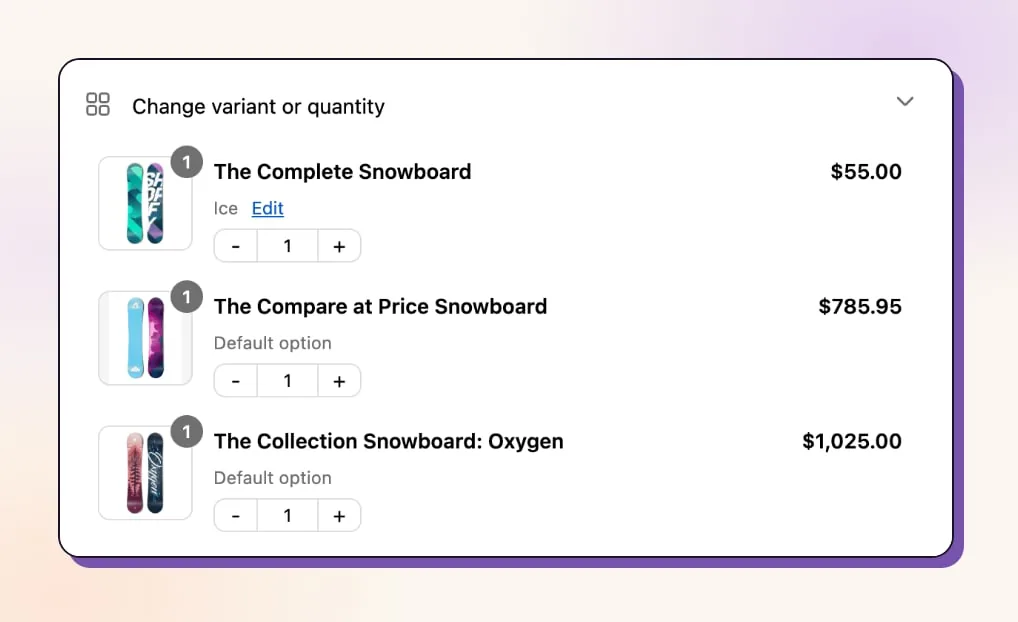
Enable the relevant customer edits. Open Order Editing → Customer edits and turn on Change variant or quantity. Select it, enable Allow modify product quantity and Allow modify product variants, then save.
-
Set the refund policy. Under the editing policy, choose No refunds, Original payment method, or Store credit. Store-credit refunds and tax recalculation are Pro-only. The no-refund option blocks value-reducing edits and removes cancellation.
-
Add the portal blocks. In Shopify admin, open Settings → Checkout. Under Configurations, click Edit beside the configuration you want to change, following Shopify’s app-block instructions. Add Revize Customer Portal and Revize Notifications to the order status page. Add Revize Order Edit Message to the thank-you page. The full sequence is in the Revize setup guide.
-
Correct the actual mistake. The customer opens Change variant or quantity, clicks Edit beside the affected item, and selects the right variant or quantity. Selecting a completely different product requires Pro.
-
Settle the result. The customer uses Pay now, Refund, or Confirm according to the new total. For an increase, Pay now redirects the customer to Shopify checkout to pay only the difference. It is not a payment link or merchant-issued invoice.
-
Handle weight errors internally. If the merchandise is correct but its weight data is suspect, do not ask the customer to edit the order again. Correct the source data your operation relies on, then verify the order, rate, and warehouse output using a controlled test.
Choose the right correction path
The right action depends on whether the error concerns merchandise, destination, calculation, or internal product data. Revize is strongest where a customer can correct the underlying order before fulfillment.
| Problem found after checkout | Corrective path | Customer settlement | Availability |
|---|---|---|---|
| Wrong size, color, or quantity | Edit the variant or quantity | Pay now, Refund, or Confirm | Free and above |
| Wrong product | Replace the product | Pay now, Refund, or Confirm | Pro |
| Wrong shipping address | Edit the destination | Pay any increase before commit | Address editing on Free; tax and shipping recalculation on Pro |
| Tax looks wrong after a supported edit | Correct the underlying order input and recalculate | Net increase or refund | Pro |
| Product weight data is wrong | Correct the internal source and verify a test order | Not a portal action | Outside the customer portal |
| Warehouse has started processing | Close editing and resolve operationally | Merchant handling | Depends on fulfillment state |
This structure keeps customer corrections tied to real actions. It also avoids turning calculated or operational data into arbitrary fields.
Install Revize: Order Editing & Upsell when the goal is to let customers correct supported line-item mistakes themselves, settle the difference on the same Shopify order, and finish before fulfillment.
Protect the order from fulfillment
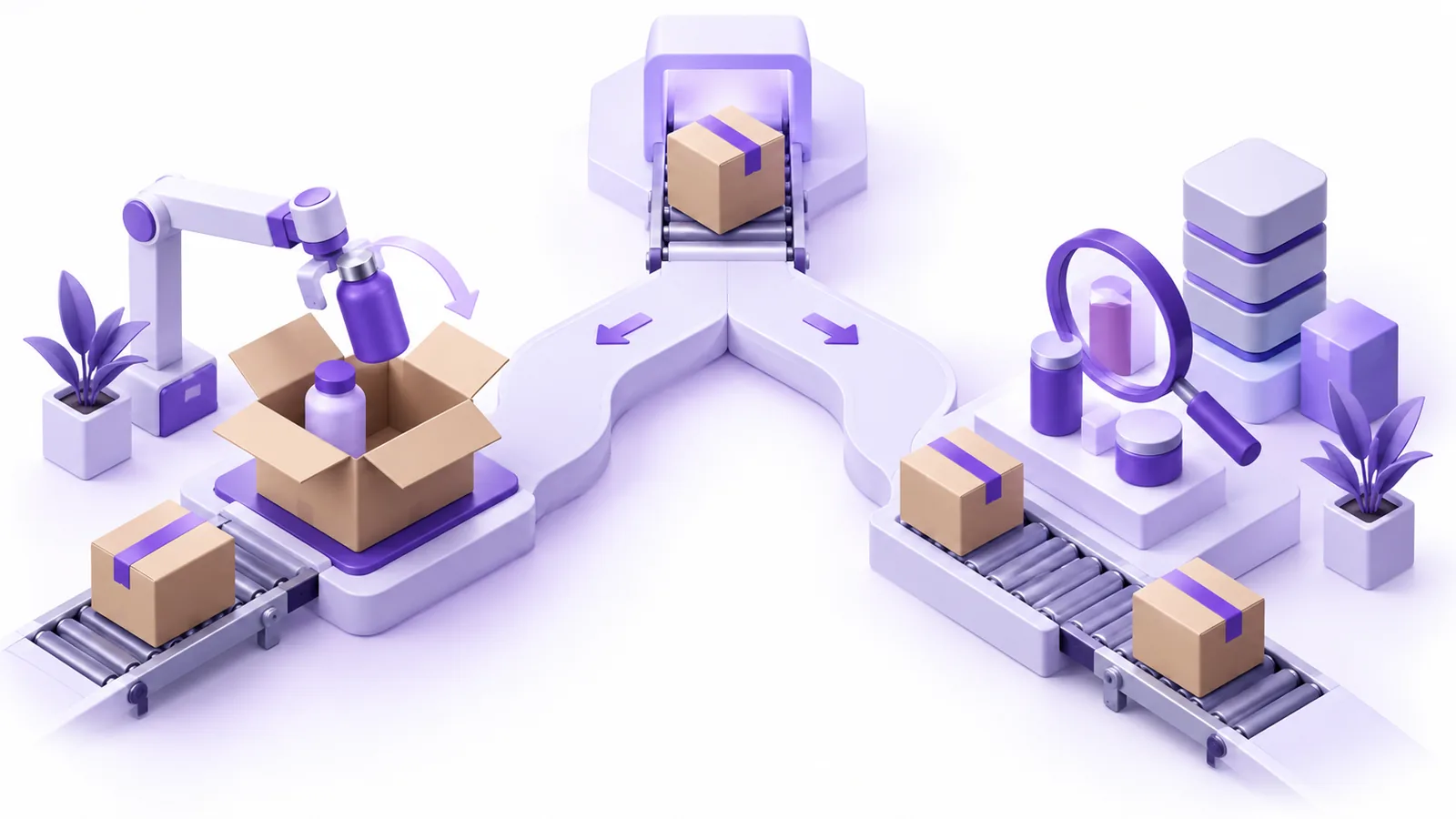
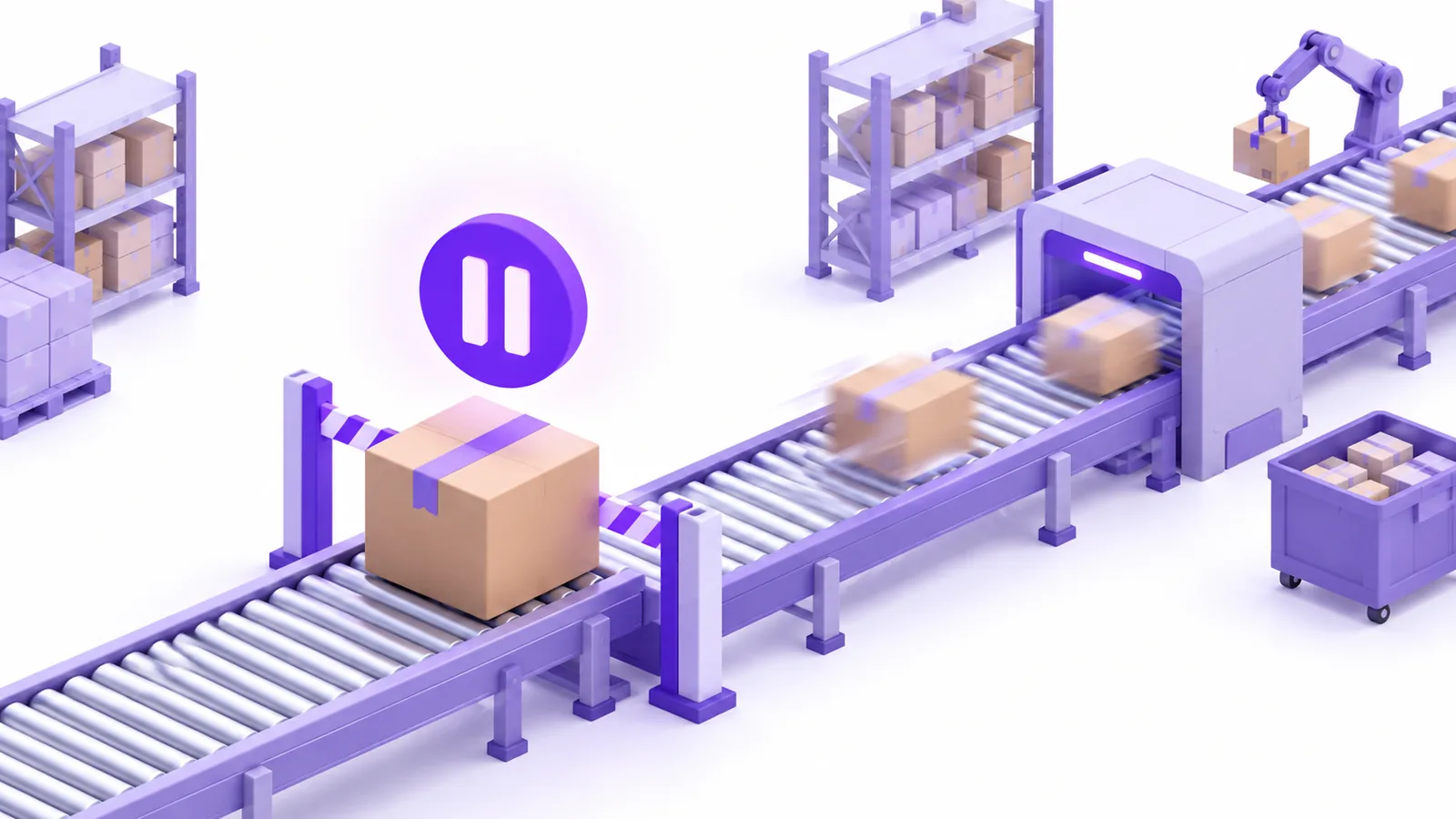
Never let the warehouse pick an order the customer is still changing. Use a Shopify fulfillment hold, manual payment capture where required, or a release-tag process matched to the fulfillment system.
A 3PL (a third-party logistics warehouse that picks and ships orders) may receive new orders quickly. Revize’s recommended order-processing mode places the order on hold during the edit window and releases it when that window closes. Systems that ignore holds may require the documented manual-capture fallback.
If the warehouse management system adds a tag such as picked or wms:processing, register the exact same tag under Settings → Order editing → Editing restrictions → Order tags. The tag closes the editing window immediately, even if time remains.
Tag matching ignores letter case, but the spelling must match. Test spelling, punctuation, and timing before relying on it. The fulfillment-hold playbook covers the broader handoff between the edit window and the pick line.
Test recalculation before launch
Use Test mode and a controlled order to verify each correction path. Tax, shipping, product data, payment, and fulfillment should be checked together rather than as separate assumptions.
Revize Test mode shows the portal only to customers carrying one of the configured test tags, and Test mode does not switch the app on: turn on App status in Revize Settings first. Changes remain real, so use test products or cancel the order afterward.
Add a configured test tag to a test customer first, then create a draft order for that customer with a test item, shipping address, and shipping rate. Revize decides whether to hold an order when it is placed, so the tag must be there before the order exists. Convert it to an order, then open More actions → View order status page, following Shopify’s order status page steps. The draft-order testing process documents this path.
Run these checks:
- Swap to a variant that leaves the final order total unchanged and verify that Confirm appears.
- Choose a more expensive variant and complete Pay now through Shopify checkout.
- Reduce the value and verify the configured refund path.
- Change an address and inspect the recalculated result on Pro.
- Confirm the fulfillment hold, release timing, and warehouse record.
- Test a suspected weight correction using the actual product and fulfillment setup.
In plain terms: do not approve the workflow because the portal looks right. Approve it when the corrected order reaches the warehouse with the expected product, totals, and release state.
What to do this week
Build one correction path, test it end to end, and only then broaden customer access. Start with the error your support team sees most often.
- Pick one variant, quantity, address, or product-change scenario.
- Set an edit window that ends before picking begins.
- Enable only the customer modules needed for that scenario.
- Configure refunds and note every Pro-gated requirement.
- Run a tagged test order through editing, settlement, and fulfillment.
- Record who owns internal catalog-weight corrections.
- Turn off Test mode only after the warehouse output matches the order.
For wider rollout guidance, use the customer self-serve order editing guide.
Frequently asked questions
Can customers edit tax on Shopify order line items?
Customers can correct supported order inputs that cause a tax recalculation on Revize Pro, but they cannot type over the tax value directly. A destination correction is one documented trigger. The revised total is shown before the edit commits, and Shopify handles any resulting charge or refund under the merchant’s configured policy.
Can customers change line item weight after purchase?
A line-item weight cannot be edited through the Revize Customer Portal. Let the customer correct the product, variant, or quantity they actually ordered. If the product is right but its weight data is wrong, correct the internal source and verify the result with a test order before fulfillment.
Does swapping a Shopify variant recalculate tax?
Revize documents tax recalculation on Pro for address, item, quantity, and shipping-method changes; a variant swap is not listed separately, so verify it on a test order. Revize first validates inventory for the customer’s shipping zone. The shopper then sees Pay now, Refund, or Confirm according to the total. Test the exact products, destination, and store configuration before treating the result as production-ready.
What happens when an edit increases the order total?
The customer sees Pay now and is redirected to Shopify checkout to pay the exact difference. The addition or upgrade does not become a separate order or merchant-issued invoice. An unpaid additional balance remains on fulfillment hold until Shopify confirms settlement, except for the documented cash-on-delivery case.
Can customers edit an order after picking starts?
Close the edit window when picking starts by having the warehouse system apply a matching restriction tag. Add that exact tag in Revize under the order-tag restrictions. Once it lands, editing closes even if the original timer has time remaining. Fulfilled orders are outside the portal’s scope.
Do third-party sales-channel orders support line-item edits?
Third-party and social sales-channel orders have a narrower documented edit set. Revize lists shipping-address changes, email or phone updates, preferred delivery dates, cancellation for eligible orders, and support contact. Product additions, removals, and swaps are not listed for those orders, so verify the intended channel before promising line-item editing.
How should I test tax and weight corrections?
In Revize Test mode, use a customer carrying a configured test tag, and apply the tag before creating the test order, including when converting a draft order. Exercise the actual variant, address, payment, hold, release, and warehouse path. For weight, confirm the corrected internal product data reaches the fulfillment output you rely on. A visual portal check alone does not validate the operational result.