
On this page
How to Refund on Shopify
To refund a customer on Shopify:
- Shopify Admin → Orders
- Click the order you want to refund
- Click “Refund” button
- Select items to refund OR enter custom amount
- Choose whether to restock items
- Click “Refund $XX.XX”
✔️ Done! The refund processes immediately in Shopify. The customer receives their money in 3-10 business days depending on their bank.
Table of Contents
- How to Issue a Full Refund
- How to Issue a Partial Refund
- How to Refund Shipping
- How to Refund Without Restocking
- How Long Do Shopify Refunds Take?
- How Refunds Appear in Reports & Payouts
- Troubleshooting Refund Issues
- Best Practices
- FAQ
How to Issue a Full Refund on Shopify
A full refund returns the entire order amount to the customer.
Step-by-Step Instructions
Step 1: Navigate to the Order
- Log in to your Shopify admin
- Click Orders in the left sidebar
- Find and click the order to refund
Step 2: Open Refund Screen
- Click the “Refund” button (top right)
- Wait for refund interface to load
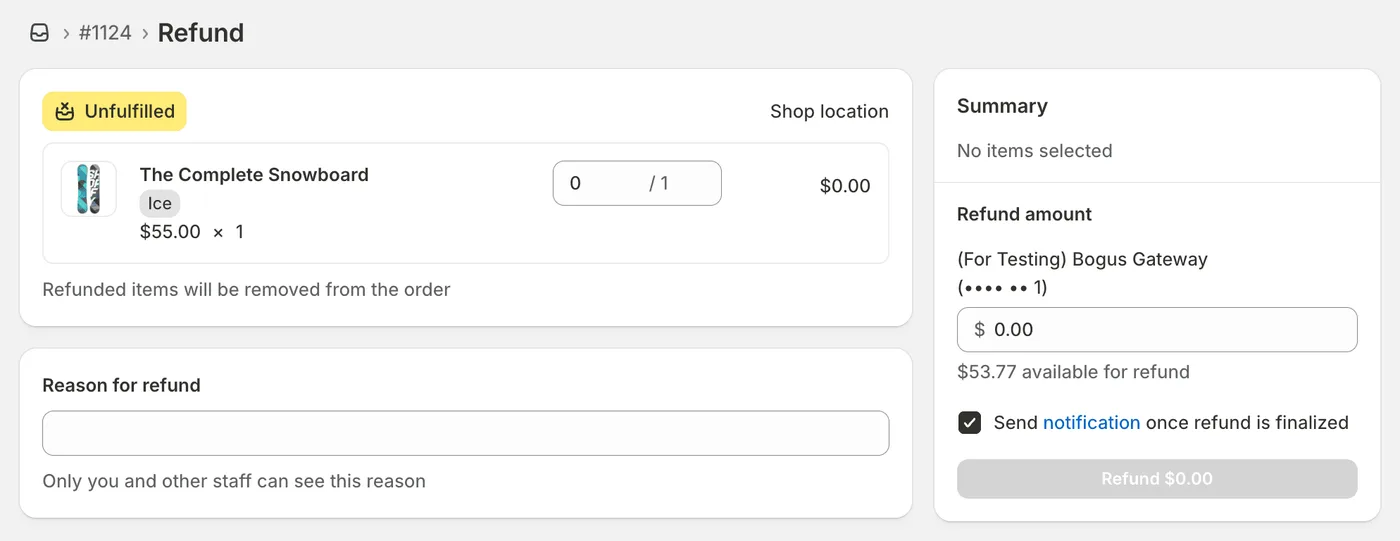
Step 3: Select Items
- Quantities auto-populate for full refund
- Verify the refund amount = order total
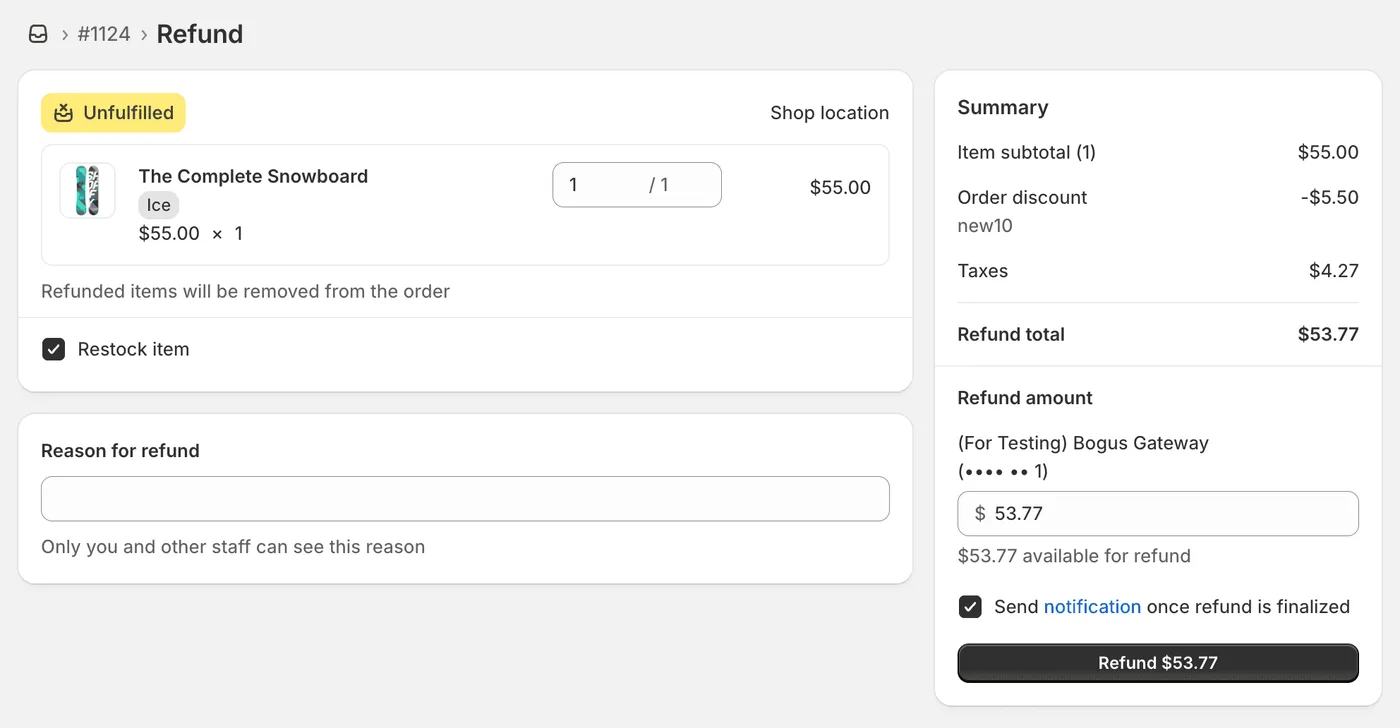
Step 4: Restock Decision
✔️ Check “Restock items” if:
- Items being returned
- Items are resellable
❌ Uncheck if:
- Items damaged
- Customer keeping items
- Custom/made-to-order items
Step 5: Add Details
- Select refund reason from dropdown
- Keep “Send notification” checked (recommended)
- Add internal notes if needed
Step 6: Process
- Review all details
- Click “Refund $XXX.XX”
- Confirmation appears
✔️ Refund complete!
How to Issue a Partial Refund on Shopify
A partial refund returns only part of the order amount.
When to Use Partial Refunds
- Customer returns some items (not all)
- Compensation for issues (late delivery, minor damage)
- Price adjustments or corrections
- Goodwill gestures
Quick Steps
- Open order → Click “Refund”
- Adjust quantities (refund specific items) OR enter custom amount
- Choose restock option
- Click “Refund $XX.XX”
Example Scenarios
Scenario 1: Single Item Return
- Order: $200 (3 items: $80 + $60 + $60)
- Return: $60 item only
- Action: Set that item quantity to 1, others to 0
- Result: $60 refund
Scenario 2: Compensation
- Order: $150 total
- Issue: Late delivery
- Action: Enter $15 custom amount (leave quantities at 0)
- Result: $15 refund, customer keeps everything
For more complex partial refund scenarios, check out our complete guide on how to do partial refunds in Shopify.
How to Refund Shipping on Shopify
Option 1: Refund Shipping with Full Order
- Follow full refund steps
- In “Refund shipping” section, enter shipping amount
- Shopify adds to total refund
- Process
Example:
- Items: $100 + Shipping: $15 + Tax: $10
- Total refund: $125
Option 2: Refund Shipping Only
- Open order → Click “Refund”
- Set all item quantities to 0
- Enter shipping cost in “Refund amount” field
- Add reason: “Shipping refund”
- Process
Result: Customer gets shipping refund, keeps items.
When to Refund Shipping
✔️ Refund shipping when:
- Order cancelled before shipment
- Package lost by carrier
- Significant delays
- Overcharged for shipping
❌ Don’t refund when:
- Successfully delivered on time
- Customer changed mind after delivery
- Policy states “shipping non-refundable”
How to Refund Without Restocking Items
When you need this:
- Item damaged (can’t resell)
- Customer keeps item (compensation)
- Custom/personalized items
- Perishable items
Steps
- Follow normal refund process
- Uncheck “Restock items” checkbox
- Process refund
Result:
- ✔️ Customer gets money back
- ❌ Inventory stays the same
How Long Do Shopify Refunds Take?
Timeline Breakdown
| Stage | Timeframe | What Happens |
|---|---|---|
| In Shopify | Instant | Processes immediately |
| Pending | 1-2 business days | Shows as “Pending” in reports |
| Bank Processing | 3-10 business days | Bank processes refund |
| Customer Receives | 3-10 business days | Funds appear in account |
By Payment Method
| Payment Method | Customer Receives In |
|---|---|
| Shopify Payments | 3-10 business days |
| Credit Card | 5-10 business days |
| Debit Card | 3-7 business days |
| PayPal | 3-5 business days |
| Bank Transfer | 5-10 business days |
| Apple/Google Pay | 3-7 business days |
What to Tell Customers
Your refund of $XX.XX has been processed and will appear in your account within 5-10 business days, depending on your bank. For context, shipping-address changes are the #1 post-purchase edit, making up 30.2% of all edited orders (Revize, 2026), though refund timing depends entirely on your bank’s own processing schedule. If you don’t see it after 10 business days, please contact your bank directly.
How Refunds Appear in Financial Reports and Payouts
The Key Difference
Critical: Refunds are recorded in reports when you initiate them - NOT when banks process them.
This means:
- Sales reports update immediately
- Funds leave your account 1-10 days later
- Can cause reconciliation confusion
Example Timeline
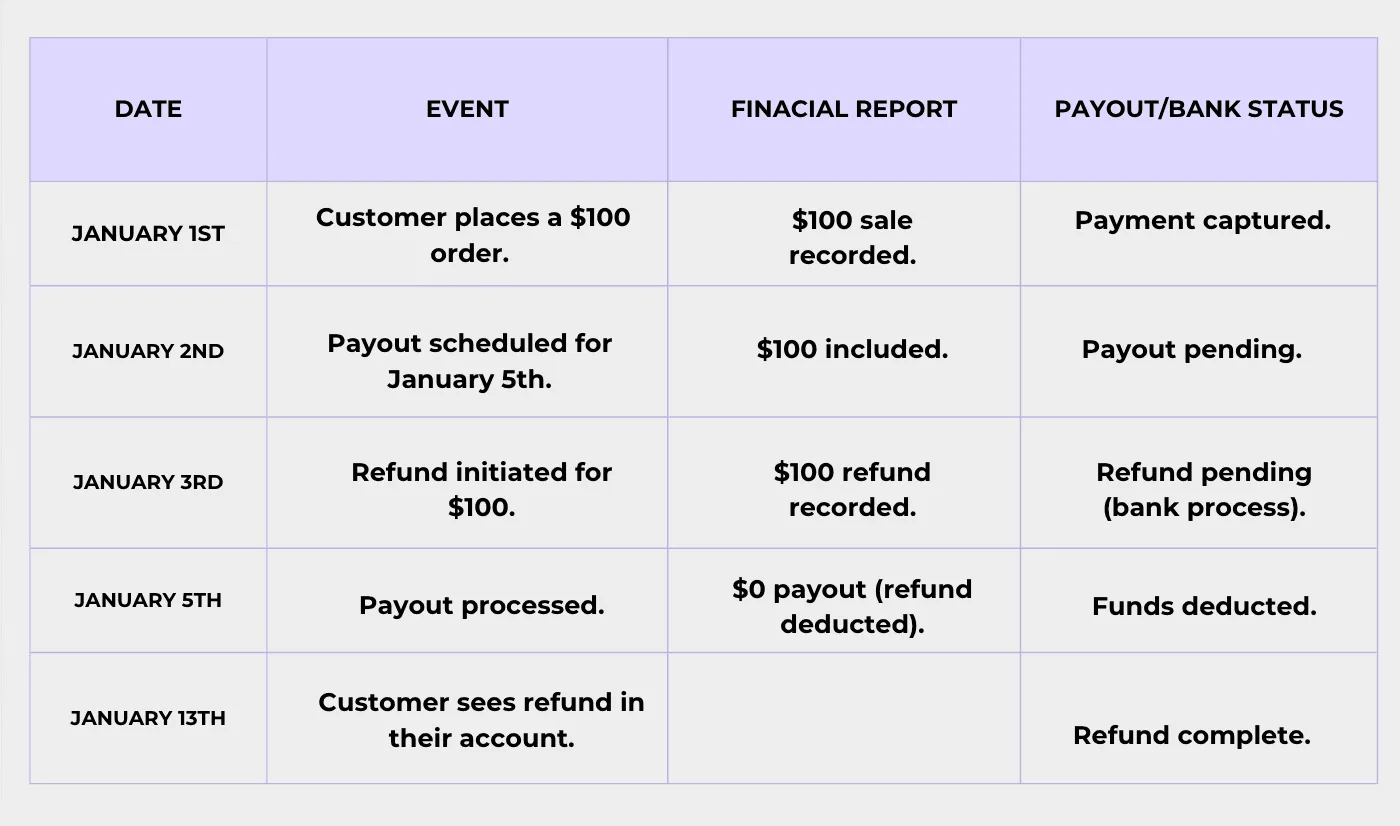
Impact on Payouts
If using Shopify Payments:
- Refund automatically deducted from next payout
- Insufficient balance = negative balance
- Negative offset by future sales
Upcoming payout: $500
Issue refunds: $700
Result: -$200 balance
Next day sales: $300
New balance: $100
View Refunds in Reports
- Analytics → Reports
- Click Finances → Payments
- Refunds show as -$XX.XX
Export to CSV for accounting
Reconciling Accounts
Tip: Use “Payout” report instead of “Sales” report - matches bank timing better.
Troubleshooting Refund Issues
Issue #1: Refund Button Greyed Out
Causes:
- Payment not captured
- Order not fulfilled
- Already fully refunded
Solutions:
- Wait 5-10 minutes after order
- Fulfill order first
- Check previous refunds in timeline
Issue #2: Cannot Refund More Than Order Total
Error: “Refund amount exceeds order total”
Solution:
- Check original total: $150
- Check previous refunds: $50
- Maximum remaining: $100
Issue #3: Payment Gateway Error
Solutions:
- Check Settings → Payments
- Wait 15-30 minutes, retry
- Contact Shopify Support if persists
Issue #4: Customer Says No Refund Received
Your steps:
- Verify in Shopify: Check order timeline for refund
- Calculate timeline: Refund date + 10 business days
- Check payment method: Card still active?
- Provide proof: Email refund confirmation
- Bank investigation: Customer contacts their bank
Response to customer:
“Your refund of $XX.XX was processed on [Date] and should arrive within 5-10 business days. Please contact your bank with reference number [XXXXX] if not received after 10 days.”
Issue #5: Inventory Not Restocked
Cause: “Restock items” was unchecked
Solution:
- Go to Products → Find product
- Click “Adjust inventory”
- Add quantity back manually
- Note: “Restocking from refund #XXXX”
Best Practices for Managing Refunds
1. Clear Refund Policy
Include:
- Refund window (30 days, 60 days, etc.)
- What’s refundable/non-refundable
- Condition requirements
- Shipping cost policy
- How to request refunds
- Processing timeline
Display on:
- Footer (all pages)
- Product pages
- Checkout
- Confirmation emails
2. Respond Quickly
Target times:
- Respond to request: Within 4 hours
- Approval decision: Within 24 hours
- Process refund: Within 24 hours
Why: Fast refunds = positive reviews, slow = negative reviews + chargebacks
3. Track Refund Reasons
Monitor monthly:
- Wrong size → Add size guides
- Defective → Quality control issue
- Not as described → Better photos
- Shipping slow → Upgrade options
Reduce refunds = increase profit
4. Communicate Timelines
Always include in refund emails:
“Refund processed. Will appear in 5-10 business days. Contact bank if not received after 10 days.”
5. Consider Partial Refunds for Retention
Instead of full refund:
- Late delivery? “Keep it + 20% refund”
- Minor defect? “Keep it + 30% refund”
- Wrong item? “Keep as gift + send correct one”
Result: Customer happy, you keep most revenue
6. Offer Store Credit
Alternative offer:
- Refund: $100 cash
- OR Store credit: $110-115
Benefits:
- Money stays in business
- Customer gets more value
- Higher repeat purchase rate
7. Document for Chargebacks
Save:
- Refund request emails
- Photos of damage
- Return tracking
- Refund confirmations
Add to order notes and tags
8. Monitor Refund Rate
Refund Rate = (Total Refunds / Total Sales) × 100Healthy rates:
- Fashion: 15-20%
- Electronics: 8-12%
- Home goods: 10-15%
- Beauty: 5-10%
FAQ: How to Refund on Shopify
How do I refund someone on Shopify?
Go to Orders → Click order → Click “Refund” → Select items/amount → Click “Refund $XX.XX”. Customer receives refund in 3-10 business days.
How do I issue a refund on Shopify?
Same process as above. “Issue refund” and “process refund” mean the same thing. See full instructions above.
How do I refund a customer on Shopify?
Follow the step-by-step guide above. Shopify automatically refunds to the customer’s original payment method.
How do I refund an order on Shopify?
Open the order in your Shopify admin → Click “Refund” button → Select refund amount → Process.
How do I process a refund on Shopify?
After clicking “Refund” and entering details, click the final “Refund $XX.XX” button to process immediately.
How do I give a refund on Shopify?
Same as processing a refund. See detailed steps in the full refund section above.
How do I do a refund on Shopify?
Follow the quick steps at the top of this guide or see the detailed walkthrough above.
Can I do partial refunds on Shopify?
Yes! You can refund any amount from $0.01 up to the order total. See the partial refund section above or read our detailed partial refund guide.
How long do Shopify refunds take?
Processing: Instant in Shopify
Customer receives: 3-10 business days (varies by payment method)
See complete timeline breakdown above.
Can customers request refunds themselves?
Not by default. Customers must contact you. However, you can add self-service refund apps like Revize (see automation section below).
Do Shopify refunds include shipping?
Only if you include shipping in the refund amount. You choose whether to refund shipping. See shipping refund guide above.
Can I refund without restocking inventory?
Yes! Uncheck the “Restock items” checkbox when processing. See refund without restocking section above.
Can I refund more than the order total?
No. Maximum refund = original order amount. Shopify won’t let you refund more than the customer paid.
Does Shopify refund transaction fees?
Full refunds: Yes, Shopify refunds fees
Partial refunds: No, you don’t get fees back
Example:
- Order: $100 (paid $3 in fees)
- Full refund $100 → Get $3 fees back ✔️
- Partial refund $50 → Still paid $3 fees ❌
What if the refund button is greyed out?
Check if:
- Payment is fully captured (wait 5-10 min)
- Order is fulfilled
- Order isn’t already fully refunded
See troubleshooting section above for solutions.
How do I refund only shipping on Shopify?
Set all item quantities to 0, then enter shipping amount in “Refund amount” field. See shipping refund guide above.
Can I issue multiple partial refunds on one order?
Yes! You can process multiple refunds on the same order. Total cannot exceed original order amount.
Automate Your Refunds with Revize
Managing refunds manually is time-consuming and error-prone. Revize streamlines your entire post-purchase process.
Revize Features
Automated Refunds:
- Issue refunds as store credits or original payment method
- Set auto-approval rules
- Reduce processing time by 70%
Self-Service Cancellations:
- Customers cancel orders themselves
- Auto-refund based on your rules
- Reduces support tickets by 40-60%
Order Editing:
- Customers update shipping addresses
- Swap products, change variants/quantities
- Add items before shipping
Upsell Opportunities:
- Allow customers to add products to orders
- Increase AOV post-purchase
- No extra shipping cost messaging
Benefits:
- ✔️ 40-60% fewer support tickets
- ✔️ 70% faster refund processing
- ✔️ Happier customers (24/7 self-service)
- ✔️ More time for business growth
- ✔️ Reduced manual errors
Conclusion
Managing refunds on Shopify doesn’t have to be complicated. The key steps:
- Navigate to Orders → Select order
- Click “Refund” button
- Choose refund amount and restock option
- Process immediately
Remember:
- ✔️ Refunds process instantly in Shopify
- ✔️ Customers receive money in 3-10 business days
- ✔️ You control shipping refunds and restocking
- ✔️ Refunds appear in reports immediately
- ✔️ Funds deducted from your next payout
Best practices:
- Respond quickly to refund requests
- Communicate clear timelines
- Track refund reasons to reduce future refunds
- Consider partial refunds and store credit for retention
- Document everything for chargeback protection
Refunds are an opportunity to build trust and loyalty. Handle them well, and customers will return.
Need help automating refunds and order management? Revize offers self-service refunds, automated approvals, and complete post-purchase workflows. Let customers handle refunds themselves while you focus on growth.
Last updated: October 2025
Updated August 2026. Revize is a Shopify app for customer self-serve post-purchase order editing, letting shoppers change the shipping address, swap a variant or product, cancel, and get a refund or store credit before fulfillment, without a support ticket. Learn more about letting customers edit their own Shopify orders, or find Revize on the Shopify App Store.