Shopify에서 결제 후 고객이 수정할 수 있는 상품을 제한하는 방법
Shopify에서 결제 후 고객이 수정할 수 있는 상품을 제한하는 방법
Shopify에서 결제 후 고객이 수정할 수 있는 상품을 제한하는 방법

Quick answer: In Revize, add one product tag (for example final-sale) under Settings → Order edit restrictions, then apply that tag to products in Shopify. Tagged items lose 3 actions: quantity change, variant switch and removal. Every other line in the order stays customer-editable, so sizes still swap without a support ticket.
To restrict which products customers can edit after checkout on Shopify, you lock individual lines, not whole orders, and then decide which actions stay open on everything else. This guide follows one order through the minutes after checkout and shows where each rule applies.
Why restrict which products customers can edit after checkout
Customer edits are common and fast, and a small set of products should never change once they are paid for. Across 10 million+ Shopify orders, about 1 in 19 (5.2%) is edited after checkout (Revize, 2026), according to our Shopify order editing statistics.
At high volume that becomes a steady daily stream of change requests. Most should go straight through. A few should not: the monogrammed item already queued for engraving, the final-sale piece priced on the assumption it stays sold, the bundle whose components were priced as a set.
The goal isn't fewer edits. It's the right edits on the right lines.

What happens to a three-line order in the first minutes
Without product rules, every line on an order is equally open to change. With them, the customer fixes what they need and the protected lines stay as purchased.
Take an order with three lines: a monogrammed leather wallet, a clearance jacket marked final sale, and a T-shirt in medium. Checkout completes. In Revize's dataset, the median post-checkout edit lands 4.6 minutes after the order is placed (Revize, 2026), so a few minutes later the customer is back on the order status page. The T-shirt should have been a large.
With no product rules, the customer can fix the size. They can also remove the final-sale jacket and take a refund, or drop the wallet after the engraving file has gone out. Nothing on the screen tells them which changes the store actually allows.
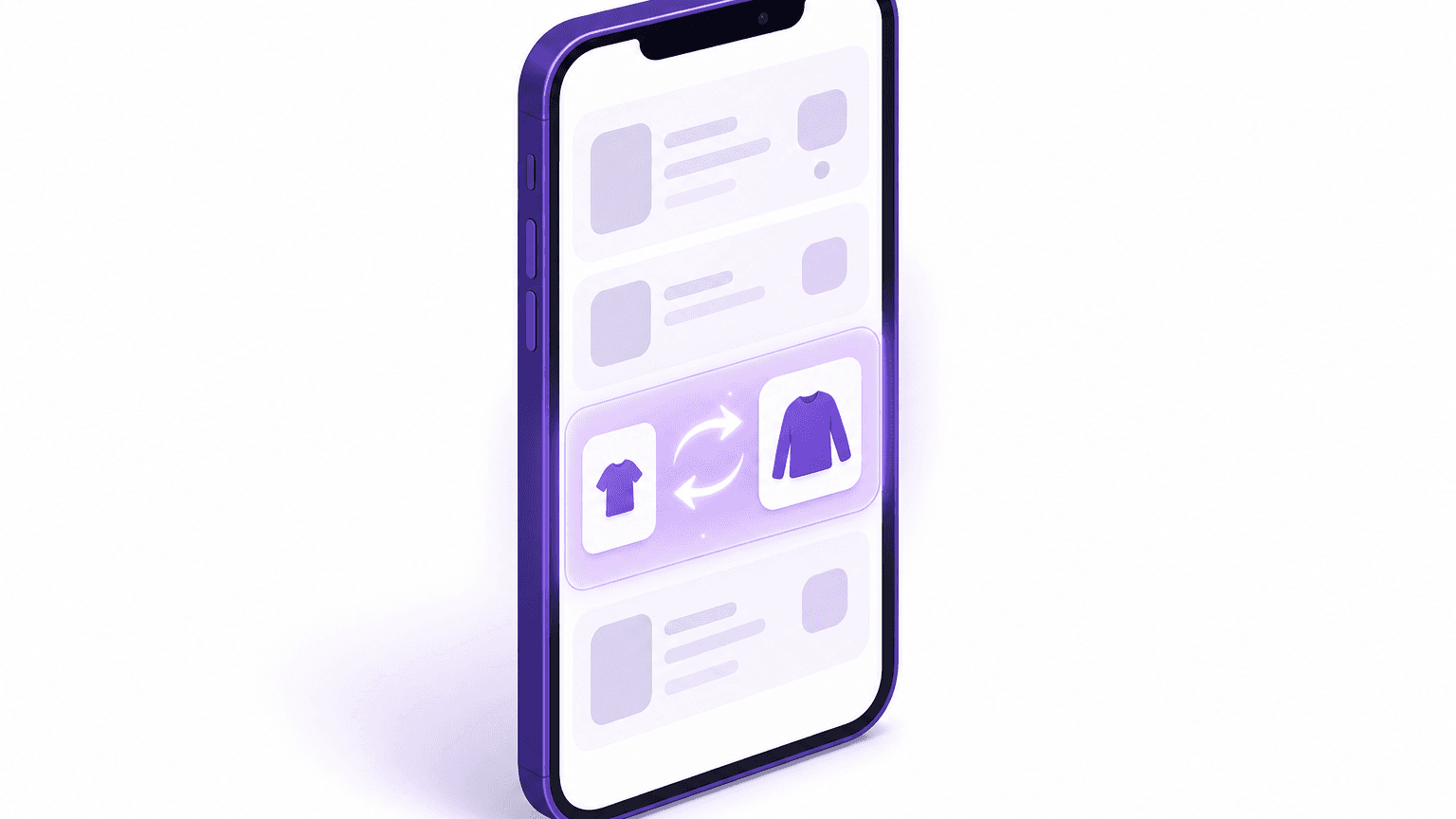
With product rules, the same visit goes differently. The T-shirt swaps from medium to large after a live stock check. The wallet and the jacket stay exactly as bought. No ticket gets opened, and the warehouse receives what the store meant to ship.
That is the whole design problem: decide per product which lines are open, then decide per action which changes are allowed on the open ones. Line-level changes are a meaningful share of edits: quantity changes account for 9.0% of edited orders and product additions another 8.8% (Revize, 2026, order editing statistics).
What Shopify does natively, and where it stops
Shopify provides the order editing engine and its hard limits. The rules about what a customer may change come from the app you put on top.
Shopify's considerations for editing orders set the boundaries any edit has to respect:
Only unfulfilled items can be edited. Fulfilled items can't be removed and their quantity can't be adjusted.
Some orders can't be edited at all, including orders paid with Shop Pay Installments.
Order-level discounts, discount codes, and automatic and script discounts can't be edited in the admin; only manual line-item discounts can.
Editing an order in the admin doesn't recalculate shipping methods or rates.
Apps edit orders through the Shopify order editing API, which opens an edit with orderEditBegin and applies it with orderEditCommit. The API covers orders placed after January 1, 2019, and only unfulfilled line items.
In plain terms: Shopify decides what can physically change on an order. Your app decides what a customer is allowed to change. Product-level edit rules live in that second layer.
How to restrict which products customers can edit in Revize
Revize locks individual products with product tags and whole orders with order tags, both entered under Settings → Order edit restrictions. Revize is a Shopify app for customer self-serve post-purchase order editing, letting shoppers change the shipping address, swap a variant or product, cancel, and get a refund or store credit before fulfillment, without a support ticket. The steps below follow the Revize guide to order edit restrictions.
Choose readable tag names. Use
final-salerather thanfs, andpersonalizedrather thanp13n. Keep a written list so your team knows what each tag does.Enter the tags in Revize. Open Settings in the Revize sidebar and scroll to Order edit restrictions. Put line-level locks under Product tags and whole-order locks under Order tags, then click Save. Blank fields mean everything stays editable.
Tag the products in Shopify. In the Shopify admin, go to Products, open a product and add your tag in its Tags field (Shopify product tags). Revize reads it automatically.
Know what the lock covers. A tagged product can't have its quantity changed, can't be switched to another size, colour or variant, and can't be removed, in any order. Every other item in the same order stays editable, which the docs describe as expected behaviour.
Lock whole orders where the product isn't the issue. Order tags such as
high-risk,wholesaleorrushblock every edit on that order.Automate the tagging. Shopify Flow can apply the same tags on business conditions. The docs give three patterns: tag clearance products
final-sale, tag orders over $500high-risk, and tag ordersno-edittwo hours after they are placed.Test on a draft order. Shopify draft orders are the documented safe test path (Revize FAQ). Build one with a tagged and an untagged product, open its order status page and try editing both lines.
Warning: Tag matching is exact. The tag in Revize and the tag on the Shopify product or order must be identical for the block to work. If a tagged item is still editable, check the spelling first, then confirm you clicked Save.
If you aren't running it yet, install Revize: Order Editing & Upsell from the Shopify App Store. The documented setup time is about five minutes, and the tag lists are the first thing to fill in. For the wider setup, see how to let customers edit their own Shopify orders.
Control the action, not just the product
A product tag locks all three actions on one line. To allow some actions and block others, combine tags with the edit toggles, the refund policy and module visibility controls.
Allow size swaps but turn off quantity changes
Under Order Editing → Customer edit options, Edit product details has two independent checkboxes, one for quantity changes and one for variant changes (Revize product and quantity edits). Leave variant changes on and quantity changes off, and customers can fix a size without changing how many they bought. This setting is store-wide, not per product.
Block downgrades and refund-driven removals
The refund policy at Order Editing → Refund options is the strongest action-level control. Under No refund, swaps are still allowed, but any change that lowers the total is blocked with an on-screen message unless the customer adds value back (Revize payments and refunds). The trade-off: the cancel button disappears too. A separate minimum order quantity floor stops an order being reduced below a set total item count; the default is 1, and a custom value requires contacting Revize (Revize advanced settings).
Hide modules store-wide or on specific orders
Feature Visibility Rules at Settings → Advanced show or hide modules such as Add / Replace products, Edit product details or Cancel order for the whole store (Revize changelog). The Hide modules action in the Revize rules engine, at Order Editing → Rules on Pro and above, hides modules such as Replace products or Change variant or quantity only on orders that match a rule, or disables editing entirely.
The rules engine has no product or SKU condition. The documented workaround is to tag the order through Shopify Flow and match that order tag. Rules apply only to orders placed after the rule goes live.
Narrow what customers can switch to
Variant swaps check live inventory against the location that would actually ship to the customer's address, and out-of-stock variants can't be selected. Replacing a line with a different product, and adding products, are Pro-plan capabilities per the Revize billing page. A curated add-products catalogue or blocks based on custom line-item properties are configured by Revize support through hello@revize.app.
In plain terms: tags decide which lines move, toggles and refund policy decide how they move, and visibility controls decide which options customers see.
The product-type decision table you can copy
Most catalogues need three or four product tags, one order tag and a deliberate refund policy.
Product type | Recommended rule | How to set it in Revize | Why |
|---|---|---|---|
Personalized or monogrammed | Lock the line | Product tag | Production may start straight away |
Custom or made-to-order | Lock the line | Product tag | Materials are committed per order |
Final sale or clearance | Lock the line | Product tag | Priced with no return path |
Bundle components | Lock the line | Product tag | Priced as a set |
Free gifts | Already locked | Nothing to configure | Portal shows a standing notice |
Sized apparel and footwear | Open, variant swaps on | Leave untagged | Swaps keep the sale; stock checked live |
Consumables and refills | Open, quantity on | Leave untagged | Increases route to Pay now |
Digital products | Your choice | Settings → Digital products | Disable for All, Allow for All, or Allow by Tags |
Wholesale or B2B orders | Lock the order | Order tag | Negotiated terms and quantities |
Free gifts are handled for you: the portal ships a "Free gifts can't be edited" notification (Revize customer portal).
The open rows matter as much as the locked ones. Every product left editable is a change the customer finishes alone, with the payment or refund settled by Shopify on the same order. Every product that should be locked but isn't tagged becomes a staff conversation after the fact. That is the legacy workflow, where the team absorbs the work. Customer self-serve with clear rules is the modern one, where the work disappears. For wholesale specifics, see our guide to editing Shopify B2B orders after checkout.

Edge cases that break product edit rules
Most failures come from promotions, fulfillment timing and order types with narrower edit sets, not from the tags themselves.
Discounted and BOGO lines. On Pro, Revize recalculates the merchant's existing store discounts when an order changes, including percentage, fixed-amount, Buy X Get Y and automatic discounts (Revize discount handling). If a customer removes items and falls below a threshold, the discount adjusts or drops. If a promo line should never move, tag the product.
Items already being picked. Which setting protects the pick depends on your edit window:
With a time-based or scheduled window, the recommended Hold orders mode at Order Editing → Order processing puts the order on a Shopify fulfillment hold at creation and lifts it when the window closes (order processing modes).
With the store-wide Until fulfillment window, Revize does not place a hold (Revize edit window).
For a per-order hold, the rules engine's Hold fulfillment action (Pro and above) holds matched orders while they stay editable. It can't be combined with the rule's own Until fulfilled deadline mode.
Whichever you use, if your WMS writes a tag such as picked, register it under Order edit restrictions → Order tags and that order's window closes immediately. Our guide to holding fulfillment during the edit window covers the 3PL (third-party logistics warehouse) side.
Partially fulfilled orders. Shopify only lets unfulfilled items change, so shipped lines are out of reach whatever your tags say. Confirm on a test order how your setup presents the remaining lines.
Orders from other sales channels. For channels such as TikTok Shop or Facebook & Instagram, the documented edit set is narrower: address, email or phone, delivery date, cancelling eligible orders and contacting support (Revize advanced settings). Line-item swaps are not on that list.
What customers see on a locked line. The docs don't describe the locked-line display beyond the free-gift notice. Check it on a draft order, then edit the customer-facing text in Revize's Translations area to make your final-sale policy clear.
What to do this week
Lock the few products that must never change, open everything else, and prove it on one test order.
List your product types against the table above and pick three or four product tags.
Enter them under Settings → Order edit restrictions → Product tags in Revize and click Save.
Tag the matching products in the Shopify admin, or set up a Shopify Flow to tag them.
Choose your refund policy on purpose: original payment, store credit (a Pro feature), or No refund if downgrades are the risk. Our store credit vs refund guide helps with the choice.
Register your warehouse's pick tag as a blocking order tag.
Run the draft-order test with one tagged and one untagged product, and edit both.
With those six steps done, you have restricted which products customers can edit after checkout on Shopify, and every other line stays open to self-serve changes.
Frequently Asked Questions
Can customers edit their own Shopify order after checkout?
Yes, with an app such as Revize, on the order status page they already have. Opening the order status link from the confirmation email or SMS gives view-and-edit access for 3 weeks in the same browser (Revize customer portal). After that, the customer verifies with email or phone plus order number, their Shopify customer account, or a fresh access link.
How do I stop customers from editing personalized or custom products on Shopify?
Tag those products with a word like custom and add the same tag to Revize's Product tags list. Tagging personalized products when you create them keeps anything from slipping through. If personalization is captured as a line-item property rather than a separate product, Revize support can set up a block based on that property.
Can I let customers change size but not remove an item?
Yes, but only as a store-wide trade-off: keep variant changes on and choose the No refund policy. Even-price swaps still work, but any edit that lowers the total is blocked unless the customer adds value back, so swaps to a cheaper variant are blocked too, and the cancel button disappears on every order. To protect only specific items, tag them instead: a product tag locks that line and leaves the rest of the order editable. Refund policy changes are forward-only: orders already mid-edit keep the policy that was active when the customer started (Revize payments and refunds).
Can I limit which products customers can swap to?
Partly: out-of-stock variants are always blocked, and swapping to a different product can be hidden. Stock is checked per shipping zone, so a variant held only in a warehouse that can't ship to the customer won't show. To hide replacement on some orders rather than all, match them with a rule and use the Hide modules action (Pro and above).
What happens to a discount if a customer edits a discounted item?
On Pro, Revize re-runs the store's discount against the new cart and tells the customer if their own edit invalidates it. A code must still be active, unexpired, within usage limits and valid for the products in the order. Merchants can also block discount application on specific orders by tag (Revize discount handling).
How do I bulk-tag products to restrict editing?
Use bulk editing in the Shopify admin to add the tag to many products at once. Shopify allows up to 250 tags per product, each up to 255 characters, so a restriction tag won't crowd out merchandising tags (Shopify product tags). For ongoing coverage, a Shopify Flow that tags new clearance products removes the need to remember.
Can bundles or subscription items be edited after purchase?
Subscription orders can be edited for the current delivery only, and bundle components can be locked with a product tag. Revize changes the current Shopify order but not the subscription app's contract, so ongoing changes belong in the subscription app's portal (Revize subscriptions and pre-orders). Revize support enables subscription and pre-order editing.
Related Articles
How to Let Customers Edit Their Own Orders on Shopify (2026)
Shopify Fulfillment Holds for Order Edits: Beat Your 3PL to the Pick (2026)
Store Credit vs Refund on Shopify: 7 Rules for Plus Operators (2026)
Shopify B2B Order Editing: How to Fix Wholesale Orders After Checkout (2026)
Shopify Order Editing Statistics (2026): 25+ Data Points from 10M+ Orders
Quick answer: In Revize, add one product tag (for example final-sale) under Settings → Order edit restrictions, then apply that tag to products in Shopify. Tagged items lose 3 actions: quantity change, variant switch and removal. Every other line in the order stays customer-editable, so sizes still swap without a support ticket.
To restrict which products customers can edit after checkout on Shopify, you lock individual lines, not whole orders, and then decide which actions stay open on everything else. This guide follows one order through the minutes after checkout and shows where each rule applies.
Why restrict which products customers can edit after checkout
Customer edits are common and fast, and a small set of products should never change once they are paid for. Across 10 million+ Shopify orders, about 1 in 19 (5.2%) is edited after checkout (Revize, 2026), according to our Shopify order editing statistics.
At high volume that becomes a steady daily stream of change requests. Most should go straight through. A few should not: the monogrammed item already queued for engraving, the final-sale piece priced on the assumption it stays sold, the bundle whose components were priced as a set.
The goal isn't fewer edits. It's the right edits on the right lines.
What happens to a three-line order in the first minutes
Without product rules, every line on an order is equally open to change. With them, the customer fixes what they need and the protected lines stay as purchased.
Take an order with three lines: a monogrammed leather wallet, a clearance jacket marked final sale, and a T-shirt in medium. Checkout completes. In Revize's dataset, the median post-checkout edit lands 4.6 minutes after the order is placed (Revize, 2026), so a few minutes later the customer is back on the order status page. The T-shirt should have been a large.
With no product rules, the customer can fix the size. They can also remove the final-sale jacket and take a refund, or drop the wallet after the engraving file has gone out. Nothing on the screen tells them which changes the store actually allows.
With product rules, the same visit goes differently. The T-shirt swaps from medium to large after a live stock check. The wallet and the jacket stay exactly as bought. No ticket gets opened, and the warehouse receives what the store meant to ship.
That is the whole design problem: decide per product which lines are open, then decide per action which changes are allowed on the open ones. Line-level changes are a meaningful share of edits: quantity changes account for 9.0% of edited orders and product additions another 8.8% (Revize, 2026, order editing statistics).
What Shopify does natively, and where it stops
Shopify provides the order editing engine and its hard limits. The rules about what a customer may change come from the app you put on top.
Shopify's considerations for editing orders set the boundaries any edit has to respect:
Only unfulfilled items can be edited. Fulfilled items can't be removed and their quantity can't be adjusted.
Some orders can't be edited at all, including orders paid with Shop Pay Installments.
Order-level discounts, discount codes, and automatic and script discounts can't be edited in the admin; only manual line-item discounts can.
Editing an order in the admin doesn't recalculate shipping methods or rates.
Apps edit orders through the Shopify order editing API, which opens an edit with orderEditBegin and applies it with orderEditCommit. The API covers orders placed after January 1, 2019, and only unfulfilled line items.
In plain terms: Shopify decides what can physically change on an order. Your app decides what a customer is allowed to change. Product-level edit rules live in that second layer.
How to restrict which products customers can edit in Revize
Revize locks individual products with product tags and whole orders with order tags, both entered under Settings → Order edit restrictions. Revize is a Shopify app for customer self-serve post-purchase order editing, letting shoppers change the shipping address, swap a variant or product, cancel, and get a refund or store credit before fulfillment, without a support ticket. The steps below follow the Revize guide to order edit restrictions.
Choose readable tag names. Use
final-salerather thanfs, andpersonalizedrather thanp13n. Keep a written list so your team knows what each tag does.Enter the tags in Revize. Open Settings in the Revize sidebar and scroll to Order edit restrictions. Put line-level locks under Product tags and whole-order locks under Order tags, then click Save. Blank fields mean everything stays editable.
Tag the products in Shopify. In the Shopify admin, go to Products, open a product and add your tag in its Tags field (Shopify product tags). Revize reads it automatically.
Know what the lock covers. A tagged product can't have its quantity changed, can't be switched to another size, colour or variant, and can't be removed, in any order. Every other item in the same order stays editable, which the docs describe as expected behaviour.
Lock whole orders where the product isn't the issue. Order tags such as
high-risk,wholesaleorrushblock every edit on that order.Automate the tagging. Shopify Flow can apply the same tags on business conditions. The docs give three patterns: tag clearance products
final-sale, tag orders over $500high-risk, and tag ordersno-edittwo hours after they are placed.Test on a draft order. Shopify draft orders are the documented safe test path (Revize FAQ). Build one with a tagged and an untagged product, open its order status page and try editing both lines.
Warning: Tag matching is exact. The tag in Revize and the tag on the Shopify product or order must be identical for the block to work. If a tagged item is still editable, check the spelling first, then confirm you clicked Save.
If you aren't running it yet, install Revize: Order Editing & Upsell from the Shopify App Store. The documented setup time is about five minutes, and the tag lists are the first thing to fill in. For the wider setup, see how to let customers edit their own Shopify orders.
Control the action, not just the product
A product tag locks all three actions on one line. To allow some actions and block others, combine tags with the edit toggles, the refund policy and module visibility controls.
Allow size swaps but turn off quantity changes
Under Order Editing → Customer edit options, Edit product details has two independent checkboxes, one for quantity changes and one for variant changes (Revize product and quantity edits). Leave variant changes on and quantity changes off, and customers can fix a size without changing how many they bought. This setting is store-wide, not per product.
Block downgrades and refund-driven removals
The refund policy at Order Editing → Refund options is the strongest action-level control. Under No refund, swaps are still allowed, but any change that lowers the total is blocked with an on-screen message unless the customer adds value back (Revize payments and refunds). The trade-off: the cancel button disappears too. A separate minimum order quantity floor stops an order being reduced below a set total item count; the default is 1, and a custom value requires contacting Revize (Revize advanced settings).
Hide modules store-wide or on specific orders
Feature Visibility Rules at Settings → Advanced show or hide modules such as Add / Replace products, Edit product details or Cancel order for the whole store (Revize changelog). The Hide modules action in the Revize rules engine, at Order Editing → Rules on Pro and above, hides modules such as Replace products or Change variant or quantity only on orders that match a rule, or disables editing entirely.
The rules engine has no product or SKU condition. The documented workaround is to tag the order through Shopify Flow and match that order tag. Rules apply only to orders placed after the rule goes live.
Narrow what customers can switch to
Variant swaps check live inventory against the location that would actually ship to the customer's address, and out-of-stock variants can't be selected. Replacing a line with a different product, and adding products, are Pro-plan capabilities per the Revize billing page. A curated add-products catalogue or blocks based on custom line-item properties are configured by Revize support through hello@revize.app.
In plain terms: tags decide which lines move, toggles and refund policy decide how they move, and visibility controls decide which options customers see.
The product-type decision table you can copy
Most catalogues need three or four product tags, one order tag and a deliberate refund policy.
Product type | Recommended rule | How to set it in Revize | Why |
|---|---|---|---|
Personalized or monogrammed | Lock the line | Product tag | Production may start straight away |
Custom or made-to-order | Lock the line | Product tag | Materials are committed per order |
Final sale or clearance | Lock the line | Product tag | Priced with no return path |
Bundle components | Lock the line | Product tag | Priced as a set |
Free gifts | Already locked | Nothing to configure | Portal shows a standing notice |
Sized apparel and footwear | Open, variant swaps on | Leave untagged | Swaps keep the sale; stock checked live |
Consumables and refills | Open, quantity on | Leave untagged | Increases route to Pay now |
Digital products | Your choice | Settings → Digital products | Disable for All, Allow for All, or Allow by Tags |
Wholesale or B2B orders | Lock the order | Order tag | Negotiated terms and quantities |
Free gifts are handled for you: the portal ships a "Free gifts can't be edited" notification (Revize customer portal).
The open rows matter as much as the locked ones. Every product left editable is a change the customer finishes alone, with the payment or refund settled by Shopify on the same order. Every product that should be locked but isn't tagged becomes a staff conversation after the fact. That is the legacy workflow, where the team absorbs the work. Customer self-serve with clear rules is the modern one, where the work disappears. For wholesale specifics, see our guide to editing Shopify B2B orders after checkout.
Edge cases that break product edit rules
Most failures come from promotions, fulfillment timing and order types with narrower edit sets, not from the tags themselves.
Discounted and BOGO lines. On Pro, Revize recalculates the merchant's existing store discounts when an order changes, including percentage, fixed-amount, Buy X Get Y and automatic discounts (Revize discount handling). If a customer removes items and falls below a threshold, the discount adjusts or drops. If a promo line should never move, tag the product.
Items already being picked. Which setting protects the pick depends on your edit window:
With a time-based or scheduled window, the recommended Hold orders mode at Order Editing → Order processing puts the order on a Shopify fulfillment hold at creation and lifts it when the window closes (order processing modes).
With the store-wide Until fulfillment window, Revize does not place a hold (Revize edit window).
For a per-order hold, the rules engine's Hold fulfillment action (Pro and above) holds matched orders while they stay editable. It can't be combined with the rule's own Until fulfilled deadline mode.
Whichever you use, if your WMS writes a tag such as picked, register it under Order edit restrictions → Order tags and that order's window closes immediately. Our guide to holding fulfillment during the edit window covers the 3PL (third-party logistics warehouse) side.
Partially fulfilled orders. Shopify only lets unfulfilled items change, so shipped lines are out of reach whatever your tags say. Confirm on a test order how your setup presents the remaining lines.
Orders from other sales channels. For channels such as TikTok Shop or Facebook & Instagram, the documented edit set is narrower: address, email or phone, delivery date, cancelling eligible orders and contacting support (Revize advanced settings). Line-item swaps are not on that list.
What customers see on a locked line. The docs don't describe the locked-line display beyond the free-gift notice. Check it on a draft order, then edit the customer-facing text in Revize's Translations area to make your final-sale policy clear.
What to do this week
Lock the few products that must never change, open everything else, and prove it on one test order.
List your product types against the table above and pick three or four product tags.
Enter them under Settings → Order edit restrictions → Product tags in Revize and click Save.
Tag the matching products in the Shopify admin, or set up a Shopify Flow to tag them.
Choose your refund policy on purpose: original payment, store credit (a Pro feature), or No refund if downgrades are the risk. Our store credit vs refund guide helps with the choice.
Register your warehouse's pick tag as a blocking order tag.
Run the draft-order test with one tagged and one untagged product, and edit both.
With those six steps done, you have restricted which products customers can edit after checkout on Shopify, and every other line stays open to self-serve changes.
Frequently Asked Questions
Can customers edit their own Shopify order after checkout?
Yes, with an app such as Revize, on the order status page they already have. Opening the order status link from the confirmation email or SMS gives view-and-edit access for 3 weeks in the same browser (Revize customer portal). After that, the customer verifies with email or phone plus order number, their Shopify customer account, or a fresh access link.
How do I stop customers from editing personalized or custom products on Shopify?
Tag those products with a word like custom and add the same tag to Revize's Product tags list. Tagging personalized products when you create them keeps anything from slipping through. If personalization is captured as a line-item property rather than a separate product, Revize support can set up a block based on that property.
Can I let customers change size but not remove an item?
Yes, but only as a store-wide trade-off: keep variant changes on and choose the No refund policy. Even-price swaps still work, but any edit that lowers the total is blocked unless the customer adds value back, so swaps to a cheaper variant are blocked too, and the cancel button disappears on every order. To protect only specific items, tag them instead: a product tag locks that line and leaves the rest of the order editable. Refund policy changes are forward-only: orders already mid-edit keep the policy that was active when the customer started (Revize payments and refunds).
Can I limit which products customers can swap to?
Partly: out-of-stock variants are always blocked, and swapping to a different product can be hidden. Stock is checked per shipping zone, so a variant held only in a warehouse that can't ship to the customer won't show. To hide replacement on some orders rather than all, match them with a rule and use the Hide modules action (Pro and above).
What happens to a discount if a customer edits a discounted item?
On Pro, Revize re-runs the store's discount against the new cart and tells the customer if their own edit invalidates it. A code must still be active, unexpired, within usage limits and valid for the products in the order. Merchants can also block discount application on specific orders by tag (Revize discount handling).
How do I bulk-tag products to restrict editing?
Use bulk editing in the Shopify admin to add the tag to many products at once. Shopify allows up to 250 tags per product, each up to 255 characters, so a restriction tag won't crowd out merchandising tags (Shopify product tags). For ongoing coverage, a Shopify Flow that tags new clearance products removes the need to remember.
Can bundles or subscription items be edited after purchase?
Subscription orders can be edited for the current delivery only, and bundle components can be locked with a product tag. Revize changes the current Shopify order but not the subscription app's contract, so ongoing changes belong in the subscription app's portal (Revize subscriptions and pre-orders). Revize support enables subscription and pre-order editing.
Related Articles
How to Let Customers Edit Their Own Orders on Shopify (2026)
Shopify Fulfillment Holds for Order Edits: Beat Your 3PL to the Pick (2026)
Store Credit vs Refund on Shopify: 7 Rules for Plus Operators (2026)
Shopify B2B Order Editing: How to Fix Wholesale Orders After Checkout (2026)
Shopify Order Editing Statistics (2026): 25+ Data Points from 10M+ Orders