
On this page
Why does a second order create risk?
The problem is not the second checkout. It is the race between your correction and the warehouse pick.
Across 10 million+ Shopify orders, about 1 in 19 (5.2%) is edited after checkout (Revize, 2026). The median post-checkout edit lands 4.6 minutes after checkout. A customer who forgot one product can easily create two orders while the first is already moving toward fulfillment.
If both orders ship separately, the customer may pay twice for shipping and receive two parcels. If staff consolidate them carelessly, inventory, refunds, discounts, reporting, and fulfillment records can disagree.
The first decision is simple: stop both orders before changing either one.
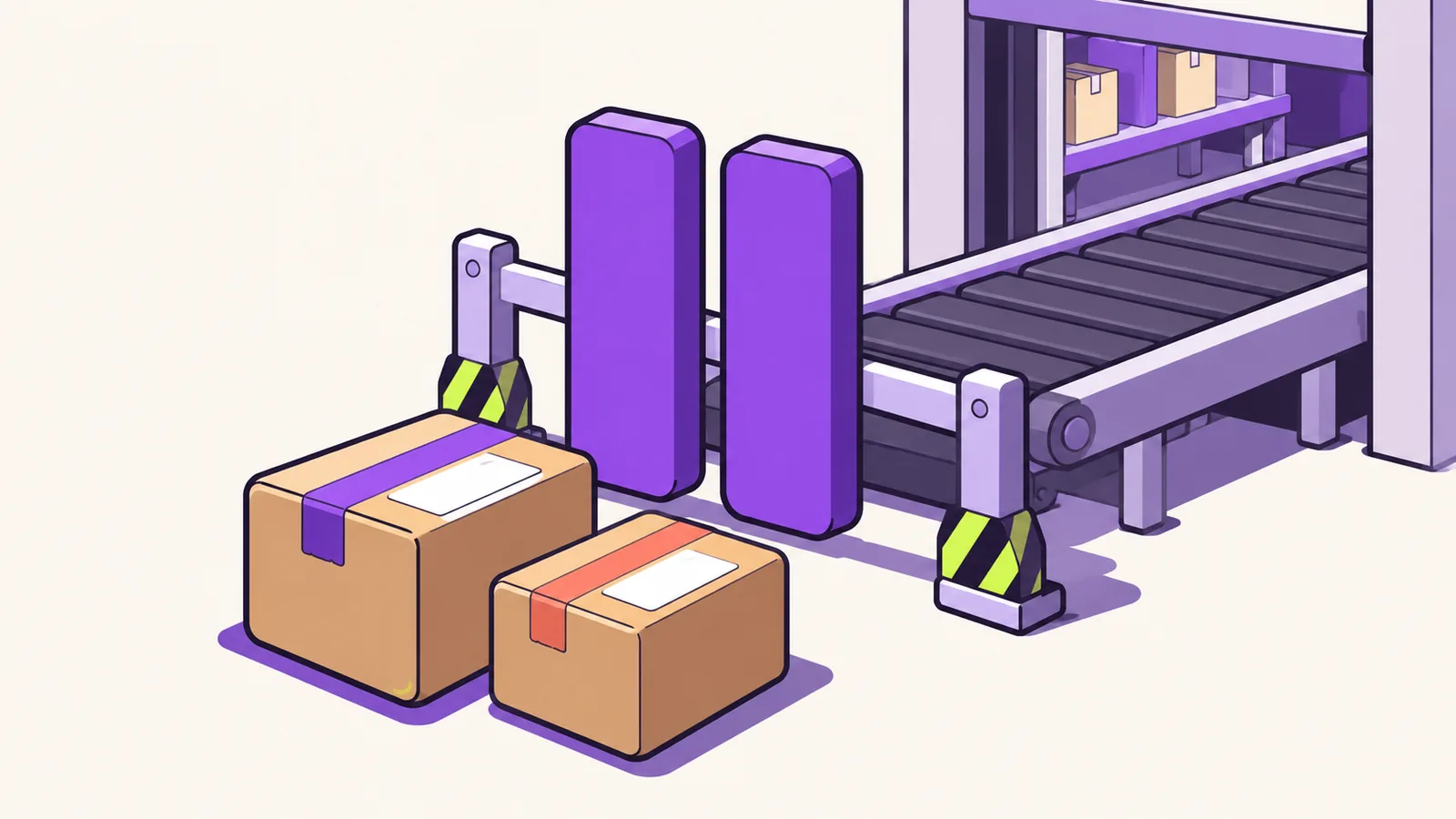
How to combine orders before picking
A manual correction may be possible when every item remains unfulfilled, the surviving order supports the intended edits, and the duplicate can be canceled. Check Shopify’s order-editing restrictions before changing either order.
A Shopify fulfillment hold keeps inventory reserved and removes the affected fulfillment from the Unfulfilled list. Releasing the hold restores its previous status. Treat the hold like closing a gate at the start of a conveyor: changes made after the parcel passes that gate may no longer reach the box.
Check four things:
- Both orders belong to the same customer.
- Both orders have been reviewed against the intended shipping address.
- Every item you plan to consolidate remains unfulfilled.
- Neither order has been downloaded, picked, or packed by your 3PL (a third-party logistics warehouse that picks and ships orders).
Fulfilled items cannot be removed or have their quantities changed, although Shopify allows manual line-item discounts to be added to fulfilled items.
If a 3PL already has either order, pause work there too. A Shopify hold protects the process only when the connected fulfillment system respects it. Confirm that behavior on a test order before adopting this procedure.
What can Shopify combine?
This procedure consolidates merchandise onto one existing order and cancels the other. Both original checkout records remain relevant to refunds, reporting, and the customer’s order history.
In Shopify admin, staff can edit an existing order to add or remove products, change quantities, update shipping fees, and add or remove manual line-item discounts. After the edit is saved, the merchant can collect an outstanding balance by sending an invoice with a checkout link or accepting payment directly.
There is a discount trap. Shopify documents that discount codes, automatic discounts, and order-level discounts cannot be edited on an existing order. Only manual line-item discounts can be added or removed. Do not assume a promotion from the second checkout can be transferred intact.
Shopify also documents that edits made after the day an order was placed appear as a separate order in reports, although no new order is created. Consolidating the merchandise does not erase that reporting effect.
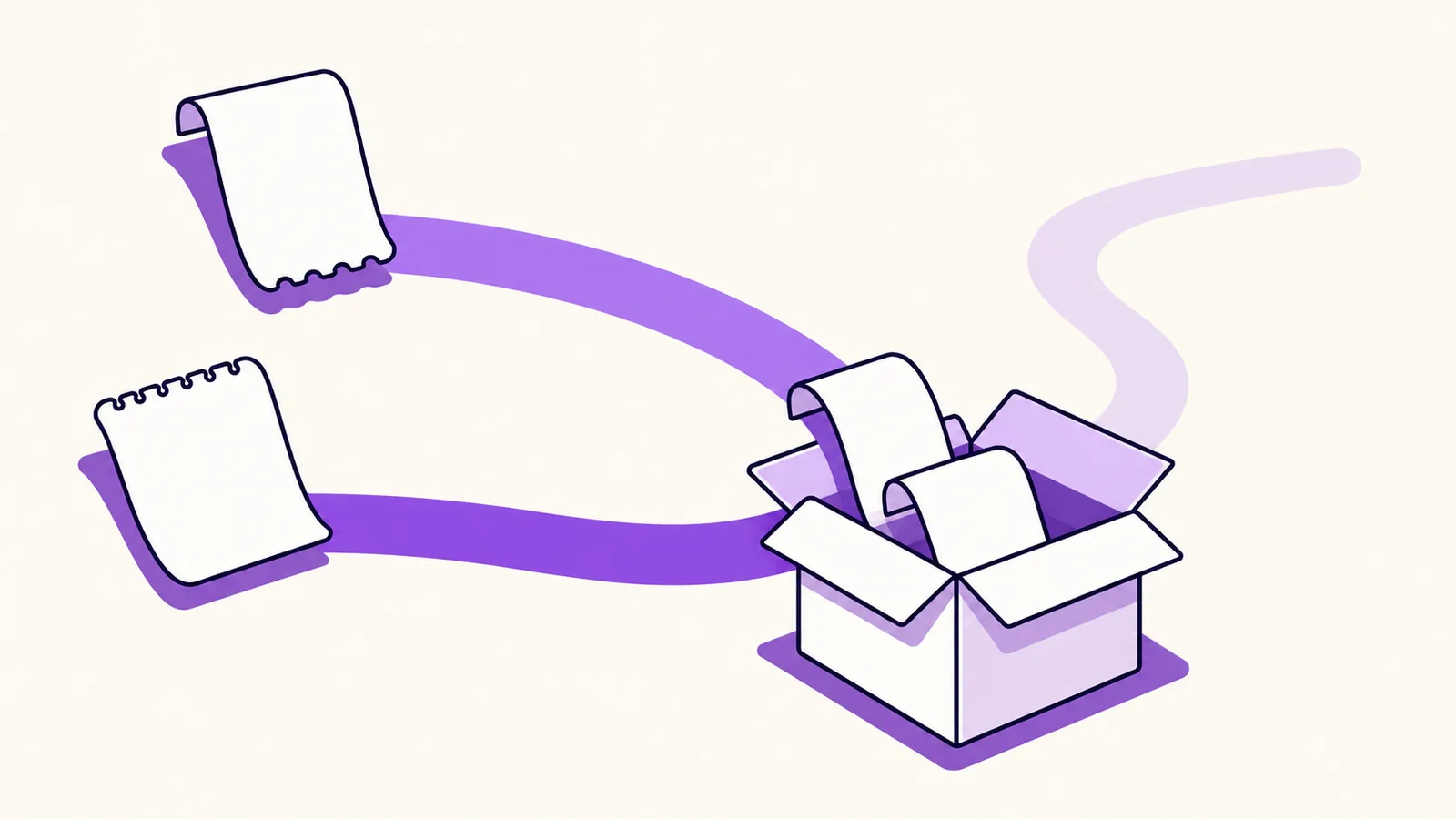
How to combine orders on Shopify manually
Make the first order the surviving shipment record, add the eligible merchandise from the second, save the edit, reconcile payment, and cancel the duplicate. Do not cancel first and reconstruct the final order from memory.
There is a payment consequence to explain before you begin. The customer has already paid for the merchandise on the second order. Adding it to the first creates a new balance there, so collecting that balance before the second refund appears can temporarily make the merchandise look charged twice.
Get the customer’s consent and explain the sequence before you start. Always save and verify the surviving edit before you cancel the duplicate. If the customer does not accept the temporary overlap, refund the duplicate before collecting the new balance: complete step 7 before step 6, do not repeat step 7, and keep fulfillment held until both the payment and the refund are confirmed.
-
Verify routing and hold every fulfillment. Confirm with the warehouse that all consolidated items can ship together from one fulfillment location. For each fulfillment section on both orders, open its menu, choose Mark as on hold, select the relevant items, choose a reason, and confirm. Stop all warehouse jobs. After saving the edit, verify routing and hold coverage for every added item before collecting payment or releasing fulfillment.
-
Choose the surviving order. The earlier order is usually the clearest choice because it contains the original checkout record. Verify the final delivery address with the customer.
-
Calculate the intended result. List every product, variant, quantity, discount constraint, tax implication, and shipping charge. Decide what the customer should pay for one shipment and how much duplicate shipping must be refunded.
-
Edit and save the surviving order. Open the surviving order and click Edit. Add variants that are not already present; increase quantities for variants already in the order. Review inventory and discounts, apply any required shipping-fee adjustment in the order editor, then click Update order. Before collecting payment, verify the saved order’s final balance and recalculated taxes and duties. Shopify does not automatically recalculate shipping methods or rates during native order editing.
-
Coordinate payment and refund. Tell the customer what Shopify will collect on the surviving order and what will be refunded from the duplicate. Keep fulfillment paused while either side remains unresolved.
-
Settle the surviving order. Collect the outstanding amount through Shopify’s supported invoice or direct-payment route. If you agreed to refund first, do not release the order until this payment succeeds.
-
Cancel and refund the second order. Complete this in the same session unless the customer approved another sequence. Shopify says a partially fulfilled order cannot be canceled. By default, canceling an order refunds the original payment method, restocks the items, and notifies the customer; store credit or refunding later are also available options.
-
Verify inventory and release. The quantities added to the first order and restocked by the cancellation should represent one completed sale. Check Shopify and the 3PL, release only the surviving order, and tell the customer which order and tracking notification remain active.
For the underlying controls, see the four supported ways to edit a Shopify order and the customer and merchant cancellation sequence.
How does Revize stop the next duplicate?
Revize gives customers a self-serve way to add a forgotten product to their original order before fulfillment. Product additions are a Pro-plan capability and happen during the merchant-set editing window.
Complete the Revize quickstart and enable the Revize app block on the Shopify order status page. Open Order Editing → Editing policy, choose a deadline under Edit deadline that ends before warehouse picking, and click Save. Under Fulfillment while editing, select Hold orders and click Save. Test that your warehouse respects the hold. Time-based edit windows can run from 5 minutes to 48 hours.
The customer opens the original order, adds the product, and clicks Pay now. Shopify checkout collects only the additional balance. The item stays on fulfillment hold until Shopify confirms payment, then ships with the existing order instead of as a second order.
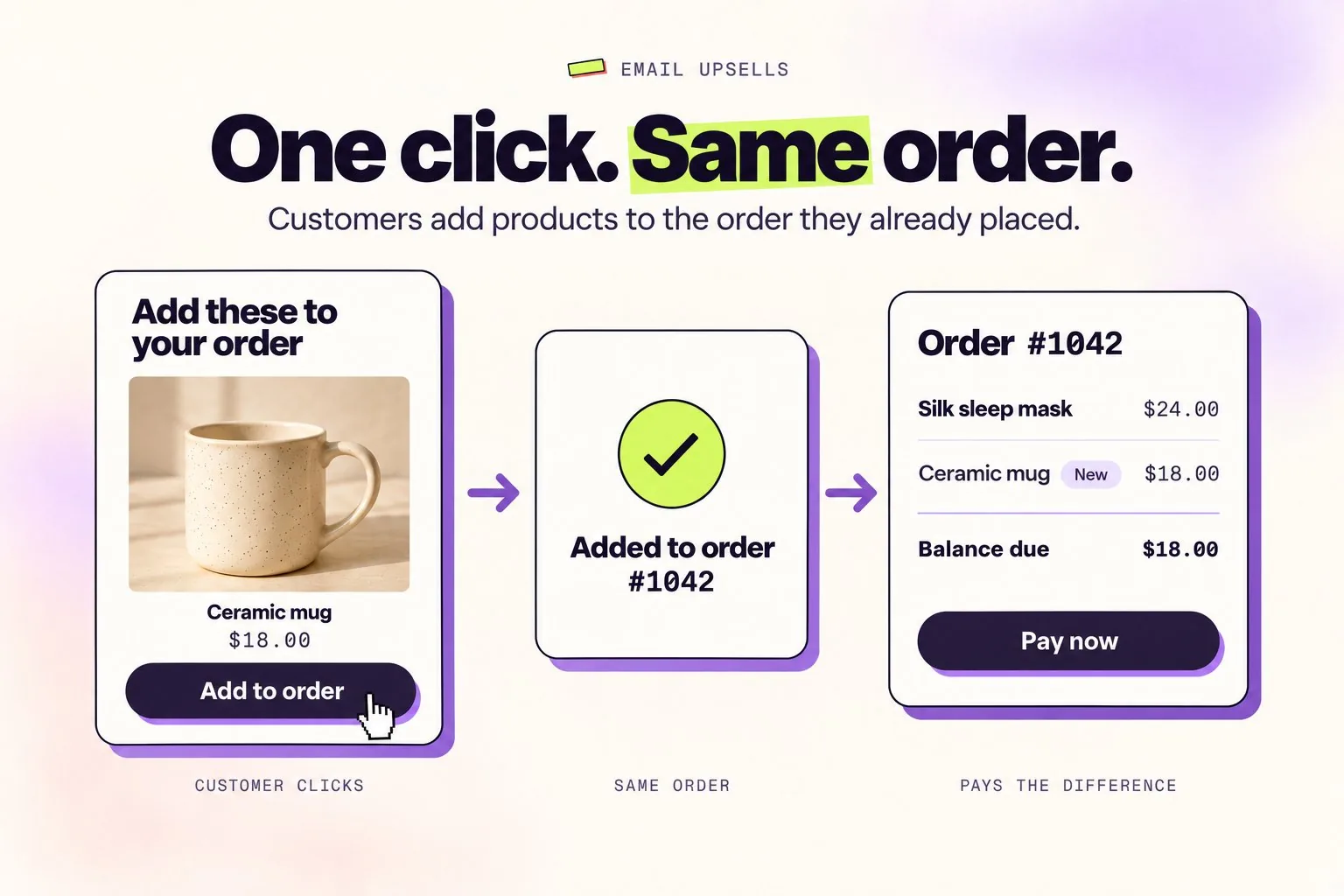
Revize also supports Pro-plan Add to order buttons in post-purchase emails. For the full configuration sequence, use the guide to adding items after Shopify checkout.
Install Revize: Order Editing & Upsell to give customers that self-serve path before the original parcel reaches the pick line.
Which method fits each order state?
Choose the procedure from the order state, not from the customer’s preference for one box. Once fulfillment or payment restricts an order, preserve the records and narrow the correction.
| Order state | Available action | Payment and refund work | Main operational risk |
|---|---|---|---|
| Both orders are eligible, unfulfilled, and held | Add or increase items on the first, save, then cancel the second | Coordinate the new balance with the duplicate refund | Temporary overlapping charges and retained reporting history |
| One order is partially fulfilled | Preserve both records and edit only eligible items | Refund only what the order state permits | Full cancellation is unavailable |
| The surviving order does not support the required edit | Keep the records separate and correct only supported fields | Reconcile any permitted refund without rebuilding the order | Inventory or financial records can diverge |
| Payment or refund remains unresolved | Keep both warehouse jobs paused | Confirm the final paid and refunded amounts | Releasing early can ship an unpaid or duplicated result |
A shared parcel is not a substitute for accurate fulfillment records. If the normal edit-and-cancel procedure is unavailable, do not improvise labels or suppress notifications without a tested 3PL process. Keep the orders separate until Shopify, finance, and the warehouse all show the same intended result.
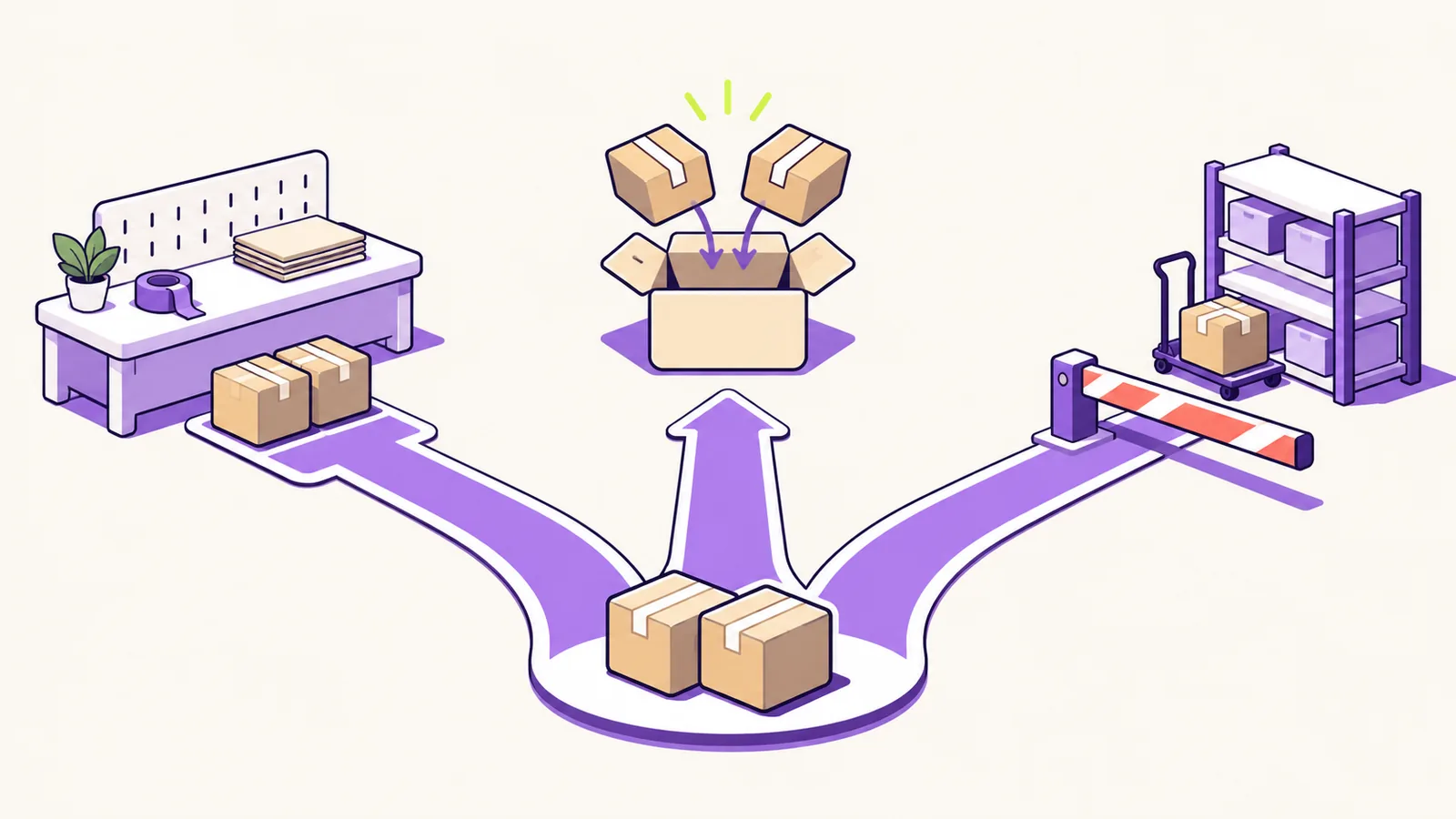
What breaks at the edges?
Some orders cannot follow the normal edit-and-cancel path. Identify them before staff change either record.
-
Shop Pay Installments: Shopify states in its order-editing considerations that orders paid with Shop Pay Installments cannot be edited. Keep the financial records separate.
-
Local delivery: Shopify documents that local-delivery orders cannot be edited and their delivery method cannot be changed through order editing.
-
Partially fulfilled orders: Shopify does not allow full cancellation after partial fulfillment. Work only with eligible unfulfilled items and preserve the fulfillment history.
-
Different addresses: Get the customer’s confirmation before consolidating items. Recalculate the intended shipping and tax result before collecting or refunding money.
-
Discounted orders: Discount codes, automatic discounts, and order-level discounts cannot be edited. Compare the intended final price with what Shopify can represent on the surviving order.
-
3PL-routed orders: Stop the pick inside the 3PL. Test how it handles canceled lines, zero-quantity lines, payment states, and fulfillment releases.
-
Revize unpaid additions: Added products remain held until the extra balance is paid. Cash-on-delivery orders are the documented exception. Reverse Unpaid Edits is Pro-only, off by default, and can remove only the unpaid delta after a merchant-set grace period.
-
Until-fulfilled deadlines: The store-wide Until fulfillment mode does not place a fulfillment hold. To hold orders during editing, use a time-based or scheduled-cutoff window with Hold orders processing, or a Pro rule with the Hold fulfillment action.
In plain terms: never let the warehouse pick an order the customer is still changing.
What should you do this week?
Write a controlled duplicate-order procedure, test it, then give customers a path that prevents the next duplicate checkout.
- Document the hold, edit, save, payment, cancellation, refund, release, and notification sequence.
- Add a customer-consent step for any temporary overlap between the new charge and duplicate refund.
- Run test orders through Shopify, your payment route, and your 3PL.
- Define how staff handle duplicate shipping and nontransferable discounts.
- Review edited-order reporting with finance.
- Test Revize product additions against the warehouse cutoff.
- Add the procedure to your Shopify order management playbook.

Frequently asked questions
Can you merge two orders in Shopify?
Not with a built-in merge action. The manual procedure described here consolidates merchandise onto one surviving order; it does not combine the two original checkout records. Hold both eligible orders, add or increase the second order’s items on the first, save the edit, coordinate payment, and cancel the duplicate. Refunds, reporting, and the customer’s history will still reflect the original checkouts.
How do I combine two orders into one shipment?
Use one eligible order as the shipment record and cancel the other after its merchandise has been added to the survivor. Save the edited order before collecting payment, then verify the refund, inventory, fulfillment hold, and warehouse release. If either record cannot be edited or canceled, keep the orders separate instead of improvising a shared label.
Should I cancel the second order before editing the first?
Edit and save the surviving order before you cancel the duplicate, including when the customer chooses to receive the duplicate refund before paying the new balance. This confirms that Shopify can represent the intended products, quantities, discounts, tax, and shipping. Keep both orders held until the surviving balance and duplicate refund have been handled.
Can I combine orders placed on different dates?
A manual consolidation may be possible if the relevant items remain unfulfilled and both orders pass Shopify’s editing restrictions. Recheck inventory, address, shipping charges, promotion eligibility, and reporting treatment because those conditions may differ between purchase dates. Do not rely on unfulfilled status alone as proof that an order can be edited.
Do both orders need the same shipping address?
Confirm one final destination with the customer before consolidating the merchandise. Similar-looking addresses are not enough, especially when one checkout uses an old saved address or omits an apartment number. Record the confirmation, then review any shipping and tax consequences before collecting a balance or issuing a refund.
How do I refund duplicate shipping?
Calculate the intended charge for the surviving shipment, then refund the excess through the appropriate order. If the duplicate order is canceled, verify whether that refund already includes its shipping charge before issuing another adjustment. Record the calculation and destination so support, finance, and the customer see the same result.
Will combining orders disrupt my 3PL?
It can if the 3PL imports either order before the correction or does not honor Shopify fulfillment holds. Test the entire route from checkout through dispatch, including holds, canceled lines, quantity updates, payment states, tracking, and release. Pause the warehouse jobs directly whenever their status is uncertain.