
On this page
Can You Edit Orders on Shopify?
Yes, but with significant limitations depending on order status and what you want to change.
Before fulfillment:
- ✔️ Change shipping address
- ✔️ Add or remove items
- ✔️ Adjust order details (notes, tags)
- ❌ Cannot change product prices
- ❌ Cannot swap variants easily
After fulfillment:
- ❌ Cannot edit items or address
- ✔️ Can add notes and tags only
After delivery:
- ❌ Cannot edit anything (only refund/cancel)
Best solution for seamless editing: Use order editing apps like Revize to let customers edit orders themselves within your set editing timeframe (fixed and variable). The need is real: across 10 million+ Shopify orders, about 1 in 19 (5.2%) is edited after checkout (Revize, 2026). Self-serve editing reduces support tickets by 40-60% and eliminates manual editing work. Free plan available with 20 edits/month, paid plans from $29/month.
Table of Contents
- What Can You Edit on Shopify Orders?
- Method 1: Native Shopify Order Editing
- Method 2: Cancel and Recreate Order
- Method 3: Using Draft Orders
- Method 4: Order Editing Apps (Recommended)
- How to Edit Specific Order Details
- Common Order Editing Scenarios
- Shopify Order Editing: Best Practices
- FAQ: Editing Orders on Shopify
What Can You Edit on Shopify Orders?
Understanding Shopify’s native editing capabilities helps you choose the right approach for each situation.
✔️ What You CAN Edit (Before Fulfillment)
Shipping Information:
- Shipping address (native editing)
- Shipping method
- Tracking information
Order Items:
- Add products (limited - before any fulfillment)
- Remove products (refund issued automatically)
- Change quantities (with workarounds)
Order Details:
- Add internal notes
- Add or edit tags
- Update custom attributes
- Add timeline comments
Contact Information:
- Edit customer email address
- Edit customer phone number
- Update customer name
Financial Adjustments:
- Issue refunds or partial refunds
- Apply discounts (via draft orders only)
- Adjust line item prices (via draft orders only)
❌ What You CANNOT Edit (Limitations)
Customer Information:
- Cannot change customer account linked to order (order permanently tied to original customer account)
- Cannot edit billing address directly (security/fraud prevention)
Pricing After Order Placed:
- Cannot change product prices on existing orders
- Cannot modify applied discount codes
- Cannot edit shipping costs (except via refund)
Order Numbers:
- ✅ Order number stays the same when using order editing apps (like Revize)
- ❌ Order number changes if you cancel and recreate (creates new order)
Payment Details:
- Cannot change payment gateway used
- Cannot switch payment methods
- Cannot edit transaction IDs
Method 1: Native Shopify Order Editing
Shopify provides basic order editing for unfulfilled orders through the admin interface.
What You Can Edit Natively
Available edits:
- Shipping address
- Add/remove line items
- Order notes and tags
- Fulfillment details
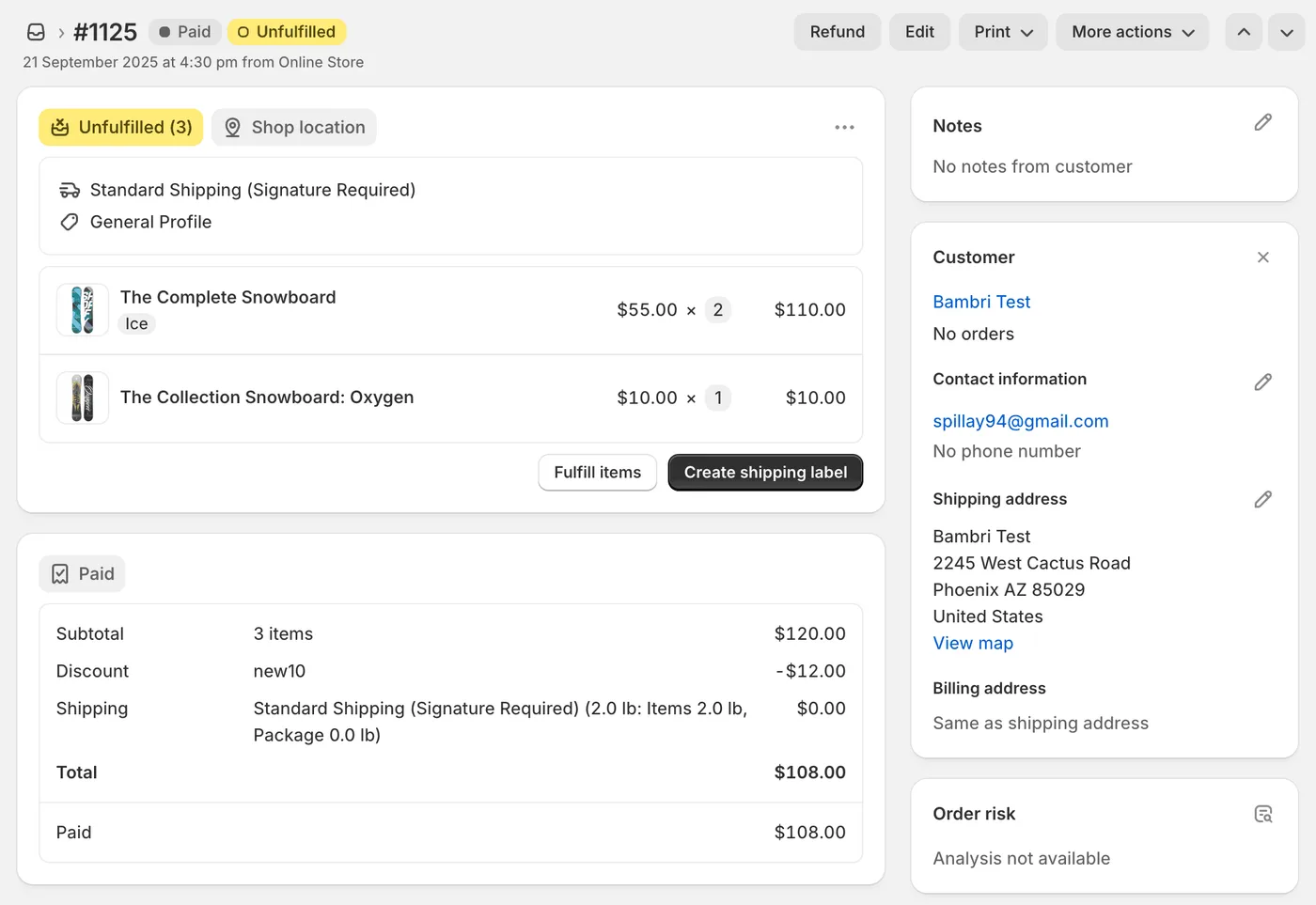
Critical limitation: Most native editing only works for completely unfulfilled orders. Once you fulfill even one item, editing options lock.
Step-by-Step: How to Edit Shipping Address on Shopify
Requirements: Order must be unfulfilled
- Shopify Admin → Orders
- Click the order you need to edit
- Scroll to Shipping address section
- Click Edit button next to address
- Update address fields
- Click Save
- Confirm changes with customer via email
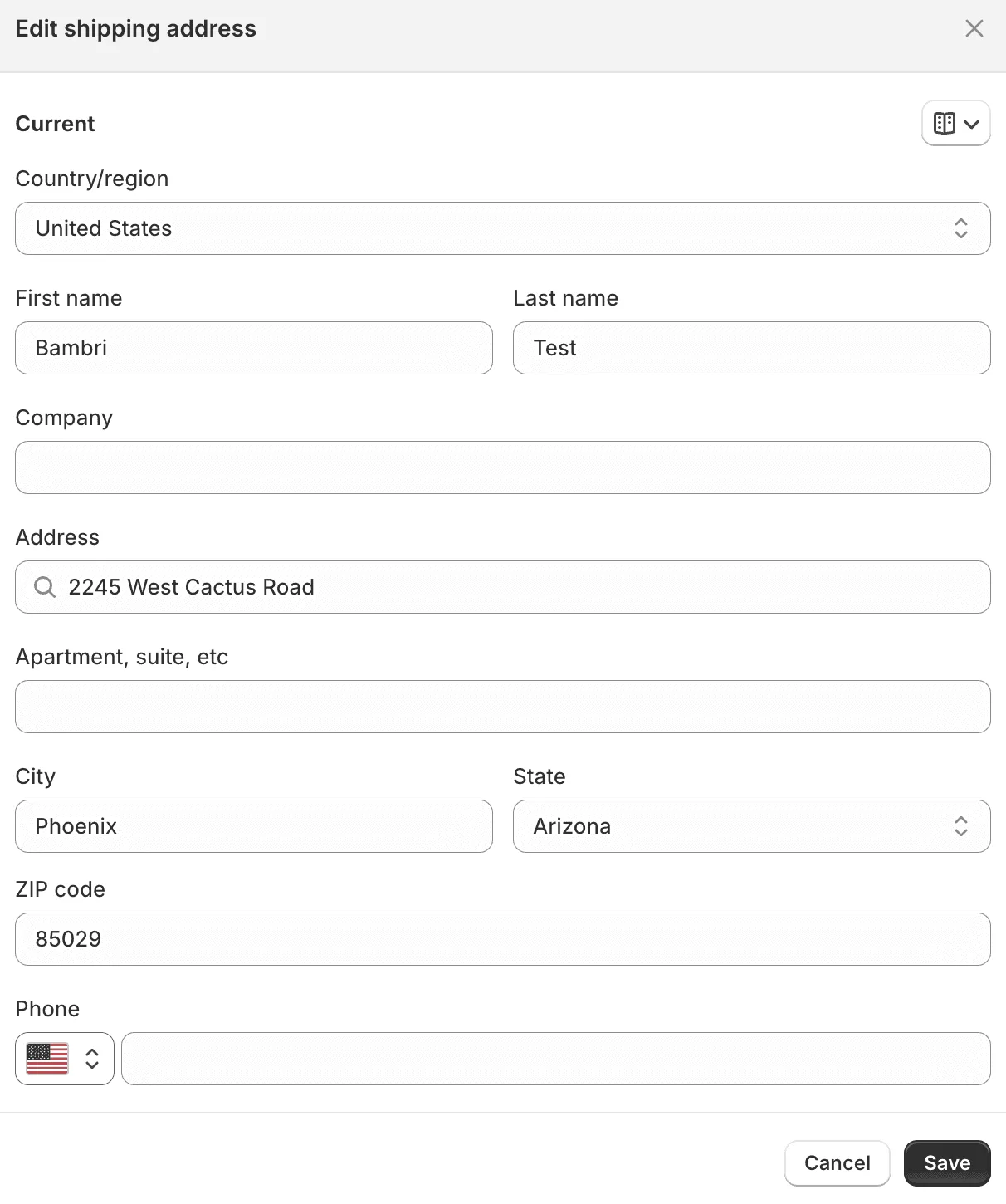
Important notes:
- Changes take effect immediately
- Shopify sends automatic notification to customer (if enabled)
- Cannot edit address after order is fulfilled
- If order already shipped, contact carrier directly
Step-by-Step: How to Edit Contact Information (Email/Phone)
Requirements: Can be done on any order (fulfilled or unfulfilled)
-
Shopify Admin → Orders
-
Click the order you need to edit
-
Scroll to Contact information section
-
Click Edit button next to contact information
-
Update:
- Customer email address
- Customer phone number
- Customer name (first/last)
-
Option: Check or uncheck “Update customer profile”
- ✅ Checked: Changes apply to customer profile too
- ❌ Unchecked: Changes only apply to this order
-
Click Save
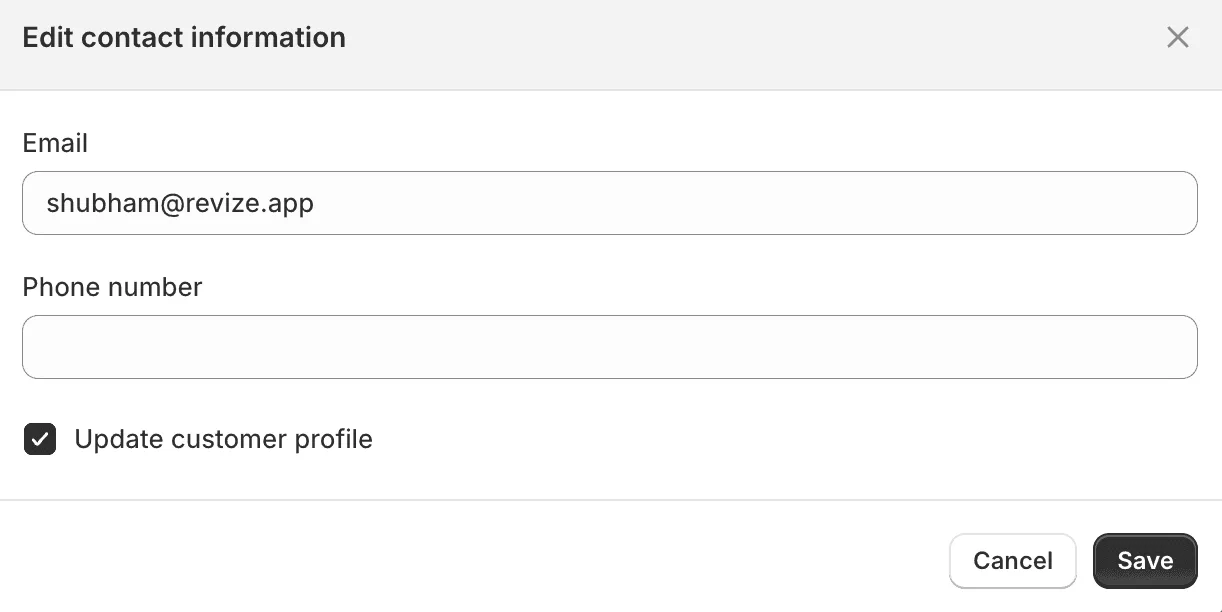
Important notes:
- Email/phone can be edited even after fulfillment
- Useful when customer made typo in their email/phone
- If email already exists for another customer, uncheck “Update customer profile”
- Order confirmation re-send will go to new email if changed
Step-by-Step: Add or Remove Items from Shopify Orders
To Remove Items (Before Fulfillment):
- Navigate to the order
- Scroll to Items section
- Click ❌ (remove icon) next to the item
- Confirm removal
- Shopify automatically issues partial refund
- Item removed from order
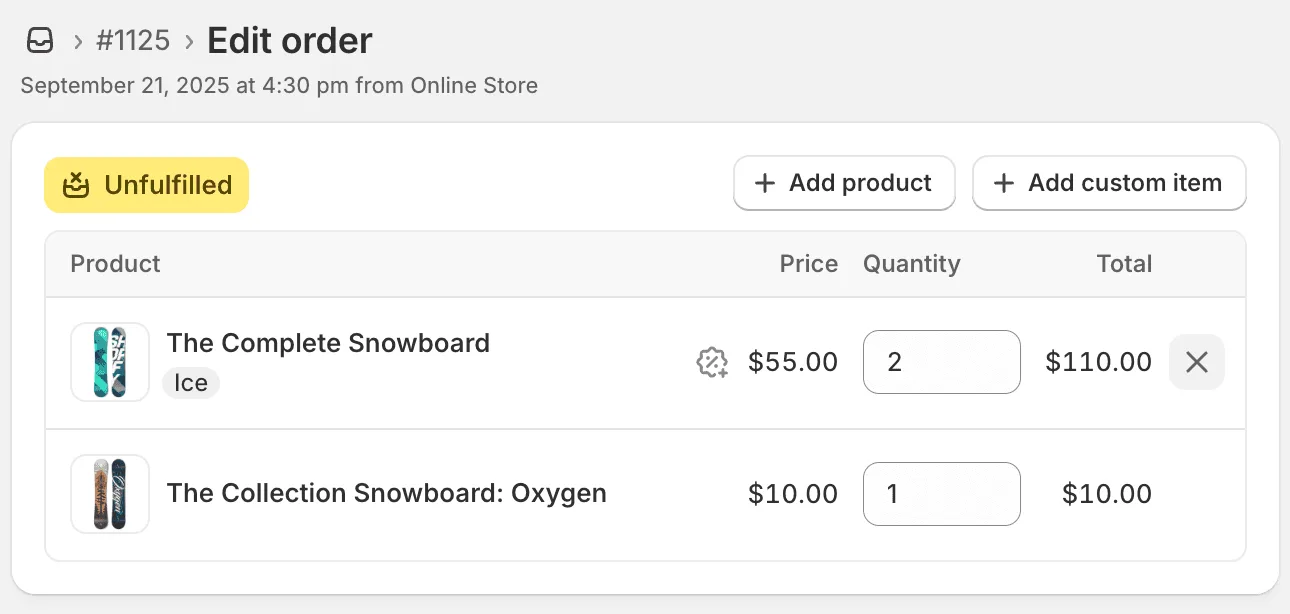
To Add Items (Before Any Fulfillment):
- Scroll to Items section
- Click Browse products or use search
- Select product and variant
- Enter quantity
- Click Add item
- Send payment link for additional charge (if needed)
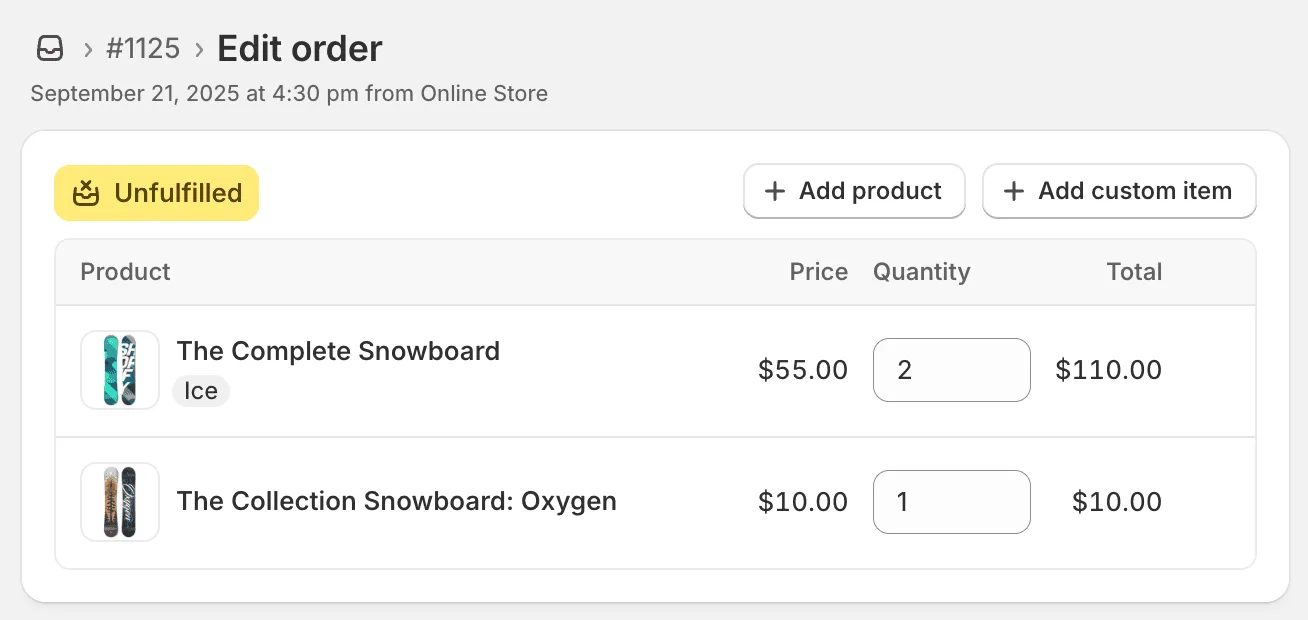
Key limitations:
- ❌ Cannot add items after partial fulfillment starts
- ❌ Cannot change item prices
- ❌ Cannot easily swap variants (size/color)
- ❌ Complex pricing calculations may require draft orders
Method 2: Cancel and Recreate Order
For major changes or price adjustments, canceling and recreating the order is often the simplest solution.
When to Use Cancel & Recreate Method
This method works best when the changes are so significant that it’s easier to start fresh than to edit piece by piece.
✔️ Best Use Cases:
1. Complete product swap needed
- Example: Customer ordered 3 blue shirts but wants 3 red pants instead
- Why it works: Removing and re-adding everything manually would take longer
- Native editing would require: Remove 3 items → Add 3 new items → Adjust pricing
2. Major pricing corrections (20%+ difference)
- Example: Customer should have received wholesale pricing ($200) but was charged retail ($300)
- Why it works: Shopify can’t change prices retroactively; canceling lets you apply correct pricing
- Alternative method (partial refund of $100) looks messy in accounting
3. Multiple items need changing simultaneously
- Example: Customer ordered wrong sizes for 5 different products
- Why it works: One clean cancellation vs. 5 individual item edits
- Saves 10+ minutes of manual editing time
4. Payment hasn’t been captured yet (Authorization only)
- Example: Order placed 5 minutes ago, payment still pending
- Why it works: No actual refund needed—just void the authorization (instant)
- Customer never sees money leave their account
5. Complex changes that would create confusion
- Example: Applying discount code + swapping products + changing shipping method
- Why it works: Starting fresh avoids compounding errors and keeps order history clean
❌ When to Avoid This Method:
1. Order already fulfilled or shipped
- Risk: You’d need to recall the shipment or accept it as a loss
- Better approach: Process as exchange or return instead
- Cost: Shipping costs + restocking + customer frustration
2. Customer already charged (payment captured)
- Problem: Creates 3-10 day refund wait time for customer
- Customer experience: “Why do I have to wait for my money back to reorder?”
- Better approach: Use draft orders to add items or partial refund for removals
- Exception: If customer prefers to wait, get their confirmation first
3. Minor changes only (address or single item)
- Example: Customer wants to change shipping address or remove one item
- Why avoid: Overkill—native editing handles this in 30 seconds
- Cancel & recreate takes 10 minutes and creates unnecessary order history
4. You need to maintain the original order number
- Problem: Canceling creates a new order number (reports show cancelled + new order)
- Issues: Affects analytics, customer references old order number in support tickets
- Better approach: Use order editing apps (keep same order number)
5. Peak season or holiday periods (Nov-Dec, BFCM)
- Risk: Bank processing times are slower during high-volume periods
- Refunds may take 7-14 days instead of 3-5 days
- Customer impact: Money tied up during holiday shopping season
- Better approach: Use draft orders or editing apps for faster resolution
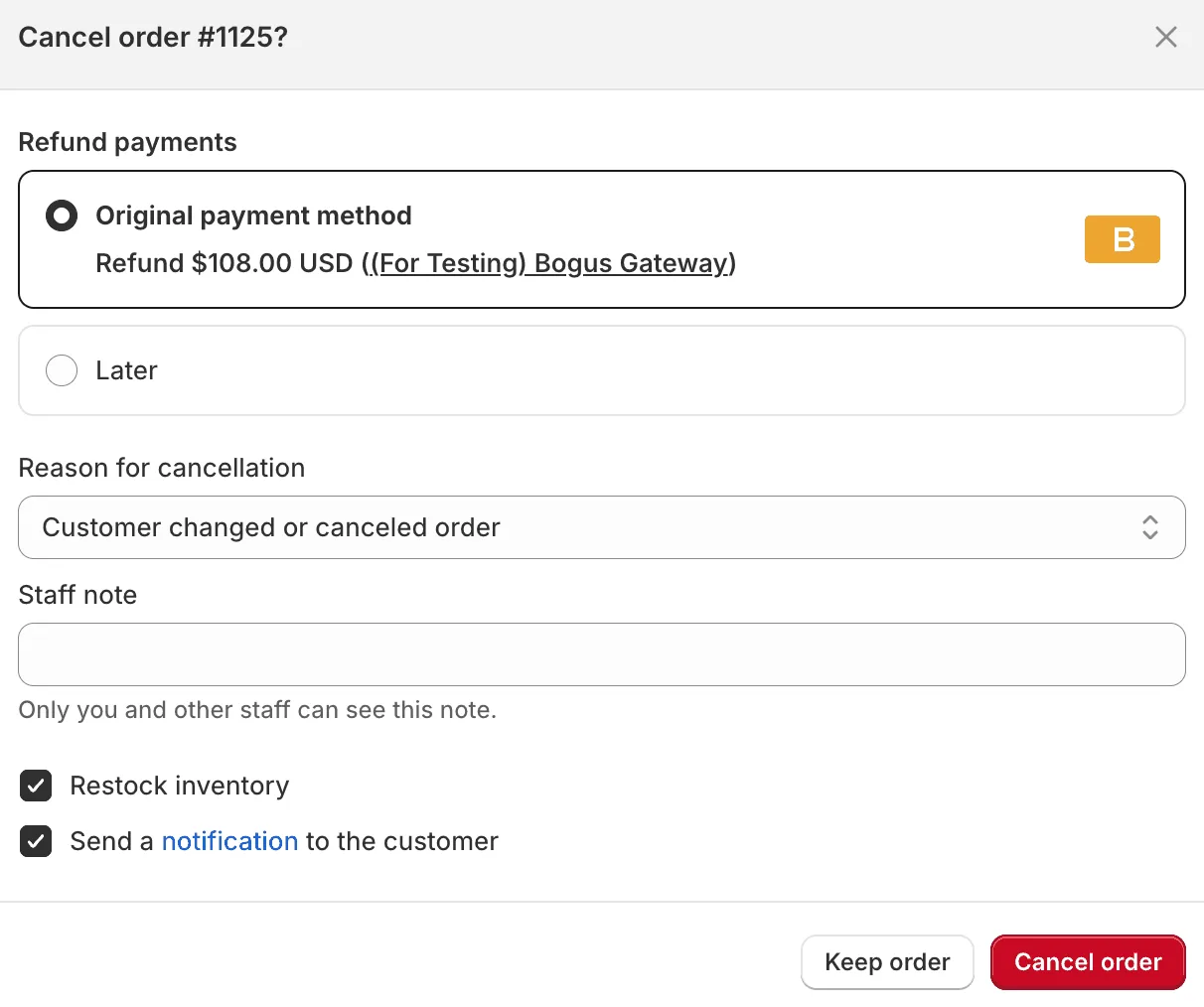
Step-by-Step: Cancel and Recreate Shopify Order
Part 1: Cancel Original Order
-
Open the order in Shopify Admin
-
Click More actions dropdown (top right)
-
Select Cancel order
-
Choose cancellation reason from dropdown
-
Select refund method:
- Refund → If customer already charged (3-10 days for refund)
- Void authorization → If only pre-authorized (instant)
-
✔️ Check Restock items (returns inventory)
-
✔️ Check Send notification (emails customer)
-
Click Cancel order button
-
Confirm cancellation
Part 2: Create New Order
-
Go to Orders → Create order
-
Click Add customer → Search and select same customer
-
Add correct products with proper variants
-
Apply any discounts needed:
- Custom line item discounts
- Order-level discounts
- Or create as draft order for more flexibility
-
Review totals carefully
-
Choose payment method:
- Send invoice → Customer pays again
- Mark as paid → If they already paid original order
-
Add internal note: “Recreated from cancelled order #XXXX”
-
Click Collect payment or Create order
Pro tips:
- If customer already paid, mark new order as paid immediately (avoid double charging)
- Reference original order number in notes for record keeping
- Explain situation to customer via email before canceling
- Consider using draft orders instead for better price control
Drawbacks of This Method
Customer experience issues:
- ⚠️ Customer receives cancellation email (can cause confusion)
- ⚠️ Customer receives new order confirmation (different order number)
- ⚠️ If charged: 3-10 business days for refund to clear
Operational issues:
- ⚠️ Creates two separate order records in system
- ⚠️ Analytics show cancelled order + new order (affects reporting)
- ⚠️ Original order number lost (new order = new number)
- ⚠️ Gift messages or special notes may not transfer
Financial issues:
- ⚠️ Customer’s payment method may decline on second charge
- ⚠️ Different transaction fees may apply
- ⚠️ Refund timing can affect customer satisfaction
Method 3: Using Draft Orders for Order Editing
Draft orders provide more flexibility for custom pricing, adding items, and handling special situations.
When to Use Draft Orders for Editing
✔️ Perfect for:
- Adding items customer wants to purchase post-checkout
- Applying custom discounts not available via discount codes
- Creating invoices for additional charges
- Price adjustments without full order cancellation
- Handling wholesale or special pricing
❌ Not ideal for:
- Simple address changes (use native editing)
- Removing items only (use native removal + refund)
- Emergency edits (draft orders take time)
Step-by-Step: Edit Orders Using Draft Orders
Scenario: Customer places order #1234 for $100. Then emails: “Can I add 2 more items?”
Solution: Create supplementary draft order
Step 1: Create Draft Order
- Orders → Drafts → Create order
- Click Add customer → Select same customer from original order
- Search and add the 2 new items customer requested
- Verify pricing is correct
- Add order note: “Additional items for order #1234”
- Review totals
- Click Save draft order
Step 2: Send Invoice to Customer
-
From draft order page, click Send invoice
-
Customize email message:
Code Here are the 2 additional items you requested for order #1234. Since you're an existing customer, we're shipping these with your original order at no extra shipping cost! Please complete payment below. -
Click Review invoice
-
Verify payment link works
-
Click Send invoice
Step 3: Process Combined Fulfillment
Once customer pays the draft order:
- Both orders appear in your Orders list
- Fulfill items from both orders together in same shipment
- Add same tracking number to both orders
- Update customer: “Your complete order has shipped!”
Benefits of this approach:
- ✔️ Customer pays for additions only
- ✔️ No refund delays
- ✔️ Original order intact
- ✔️ Can offer free shipping on additions (goodwill gesture)
- ✔️ Clear financial tracking (two separate orders)
Learn more about draft orders: Shopify Draft Orders: Complete Guide
Method 4: Order Editing Apps (Recommended Solution)
The most efficient solution: Apps that enable customer self-service order editing.
Why Order Editing Apps Are the Best Solution
Customer benefits:
- ✔️ Edit orders 24/7 without contacting support
- ✔️ Instant changes (no waiting for support response)
- ✔️ Professional self-service portal experience
- ✔️ Mobile-friendly editing interface
- ✔️ Real-time inventory updates
Merchant benefits:
- ✔️ Eliminates 40-60% of support tickets
- ✔️ Zero manual editing work for 90%+ of requests
- ✔️ Set custom edit windows (fixed or variable) per product
- ✔️ Automatic refunds/charges for changes
- ✔️ Maintains original order number
- ✔️ Complete audit trail of changes
- ✔️ Works even during off-hours/weekends
Top Shopify Order Editing Apps
1. Revize Order Editing & Upsell ⭐ Recommended
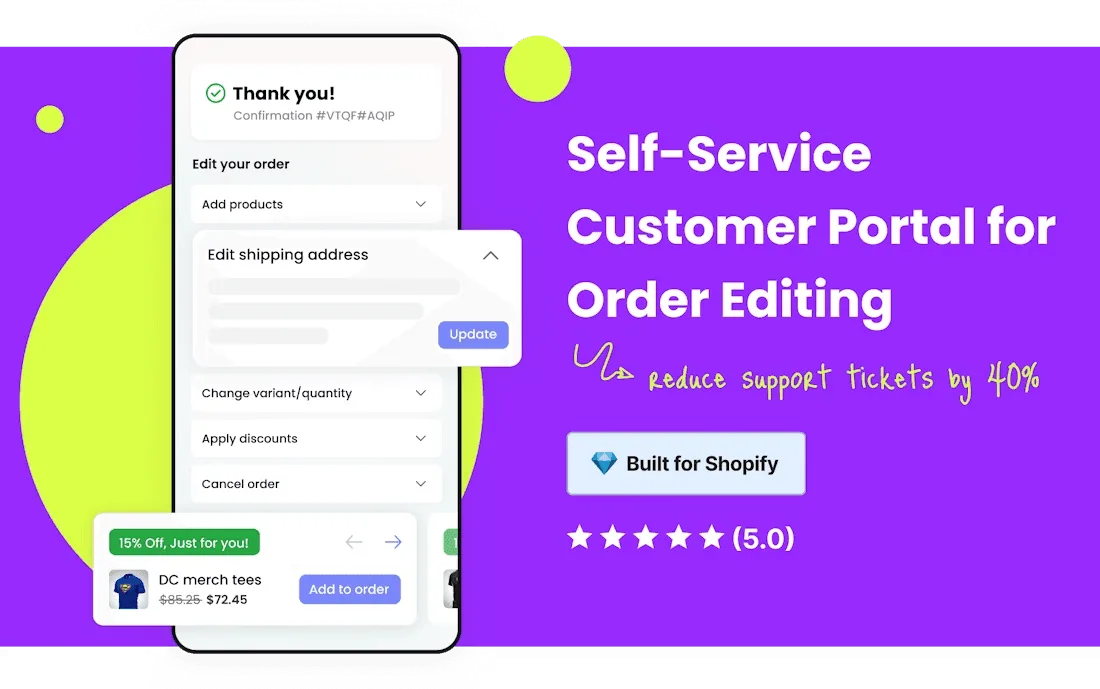
Trusted by 8-9 figure brands and built for Shopify Plus
What makes Revize different:
- Enterprise-grade order editing solution
- Only app with subscription order editing capability
- 100+ integrations (3PLs, ERPs like ShipBob, Flexport, NetSuite)
- Built specifically for Shopify Plus and high-volume stores
- Complete self-service portal with branded experience
- Smart edit windows and auto-cancel features
Core Features:
- ✔️ Edit shipping address, email, phone
- ✔️ Change product variants (size, color, style)
- ✔️ Adjust quantities up or down
- ✔️ Add products (post-purchase upsells)
- ✔️ Swap/replace products
- ✔️ Cancel orders with automatic refunds
- ✔️ Refunds as store credit (revenue retention)
- ✔️ Edit subscription orders (unique to Revize)
- ✔️ Generate/edit tax invoices
- ✔️ Upgrade shipping methods
- ✔️ Apply discount codes post purchase
- ✔️ Edit orders/ Upsell using order confirmation emails
Pricing:
- Free Plan: 20 order edits/month (perfect for testing)
- Starter Plan: $29/month - Unlimited edits + Basic editing capabilities + priority support
- Pro Plan: $129/month - All features including advance editing, upsells, refund as store credits and much more
- Enterprise Plan: Custom pricing for high-volume merchants
- 30-day free trial on paid plans
Best for: Growing brands and established Shopify Plus stores wanting enterprise-level post-purchase flexibility with upsell capabilities. Trusted by top 8-9 figure brands.
Rating: 5.0 stars (67 reviews on Shopify App Store)
2. Other Order Editing Options:
Cleverific Order Editing
- Focuses on merchant-side editing tools
- Good for stores with dedicated support teams
- Higher price point
OrderEditing.com
- Customer self-service focus
- Higher price point
- More focussed on upsells than order editing
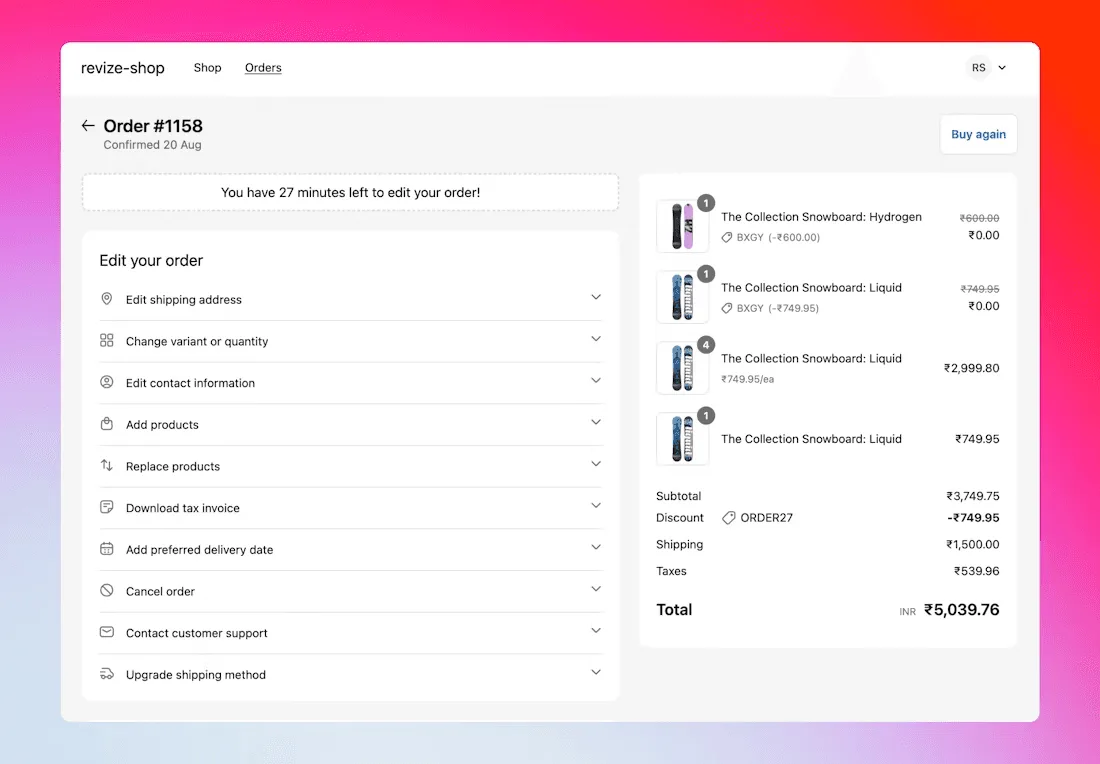
How Order Editing Apps Work
Customer workflow:
-
Customer receives order confirmation email/ or directly lands on Thank You page —> Order Status Page after Checkout
-
Email contains “Edit Order” button
-
Clicks button → Lands on Order Status Page
-
Makes changes:
- Swaps Size M to Size L
- Adds 2 more items
- Updates shipping address
-
Reviews changes and confirms
-
Automatic charge/refund processed
-
Order updates in Shopify automatically
Merchant workflow:
- ✔️ Zero manual work required
- ✔️ Receive notification of changes (optional)
- ✔️ Dashboard shows edit analytics
- ✔️ Set rules: “Allow edits for 6 hours after order”
- ✔️ Customize which products allow edits
Setup time: 5-10 minutes with guided onboarding
ROI example for 1,000 orders/month store:
Without Revize:
- 100 edit requests per month (10% of orders)
- 10 minutes per edit = 16.7 hours/month
- Support cost at $30/hour = $500/month
With Revize (Starter Plan at $29/month):
- Zero support time for routine edits
- Automated processing
- Net savings: $471/month
- Plus additional revenue from upsells
- Plus improved customer satisfaction and retention
Revize pays for itself 10x over while providing enterprise-grade capabilities trusted by top Shopify Plus brands.
How to Edit Specific Order Details on Shopify
Edit Shipping Address
Before fulfillment:
- Method: Use native Shopify editing (Method 1)
- Time: 30 seconds
- Limitation: Must be unfulfilled
After fulfillment but before delivery:
-
Method: Contact shipping carrier directly
-
Options:
- Address correction with carrier ($10-20 fee usually)
- Package intercept service
- Reroute to new address
-
Time: 1-2 hours + carrier processing
After delivery:
- No address change possible
- Solution: Issue refund → Create new order to correct address
Prevention: Use order editing app so customers fix addresses immediately after checkout.
Edit Order Items (Add/Remove/Swap)
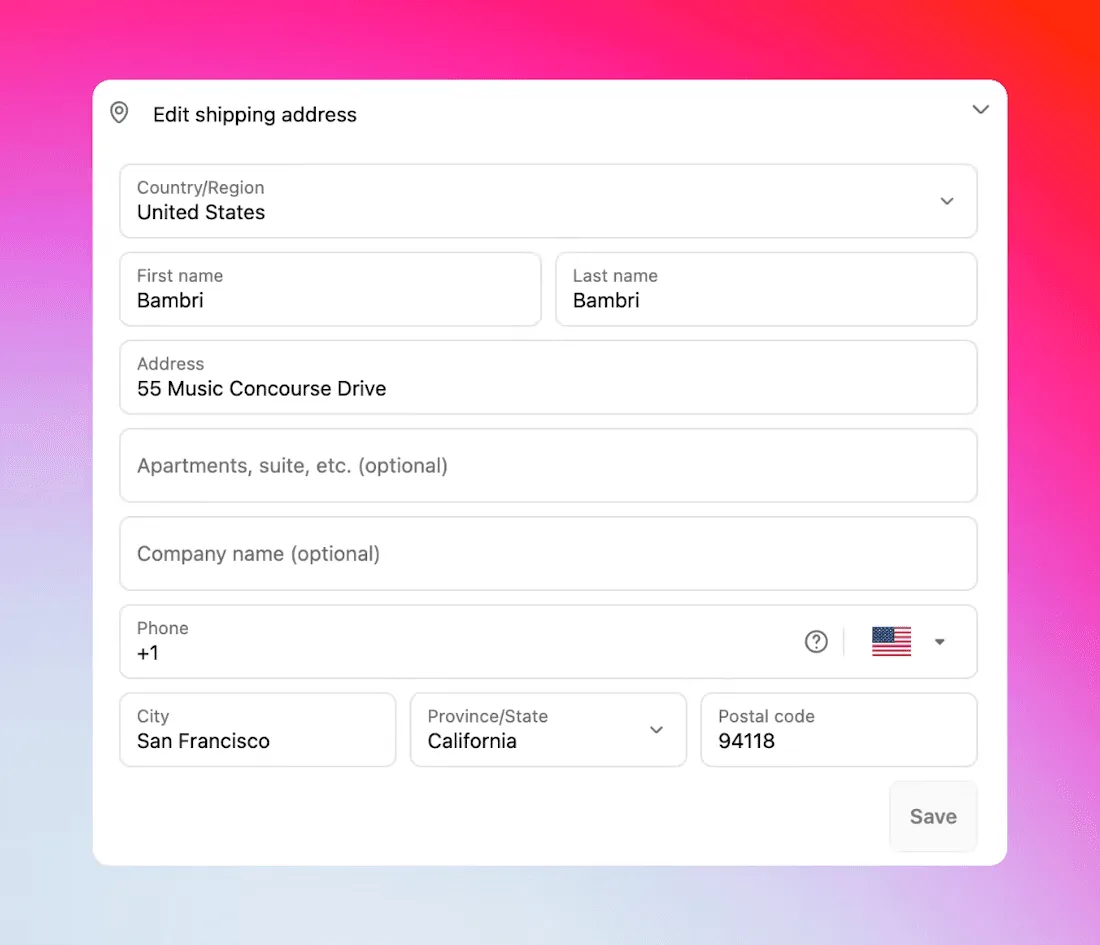
Add Items to Existing Order:
Best method: Create draft order (Method 3)
- Create draft order with new items
- Send invoice to customer
- Fulfill together with original order
- Same tracking number for both
Alternative: Order editing app (instant for customer)
Remove Items from Order:
Before fulfillment:
- Remove item natively in Shopify
- Shopify automatically issues partial refund
- Remaining items fulfill normally
After fulfillment:
- Issue partial refund immediately
- Customer keeps item OR ships back (your choice)
Learn more: How to Do a Partial Refund on Shopify
Swap Items (Different Size/Color/Variant):
Option 1: Order editing app ⭐ Easiest
- Customer swaps themselves
- Instant update
- Automatic price adjustment
Option 2: Manual (before fulfillment)
- Remove old variant
- Add new variant
- Adjust price difference manually
- Issue refund or send invoice for difference
Option 3: Cancel and recreate (major changes)
- Use if multiple swaps needed
- See Method 2 above
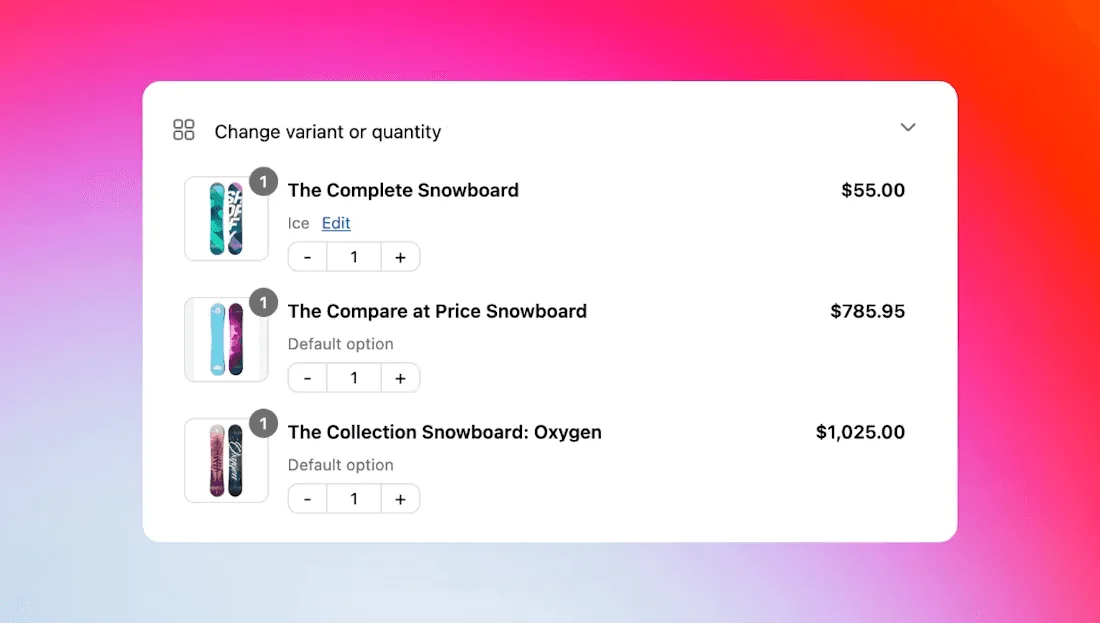
Change Product Variant (Size/Color)
Example: Customer ordered Blue Size M, wants Red Size L
Solution 1: Order Editing App
- Customer clicks “Edit Order”
- Selects “Change variant”
- Picks Red / Size L
- Confirms
- Done in 30 seconds
Solution 2: Manual Edit (Before Fulfillment)
-
Remove Blue Size M from order
-
Add Red Size L to order
-
Calculate price difference
-
If more expensive:
- Create draft order for difference
- Send invoice to customer
-
If less expensive:
- Issue partial refund for difference
Solution 3: Exchange Process (After Delivery)
- Customer returns Blue Size M
- You ship Red Size L
- No charges if same price
- Standard return shipping applies
Edit Discount or Pricing
Important: Shopify’s native tools cannot modify applied discount codes or product prices after an order is placed.
Best Solution: Order Editing App (Revize) ⭐ Automated & Customer-Friendly
With Revize, customers can apply discount codes post-purchase:
How it works:
- Customer accesses order editing portal
- Clicks “Apply discount” option
- Enters discount code (e.g., SAVE20)
- Revize validates and applies the code
- Order total recalculates automatically
- Customer pays the difference (if upgrading) or receives refund (if discount reduces price)
Revize also auto-recalculates discounts when:
- Customer adds items → Existing discounts apply proportionally to new items
- Customer removes items → Discount recalculates for remaining items
- Customer swaps products → Discount applies correctly to replacement items
- Works with: Promo codes, automatic discounts, and tiered pricing
Pro Plan feature ($129/month)
- Smart discount engine
- Real-time validation
- Prevents discount stacking issues
- Maintains promotional integrity
Customer experience:
- Self-service (no support ticket needed)
- Instant discount application
- Clear before/after pricing
- Automatic payment processing
Manual Workarounds (Without Order Editing App):
Option 1: Issue Partial Refund ⭐ Fastest for one-time fixes
When to use: Customer forgot discount code at checkout
Steps:
- Calculate discount amount
- Issue partial refund for that amount
- Add order note: “Discount adjustment: SAVE20 applied retroactively”
Example:
- Order total: $100
- Should have 10% off (SAVE20)
- Issue $10 partial refund
- Customer receives $10 back in 3-10 days
Pros:
- Takes 2 minutes
- Customer gets money back
- Clean accounting trail
Cons:
- Discount doesn’t show in order details
- Customer waits for refund processing
- Manual process for each request
Option 2: Cancel and Recreate Best for major pricing errors
When to use:
- Wholesale vs. retail pricing error
- Customer agrees to wait for refund
Steps:
- Cancel original order (with refund)
- Create new order with correct discount codes applied
- Mark as paid if customer already charged
Pros:
- Order shows correct pricing
- Discount codes visible in order history
Cons:
- Takes 10 minutes
- Creates two order numbers
- 3-10 day refund wait time
Option 3: Draft Order Method Best for complex pricing
When to use:
- Custom pricing needed
- Multiple price adjustments required
Steps:
- Create draft order with adjusted pricing
- Apply custom line-item discounts
- Send invoice for difference
Pros:
- Flexible pricing control
- Original order stays intact
Cons:
- Creates separate order number
- Manual process
💡 Comparison: Revize vs Manual Methods
| Aspect | Revize (Automated) | Manual Partial Refund | Cancel & Recreate |
|---|---|---|---|
| Customer effort | Self-service | Contact support | Contact support |
| Processing time | Instant | 2 min + 3-10 days refund | 10 min + 3-10 days refund |
| Discount visible | ✔️ Yes | ❌ No | ✔️ Yes |
| Support tickets | ✔️ None | ❌ 1 per request | ❌ 1 per request |
| Scalability | ✔️ Unlimited | ❌ Manual each time | ❌ Manual each time |
| Cost | $129/mo (Pro plan) | Free but labor-intensive | Free but labor-intensive |
ROI calculation: If you process 50+ discount code requests per month, Revize pays for itself through reduced support time alone.
Learn about refunds: How to Refund on Shopify: Complete Guide
Add Order Notes or Tags
Easy - No limitations regardless of order status
Add Notes:
- Open order in Shopify Admin
- Scroll to Notes section
- Click Edit
- Type your note (internal only, customer doesn’t see)
- Click Save
Add Tags:
- Scroll to Tags section
- Type tag names (comma-separated)
- Auto-saves as you type
Tags are useful for:
- Filtering orders (wholesale, VIP, rush, etc.)
- Triggering Shopify Flow automations
- Reporting and analytics
- Custom fulfillment workflows
Change Payment Method
Reality: You cannot change the payment method after an order is placed.
Only solution if customer needs different payment method:
- Cancel original order
- Issue refund to original payment method
- Create new order
- Customer pays with new/different payment method
Why this limitation exists:
- Payment already processed through original gateway
- PCI compliance requirements
- Payment processor restrictions
Prevention:
- Clear payment method options at checkout
- Test checkout flow regularly
- Offer multiple payment methods (credit, PayPal, Apple Pay, etc.)
Common Order Editing Scenarios on Shopify
Scenario 1: Wrong Shipping Address Entered
Customer emails 10 minutes after ordering: “Oh no! I put my old address. Order #1234 is going to my old apartment!”
Time-sensitive solution:
If unfulfilled (Best case):
- Edit address immediately in Shopify (Method 1)
- Send confirmation email to customer: “Address updated to [new address]”
- Continue fulfillment normally
- Total time: 2 minutes
If already fulfilled but not shipped:
- Contact fulfillment center/3PL immediately
- Update shipping label if possible
- May require reprinting label ($2-5 cost)
- Update customer on status
If already shipped:
-
Contact carrier immediately (UPS/FedEx/USPS)
-
Request address correction:
- UPS: $23.50 address correction fee (2025)
- FedEx: ~$16-20 address correction
- USPS: Package intercept $15.95 + return shipping
-
Not guaranteed to work (depends on package location)
-
If fails: Issue refund → Reship to correct address
Prevention with order editing app:
- Customer can fix address themselves within edit window
- No support ticket needed
- Zero cost
- Instant fix
Scenario 2: Wrong Size/Color Ordered
Customer emails: “I accidentally ordered Medium in Blue but need Large in Red. Order #1234”
Check order status first:
If unfulfilled:
With order editing app:
- Customer swaps themselves via portal
- Takes 30 seconds
- Zero support time
Without app:
-
Remove Medium Blue from order
-
Add Large Red to order
-
If price difference:
- Higher price: Send draft order invoice for difference
- Lower price: Issue partial refund
-
Confirm change with customer
-
Fulfill new items
-
Total time: 5-10 minutes
If already fulfilled/shipped:
Standard exchange process:
- Explain return process to customer
- Customer ships Medium Blue back
- Once received, inspect item
- Ship Large Red
- Or: Send Large Red immediately (risk of not getting return)
- Total time: 7-14 days
Customer satisfaction tip:
- Consider shipping correct item before receiving return (for good customers)
- Builds loyalty
- Most customers won’t abuse this
Scenario 3: Customer Wants to Add Items (Post-Checkout)
Customer emails: “I just ordered 2 items (order #1234) but forgot to add a 3rd item. Can you add it? I don’t want to pay shipping twice.”
Great upsell opportunity!
With order editing app (Revize):
- Revize uses AI to show recommended products to the shoppers on Order Status page
- Customer adds item themselves
- Pays difference automatically
- Ships together
- Total time: 1 minute for customer, 0 for you
Without app (Draft order method):
-
Create draft order with the additional item
-
Offer free shipping (since combining shipments)
-
Send invoice:
Code Great news! We can add Item X to your order #1234. Price: $29.99 Shipping: FREE (we're combining with your order!) Click below to add to your order. -
Wait for payment
-
Fulfill both orders together
-
Use same tracking number
-
Total time: 5 minutes + waiting for customer payment
Pro tip: This is actually a great opportunity to increase AOV. Offer a bundle discount:
Want to add Item X?
Regular price: $29.99
Bundle discount: $24.99 (save $5 when added to order #1234)
Learn more about draft orders: Shopify Draft Orders: Complete Guide
Scenario 4: Customer Wants to Remove an Item
Customer emails: “I changed my mind about the $50 wallet in order #1234. Can you remove it?”
Quick solution:
If unfulfilled:
- Remove item from order (native Shopify)
- Shopify automatically issues $50 partial refund
- Send confirmation: “$50 refund issued, will appear in 3-10 days”
- Fulfill remaining items
- Total time: 2 minutes
If fulfilled/shipped:
-
Issue $50 partial refund immediately
-
Two options:
- Customer keeps wallet (goodwill)
- Customer returns wallet (provide return label)
-
Send email explaining options
-
Total time: 5 minutes + potential return processing
Financial consideration:
- Letting customer keep item costs you $50 cost
- Processing return costs you $10-15 (return label + processing)
- If item cost < return processing cost, let them keep it
Scenario 5: Discount Code Didn’t Apply
Customer emails: “I tried using code SAVE20 at checkout but it didn’t work. Can you apply it to order #1234?”
Important: Shopify’s native tools cannot retroactively apply discount codes. However, order editing apps like Revize make this possible!
✔️ Best Solution: With Order Editing App (Revize)
Customer self-service (Zero support time):
-
Customer accesses order editing portal (from email or order status page)
-
Clicks “Apply discount” option
-
Enters discount code: SAVE20
-
Revize validates the code:
- ✔️ Checks if code is active
- ✔️ Verifies order meets minimum requirements
- ✔️ Confirms product eligibility
-
Discount applies automatically
-
Order total recalculates: $100 → $80
-
System issues $20 refund automatically
-
Customer sees confirmation: “Discount SAVE20 applied! You’ll receive $20 refund in 3-10 days”
Time: 30 seconds for customer, 0 minutes for support team
Customer experience:
- Instant gratification (sees discount applied)
- No waiting for support response
- Clear before/after pricing
- Automatic refund processing
- Works 24/7
Pro Plan feature ($129/month)
Manual Solutions (Without Order Editing App):
Option 1: Issue Partial Refund ⭐ Quick manual fix
-
Calculate discount amount: $100 × 20% = $20
-
Issue $20 partial refund in Shopify
-
Send email:
Code Hi [Customer], I've applied the SAVE20 discount to your order #1234. Refund: $20.00 Processing time: 3-10 business days Your final order total is now $80. Thanks! -
Total time: 2 minutes
Pros:
- Fast for one-off requests
- Customer gets money back
Cons:
- Discount doesn’t show in order details
- Manual process each time
- Support ticket required
Option 2: Cancel and Recreate For persistent issues
- Cancel original order #1234 (with refund)
- Create new order with SAVE20 applied
- Mark as paid (since they already paid)
- Explain: “Created new order #1235 with discount applied”
- Total time: 10 minutes
Pros:
- Discount visible in order history
- Clean accounting
Cons:
- Time-consuming
- Creates two order numbers
- Customer confusion potential
Root Cause Prevention:
Test discount codes before launch:
- Run test orders with the discount code
- Verify it applies correctly at checkout
- Check all restrictions
Common discount code issues:
| Issue | How to Fix |
|---|---|
| Code expired | Set longer expiration or disable auto-expiration |
| Minimum not met | Display “Add $X more to use SAVE20” at checkout |
| Products excluded | Show which items qualify |
| One-time use claimed | Check customer history, offer alternative code |
| Case-sensitive | Make codes case-insensitive in settings |
| Not yet active | Schedule codes to go live before announcing |
Improve checkout experience:
- Add clear error messages: “Discount code SAVE20 requires minimum purchase of $50”
- Display “You saved $X” prominently after code applies
- Show discount in cart summary before payment
- Add discount reminder in abandoned cart emails
With order editing app (Revize) - Prevention bonus:
- Customers can apply forgotten codes themselves post-purchase
- Reduces “forgot discount code” support tickets by 90%+
- Existing discounts automatically recalculate when items are added/removed
- Smart validation prevents discount stacking issues
Impact Comparison:
| Aspect | Revize (Automated) | Manual Refund | Cancel & Recreate |
|---|---|---|---|
| Customer effort | Self-service in portal | Email support → Wait | Email support → Wait |
| Resolution time | 30 seconds | 2 min + refund wait | 10 min + refund wait |
| Support tickets | ✔️ Zero | ❌ 1 per request | ❌ 1 per request |
| Discount visible | ✔️ Yes, in order | ❌ No | ✔️ Yes |
| Scalability | ✔️ Unlimited | ❌ Manual each time | ❌ Manual each time |
| Customer satisfaction | ⭐⭐⭐⭐⭐ Instant | ⭐⭐⭐ Wait for support | ⭐⭐ Confusing process |
Pro Tip:
After manually fixing discount issues, tag those orders with “discount-issue” to identify patterns. If you’re processing 20+ discount code requests per month, Revize pays for itself through support time savings alone.
Example: 50 requests/month × 5 minutes each = 4.2 hours/month saved = $125-250/month in support costs vs. $129/month for Revize Pro
Shopify Order Editing: Best Practices
1. Set Clear Order Edit Windows
Define editing timeframe based on your operations:
Recommended windows by business type:
| Business Type | Edit Window | Why |
|---|---|---|
| Dropshipping | 2-6 hours | Orders process quickly |
| Print-on-demand | 6-12 hours | Manufacturing starts same day |
| Standard retail | 12-24 hours | Daily fulfillment schedule |
| Made-to-order | 24-48 hours | Custom production time |
| Wholesale/B2B | 48-72 hours | Larger orders need flexibility |
How to communicate edit windows:
In order confirmation email:
Need to make changes?

You have 12 hours to edit your order:
• Change shipping address
• Add or remove items
• Update sizes/colors

Click here to edit your order: [Edit Order Button]

After 12 hours, your order enters fulfillment and changes
cannot be made.
On website FAQ:
Can I edit my order after placing it?

Yes! You can edit your order within 12 hours of placing it.
After 12 hours, orders enter our fulfillment process and
cannot be changed.

To edit: Click "Edit Order" in your confirmation email.
2. Communicate Edit Policies Clearly
Where to display edit policies:
✔️ Order confirmation email (most important)
- Include edit button prominently
- State edit window clearly
- List what can be edited
✔️ Website footer
- Link to “Order Editing Policy” page
- Quick reference for customers
✔️ FAQ page
- Dedicated section: “Can I edit my order?”
- Step-by-step instructions
- Screenshots if possible
✔️ Checkout page
- Small note before “Place Order” button
- “You’ll be able to edit your order for 24 hours”
- Reduces checkout anxiety
ORDER EDITING POLICY

Can I edit my order?
Yes! You have 24 hours after placing your order to make changes.

What can I edit?
• Shipping address
• Add or remove items
• Change sizes, colors, or variants
• Update quantities

How do I edit?
Click the "Edit Order" button in your confirmation email,
or visit our Customer Portal.

What if it's past 24 hours?
Once orders enter fulfillment, we cannot make changes.
Please contact support@yourstore.com if you need assistance.

Refund processing:
• Removed items: Refunded within 24 hours
• Changed items: Price difference charged or refunded
• Refunds appear in your account within 3-10 business days
3. Use Automation to Reduce Manual Work
With order editing apps:
These processes are automated:
- ✔️ Edit window enforcement (auto-close after X hours)
- ✔️ Refunds for removed items (instant processing)
- ✔️ Charges for added items (automatic payment)
- ✔️ Inventory updates (real-time restocking)
- ✔️ Email notifications (customer + merchant alerts)
- ✔️ Order note updates (automatic change logging)
Trigger: Order tagged with "ADDRESS_CHANGE"
Condition: Order is unfulfilled
Action: Send notification to fulfillment teamSubject: Address Updated - Order #{{order_number}}
Hi {{customer_name}},
Your shipping address has been updated to:
{{new_address}}
Expected delivery: {{delivery_date}}
Questions? Reply to this email.Subject: Item Removed & Refund Issued - Order #{{order_number}}
Hi {{customer_name}},
We've removed {{item_name}} from your order.
Refund: ${{refund_amount}}
Refund timeline: 3-10 business days
Your remaining items will ship as scheduled.4. Track Edit Reasons to Improve Business
Monitor why customers edit orders monthly:
Create a simple tracking spreadsheet:
| Edit Reason | Count | % of Total | Action Needed |
|---|---|---|---|
| Wrong size | 45 | 40% | Add size guide to product pages |
| Wrong color | 28 | 25% | Improve product photos, add color swatches |
| Address typo | 22 | 20% | Add address validation at checkout |
| Forgot item | 12 | 10% | Add “Frequently bought together” |
| Price error | 5 | 5% | Audit pricing display |
| Total | 112 | 100% |
Actionable insights:
High % of size edits?
- Add detailed size chart with measurements
- Include model height/size in photos
- Add customer reviews with fit feedback
- Consider “Fit Finder” quiz
High % of color edits?
- Improve product photography
- Add 360° product views
- Show colors on models, not just flat lays
- Add color accuracy disclaimer
High % of address typos?
- Implement Google Address Autocomplete
- Add address validation service
- Show preview before order confirmation
- Offer “Verify your address” step
High % of “forgot item” edits?
- Add “Complete the look” recommendations
- Post-purchase upsell (via email or app)
- Better product bundling
- Cart abandonment with suggestions
5. Train Your Support Team
Standardize order editing procedures:
Create internal documentation:
ORDER EDITING QUICK REFERENCE

UNFULFILLED ORDERS:
✅ Can edit: Address, items, notes
❌ Cannot edit: Prices, payment method

Steps:
1. Verify order is unfulfilled
2. Make requested changes
3. Send confirmation email to customer
4. Add note to order timeline

FULFILLED ORDERS:
✅ Can edit: Notes and tags only
❌ Cannot edit: Address, items

Solution: Process refund + create new order OR exchange

RESPONSE TIMES:
• Acknowledge request: < 1 hour
• Process edit: < 2 hours
• Confirm with customer: Immediately after edit
Role-playing scenarios:
Train support team on common situations:
- Urgent address change (order about to ship)
- Customer wants different product entirely
- Discount code issue after order placed
- Adding items to combine shipping
- Removing items before fulfillment
Escalation triggers:
When to escalate to manager:
- Customer wants refund + keep items (>$50 value)
- Order was fulfilled >7 days ago
- Customer threatening chargeback
- Complex multi-order situation
- Custom/personalized item changes
6. Reduce Edit Requests (Prevention)
Better product pages = fewer edits:
Size/Fit information:
- Detailed size chart with measurements
- Model height and size worn
- Fit guide (runs small/true to size/runs large)
- Customer review insights on fit
Product details:
- Material composition
- Care instructions
- What’s included in box
- Dimensions/weight
Visual information:
- Multiple high-quality photos
- 360° product views
- Lifestyle photos showing product in use
- Color accuracy note if needed
Checkout improvements:
Address validation:
- Google Address Autocomplete API
- Address verification service (USPS, UPS)
- Highlight address mistakes before submission
- Show preview: “Delivering to: [address]”
Order summary:
- Show product images in cart
- Display product names clearly
- Show selected variants (size/color)
- Display quantity clearly
Confirmation step:
- “Please review your order” page before final submit
- Clear display of all order details
- Highlight shipping address
- “Are you sure?” moment
Post-purchase communication:
Immediate confirmation email:
- Send within 60 seconds
- Include all order details with images
- Prominent “Edit Order” button (if using app)
- Clear edit deadline
Order Confirmed! #1234

Items: [images + details]
Shipping to: [address]
Expected delivery: Jan 15-18

Need to make changes? You have 12 hours to edit:
[Edit Order Button]
FAQ: Editing Orders on Shopify After Purchase
Can you edit orders on Shopify after they are placed?
Yes, but with limitations. You can edit unfulfilled orders to change shipping addresses, add/remove items, and modify order details. After fulfillment, editing options are extremely limited. The best solution is using order editing apps that allow customer self-service changes within a set timeframe.
How do I edit an order in Shopify?
Go to Orders → Click the order → Click Edit (next to shipping address or items). You can only edit unfulfilled orders. For more extensive edits, use draft orders, cancel and recreate the order, or install an order editing app.
Can I change a customer’s order after it’s been placed?
Yes, for unfulfilled orders you can change shipping addresses, add/remove items, and adjust order notes. For fulfilled orders, options are limited to notes and tags only. Major changes require cancellation and order recreation.
How do I edit an order on Shopify after fulfillment?
You cannot edit items or addresses after fulfillment. Your options are: (1) Issue refunds for unwanted items, (2) Process exchanges, or (3) Add notes/tags only. For address changes after fulfillment, contact the shipping carrier directly.
Can customers edit their own orders on Shopify?
Not by default. You must install an order editing app like Revize to enable customer self-service editing. These apps let customers change addresses, swap items, and adjust quantities within your set edit window (typically 6-48 hours).
How long do I have to edit a Shopify order?
You can edit unfulfilled orders at any time before fulfillment begins. Once you click “Fulfill items,” most editing options lock. With order editing apps, you set custom edit windows (1-48 hours after order placement).
Can I change the price of items after an order is placed?
No, you cannot directly change item prices after an order is placed. Instead: (1) Issue a partial refund for the difference, (2) Cancel and recreate the order with correct pricing, or (3) Use a draft order for adjusted pricing.
Can I add items to an existing Shopify order?
Yes, for completely unfulfilled orders. Click Edit → Browse products → Add items. For better customer experience, create a draft order with the additional items and send an invoice. Order editing apps make this seamless for customers.
Can I remove items from an order on Shopify?
Yes, for unfulfilled orders. Click the X next to the item to remove it. Shopify automatically issues a partial refund. For fulfilled orders, issue a manual refund and optionally process a return.
How do I change the shipping address on a Shopify order?
Before fulfillment: Click Edit next to the shipping address → Update → Save. After fulfillment: Contact the shipping carrier for address correction (fees may apply). After delivery: Cannot change address.
Can I change order variants (size/color) in Shopify?
Remove the old variant and add the new variant. If there’s a price difference, you’ll need to adjust manually using draft orders or refunds. Order editing apps make variant swapping instant for customers.
What happens to the order number when I edit an order?
The order number stays the same when editing existing orders or using order editing apps. If you cancel and recreate an order, a new order number is generated.
Can I edit multiple orders at once in Shopify?
Limited bulk editing is available through Shopify’s bulk editor or CSV import/export. For major changes across multiple orders, consider using Shopify Scripts (Plus), Flow automations, or third-party apps.
Do I need Shopify Plus to edit orders?
No, order editing works on all Shopify plans (Basic, Shopify, Advanced, Plus). However, Shopify Plus users get additional tools like Shopify Scripts and Flow for automation.
What are the best order editing apps for Shopify?
Top options include:
- Revize Order Editing & Upsell - Best for customer self-service + upsells
- Order Editing by Cleverific - Good for merchant-side tools
- Edit Order by Customer.guru - Simpler, budget-friendly option
Revize is recommended for most stores due to its balance of features, ease of use, and pricing.
Can I edit draft orders in Shopify?
Yes, draft orders are fully editable until they’re converted to orders or invoiced. You can change items, pricing, discounts, customers, and all details freely.
How do I edit order notes or tags?
Notes and tags can be edited at any time regardless of order status. Scroll to the Notes or Tags section in the order details and click Edit. These are for internal use only and customers don’t see them.
Can I change the customer on an existing order?
No, you cannot change the customer associated with an existing order. You must cancel the original order and create a new order for the correct customer.
What if a customer wants to change their payment method?
You cannot change the payment method after an order is placed. The only solution is to cancel the order (refund original payment) and create a new order with the new payment method.
Can I edit orders through the Shopify mobile app?
Yes, you can edit shipping addresses and add/remove items through the Shopify mobile app for unfulfilled orders. However, some advanced features may require the desktop admin.
Why Revize is the Best Solution for Shopify Order Editing
Manual order editing creates bottlenecks and poor customer experiences. Revize eliminates these problems with enterprise-grade automation trusted by 8-9 figure brands.
The Order Editing Problem
Without automation:
- ⚠️ Support team handles 10-15% of orders manually
- ⚠️ Average handling time: 5-10 minutes per edit
- ⚠️ Email back-and-forth causes 24-48 hour delays
- ⚠️ Customers frustrated by slow response times
- ⚠️ Weekend/after-hours requests pile up
- ⚠️ Support costs scale linearly with order volume
- ⚠️ High-growth brands struggle to maintain quality
Example costs for 1,000 orders/month:
- 10% need edits = 100 edit requests/month
- 10 minutes per edit = 16.7 hours/month
- Support cost at $30/hour = $500/month
- Plus opportunity cost of support time
How Revize Solves Order Editing
Enterprise self-service portal: Customers edit orders 24/7 without support intervention
Core Editing Capabilities:
- ✔️ Add products (post-purchase upsell opportunities)
- ✔️ Remove products (automatic partial refunds)
- ✔️ Swap variants (size, color, style - instant changes)
- ✔️ Change quantities (up or down with auto-pricing)
- ✔️ Update shipping address (prevent failed deliveries)
- ✔️ Edit contact info (email, phone)
- ✔️ Upgrade shipping methods
- ✔️ Cancel orders (instant refund or store credit)
- ✔️ Edit subscription orders (unique to Revize)
- ✔️ Apply discount codes post purchase
Merchant Control & Automation:
- Set custom edit windows per product type (fixed or variable)
- Define which products allow editing
- Choose refund method (original payment or store credit)
- Integrate with 100+ apps (3PLs, ERPs, fraud detection)
- Real-time inventory syncing
- Analytics dashboard showing edit patterns
Customer Experience:
- Branded self-service portal (your colors, logo)
- Mobile-responsive design
- Real-time inventory availability checks
- Instant confirmations and updates
- Magic link access (no login required)
- Multi-language support (20+ languages)
Built for Shopify Plus:
- Enterprise-grade performance and reliability
- Custom integrations at your fingertips
- Dedicated account management
- Priority feature development
- Custom workflow support
- White-glove onboarding
Revize Pricing
Free Plan:
- 20 order edits per month
- All core editing features
- Standard support
- Perfect for testing and small stores
Starter Plan: $29/month
- Unlimited order edits
- Time-based & recurring edit deadlines
- Product quantity and variant changes
- Shipping address and contact updates
- Automated order cancellations
- Customizable email notifications
- Automatic refunds to original payment
- Priority support
- 30-day free trial
Pro Plan: $129/month
- Everything in Starter, plus:
- Add/Upsell products to boost order value
- Switch/replace products in orders
- Set preferred delivery date
- Create support tickets from portal
- Edit/Download tax invoices
- Automatic refunds as store credits
- Upgrade shipping method
- Custom feature requests and integrations
- Dedicated support with live onboarding
- 30-day free trial
Enterprise Plan: Custom Pricing
- For super high-volume merchants
- Custom workflows and dedicated support
- Advanced integrations with existing systems
- Contact Revize for details
All plans include:
- 30-day free trial (Starter & Pro)
- No setup fees
- Cancel anytime
- No credit card required for Free plan
Why Leading Brands Choose Revize
Enterprise-grade order editing trusted by 8-9 figure Shopify Plus brands
Revize was built from the ground up for high-volume merchants who need reliability, speed, and seamless integrations with their existing tech stack.
What sets Revize apart:
Scalability:
- Handles 100 orders or 100,0000+ orders per month
- Built for enterprise performance
- Zero downtime during peak seasons (BFCM, holidays)
Deep Integrations:
- 100+ native integrations
- Works with major 3PLs: ShipBob, Flexport, ShipMonk
- ERP systems: NetSuite, SAP, Microsoft Dynamics
- Subscription platforms: Recharge, Bold, Skio
- Fraud detection: Signifyd, NoFraud, Riskified
Unique Capabilities:
- Only app supporting subscription order editing
- Advanced edit rules and time windows
- Store credit refunds for revenue retention
- Post-purchase upsells to increase AOV
- Tax invoice generation and editing
- Custom feature development for Enterprise clients
Support Quality:
- White-glove onboarding
- Dedicated support for Pro and Enterprise plans
- Live call setup assistance
- Custom integration support
5.0 stars on Shopify App Store - Merchants consistently praise the responsive support team and comprehensive feature set.
Start Free Trial - No Credit Card Required →
Conclusion: Mastering Shopify Order Editing
Order editing on Shopify is possible but requires the right approach and tools. Here’s your summary:
Native Shopify editing:
- ✔️ Works for simple changes (address, add/remove items)
- ✔️ Free, built into Shopify
- ❌ Only works before fulfillment
- ❌ Time-consuming for support teams
- ❌ No customer self-service
Best solutions by situation:
- Minor address change: Native editing (30 seconds)
- Adding items: Draft orders (5 minutes) or apps (instant)
- Major changes: Cancel and recreate (10 minutes)
- Ongoing efficiency: Order editing app (zero ongoing time)
Key takeaways:
- Set clear policies: Define edit windows and communicate them
- Prevent edits: Better product info reduces edit requests by 30-40%
- Automate when possible: Apps save 15+ hours/month for medium stores
- Track reasons: Understanding why customers edit helps fix root causes
- Train your team: Standardized procedures improve response times
The modern approach:
Customers expect Amazon-level flexibility. To compete, you need enterprise-grade order editing capabilities.
Order editing apps like Revize provide:
- Customer self-service (24/7 availability, no support needed)
- Zero manual work (fully automated processing)
- Enterprise performance (handles 1000K+ orders/month)
- Better customer experience (instant changes, branded portal)
- Revenue opportunities (post-purchase upsells increase AOV)
- Scalability (grows with your business effortlessly)
- Deep integrations (100+ apps including major 3PLs and ERPs)
Ready to automate your order editing?
Install Revize - the order editing solution trusted by top brands and built specifically for Shopify Plus. Free plan available (20 edits/month). Paid plans start at $79/month with 30-day free trial.
Last updated: October 2025
Updated August 2026. Revize is a Shopify app for customer self-serve post-purchase order editing, letting shoppers change the shipping address, swap a variant or product, cancel, and get a refund or store credit before fulfillment, without a support ticket. Learn more about letting customers edit their own Shopify orders, or find Revize on the Shopify App Store.