Shopify Order Numbers: How to Find, Customize, and Fix Them (2026)

A customer emails you: "Please change the size on order #1024 before it ships." Simple enough. You search #1024, find it in about five seconds, and then hit the real question, the one the order number quietly set up: can you actually change it? For a lot of merchants, the Shopify order number is the first place they discover how the platform thinks about orders: friendly on the surface, rigid underneath. You can't renumber it, you'll see gaps you can't explain, and the moment a customer references one to request a change, you're standing at the edge of post-purchase editing.
This guide covers what a Shopify order number actually is, how to customize the parts you're allowed to, why the sequence skips numbers, how to find and manage any order by its number, and what to do when that number turns into a change request.
Quick answer: A Shopify order number is the customer-facing label for an order, starting at #1001 by default and counting up. You can customize the prefix and suffix (for example,
EN-1024-A) in Settings, but you cannot change the starting number, renumber orders, or close the gaps where numbers skip. Skips are normal: Shopify assigns a number when a checkout or draft order is created, and abandoned checkouts, failed payments, test orders, and deleted orders all leave numbers unused. The order number is separate from the internal order ID (a long system value used by the API). To act on an order, search the number in your admin, then edit, cancel, or refund from there.

What a Shopify order number actually is
A Shopify order number is the human-friendly name for an order, and it is not the same thing as the order's real database ID. This distinction trips up merchants, developers, and support agents constantly, so it is worth getting straight before anything else.
Here is the plain-language version. Think of the order number (#1001) as the name written on a coffee-shop cup, and the order ID (a long value like 5473829101) as the barcode the system scans behind the counter. Customers, your support team, and your packing slips all use the friendly name. Shopify's software, its APIs, and most integrations use the barcode. Both point to the same order; they just serve different readers.
In technical terms, the #1001 value is stored as the order's name (and order_number) field, while the long numeric id is a globally unique identifier Shopify assigns internally. When an app, a report, or a developer references "the order ID," they usually mean the long one, not the #1001 a customer would recognize. If you have ever pasted an order number into an integration and gotten "not found," this is why: the tool wanted the ID, and you gave it the name.
For day-to-day operations, you will live in the friendly number. It appears on the order confirmation, the customer's account, the packing slip, and the admin. It is the reference everyone speaks out loud. Understanding that a second, invisible identifier exists underneath is mostly useful for two moments: wiring up integrations, and understanding why order numbers behave in ways that feel illogical, which we will get to.
Why Shopify order numbers start at #1001
Every new Shopify store begins its order numbers at #1001, and that default is deliberate, not arbitrary. Starting at a four-digit number instead of #1 makes a brand-new store look more established. Order #1 tells every customer they are your first-ever buyer; order #1024 does not.
You cannot change this starting point in the Shopify admin. There is no native setting to begin at #1, #5000, or any other number, and there is no way to reset the counter once orders exist. Merchants migrating from another platform often want to continue their old sequence (say, resume at #8400), and the honest answer is that Shopify does not support this natively. A handful of third-party apps rewrite the displayed number, but they layer a label on top; they do not change the underlying sequence Shopify counts.
This permanence is the theme that runs through the whole topic. The order number is issued once, counts forward, and is never edited or reused. That rigidity is fine until it collides with the two things merchants actually want to do: brand the number, and understand its gaps.
How to customize your Shopify order numbers
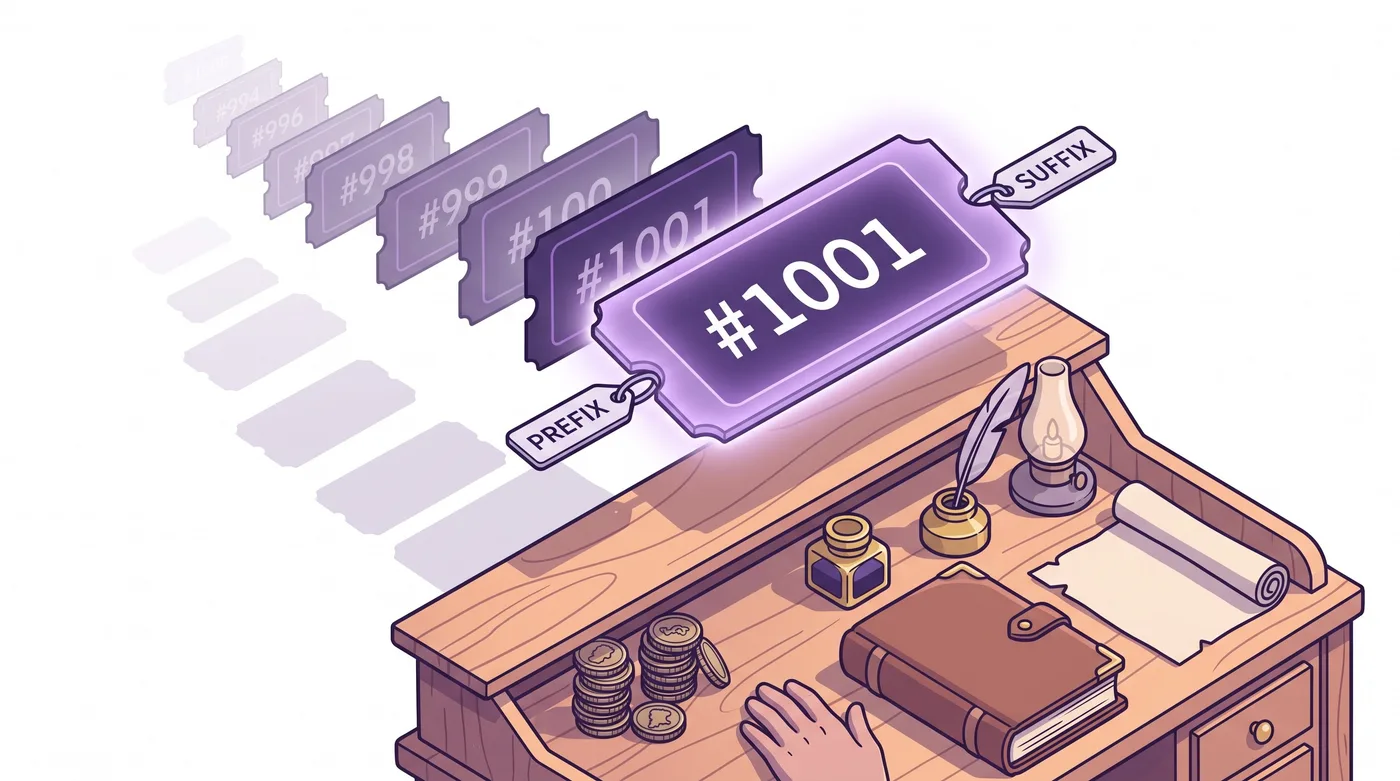
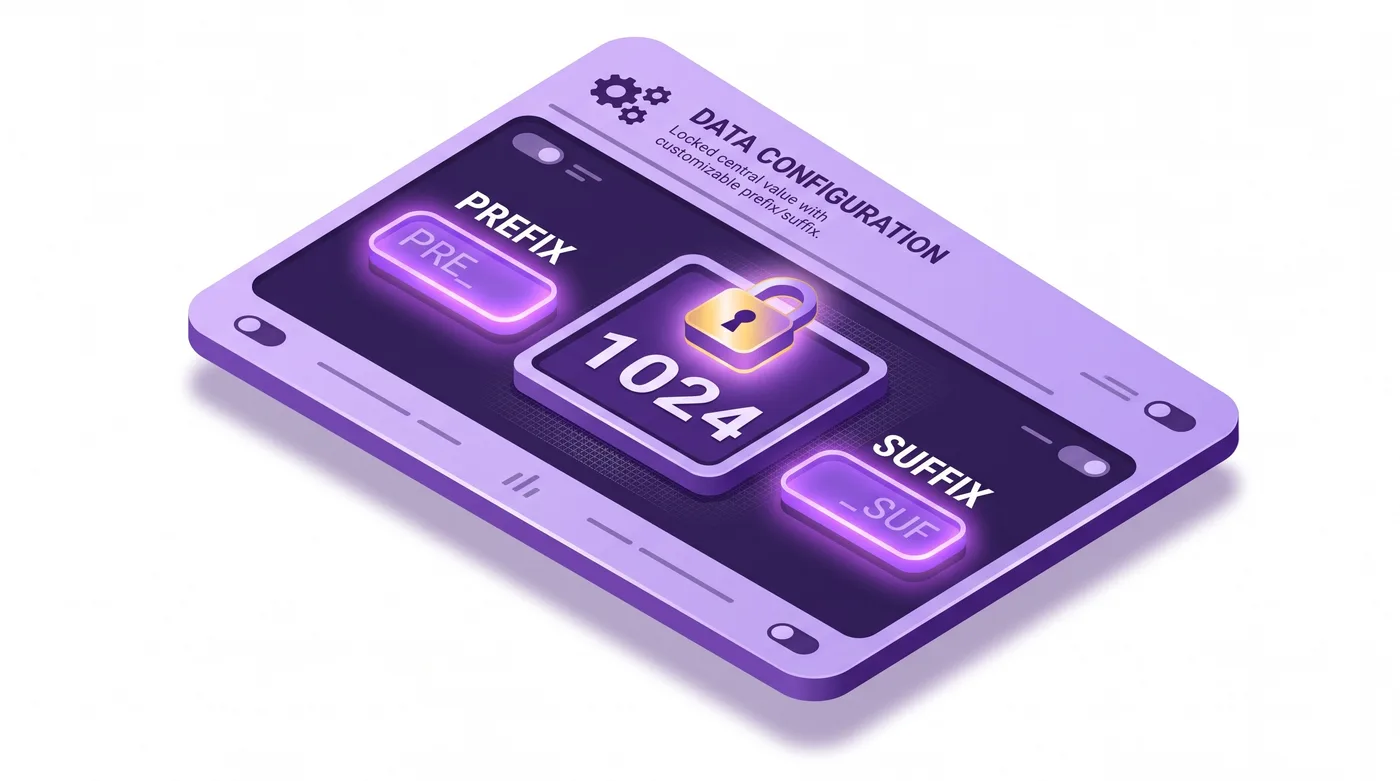
You can add a prefix and a suffix to every Shopify order number, but you cannot touch the number in the middle. That single sentence covers the entire native customization surface, so let's make the most of it.
In your admin, go to Settings, then General, and find the Order ID section (it sits near your store's standards and formats). There you will find two fields:
Prefix: text that appears before the number. Common uses are a channel or brand code, like
EN-so an order readsEN-1024, or a store identifier if you run multiple storefronts.Suffix: text that appears after the number, like
-CAfor a Canadian store, producing1024-CA.
Set a prefix of EN- and a suffix of -A, and order #1024 displays as EN-1024-A. The 1024 itself stays exactly as Shopify assigned it. Prefixes and suffixes are especially useful for multi-store operators and B2B sellers who need to tell at a glance which storefront or customer segment an order came from. If you run wholesale alongside your direct-to-consumer store, a prefix is the cleanest way to separate the two order streams visually, and it pairs well with the workflows in our Shopify B2B order editing guide.
What you cannot do natively is worth stating just as clearly, because it saves hours of searching for a setting that does not exist.
Element | Can you change it natively? | Where / why |
|---|---|---|
Prefix (before the number) | Yes | Settings, then General, then Order ID |
Suffix (after the number) | Yes | Settings, then General, then Order ID |
The starting number (#1001) | No | No admin setting exists |
The number sequence or skipped gaps | No | Sequential and permanent; gaps are never backfilled |
Renumbering an existing order | No | Assigned once, never edited or reused |
The internal order ID | No | System-generated and immutable |
Why your Shopify order numbers skip
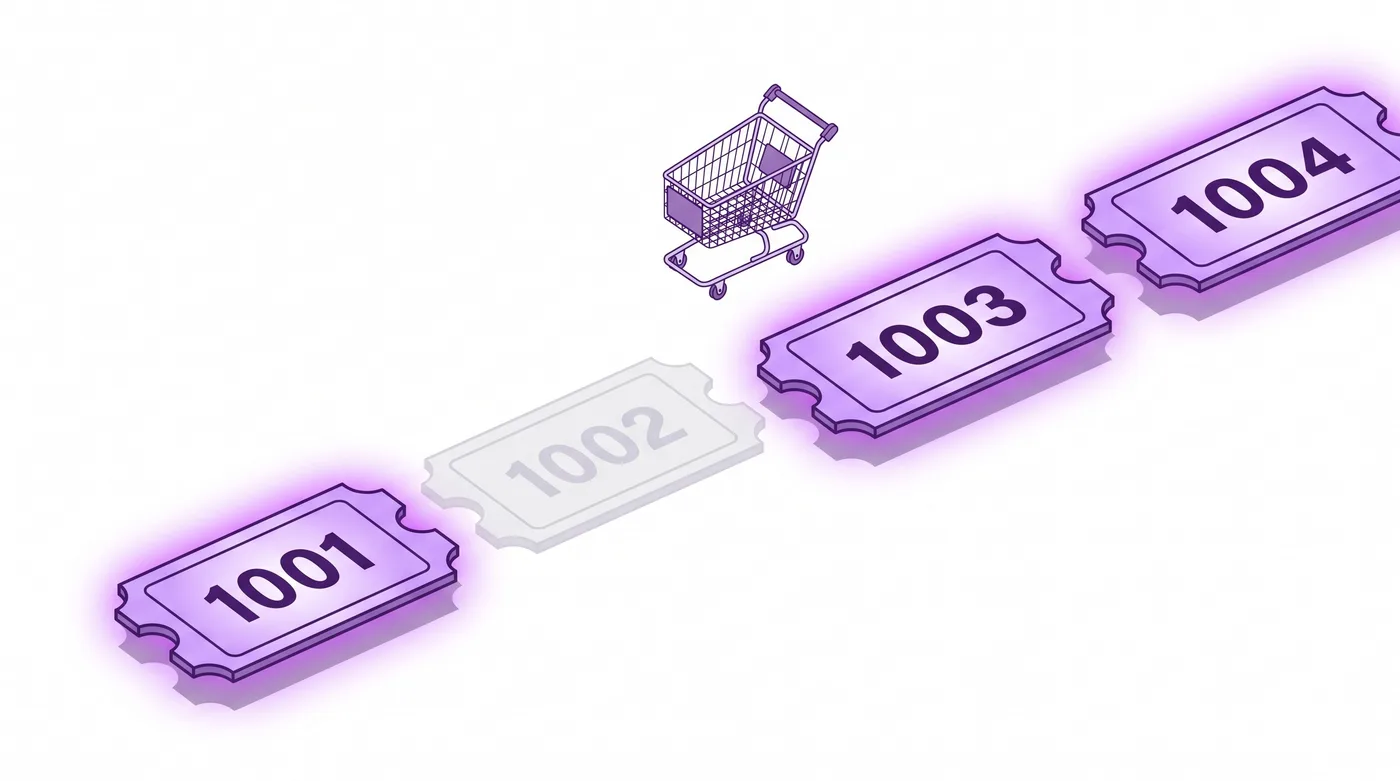
If your orders jump from #1001 to #1003 with no #1002 in sight, nothing is broken. Skipped Shopify order numbers are normal, and they happen because a number gets claimed before an order is guaranteed to exist. This is one of the most common support questions merchants field from confused customers and bookkeepers, so understanding the mechanism lets you answer it in one sentence.
Here is what happens underneath. Shopify assigns the next sequential number at the moment a checkout or a draft order is created, not at the moment money changes hands. If that checkout is then abandoned, if the payment fails, if the order is a test, or if an order is later deleted, the number that was claimed is not handed back. Shopify does not reuse it and does not close the gap. So the visible sequence ends up with holes.
In plain terms: Shopify hands out the next number the way a deli counter hands out tickets. If someone takes ticket #1002 and then leaves before they are served, ticket #1002 is simply gone. The next customer gets #1003, and the counter never re-issues #1002. Multiply that across every abandoned cart and failed payment, and gaps are inevitable, especially on high-traffic stores.
This matters for two practical reasons. First, it is a reconciliation gotcha: a finance team counting orders by number will over-count if they assume the sequence is unbroken, so order counts should come from your reports, never from "last number minus first number." Second, it is a customer-trust moment: a shopper who notices they are order #1050 when a friend who bought minutes earlier got #1044 may wonder whether something went wrong. The answer is simply that a handful of checkouts in between were never completed. Nothing is missing from your records.

How to find and manage an order by its number
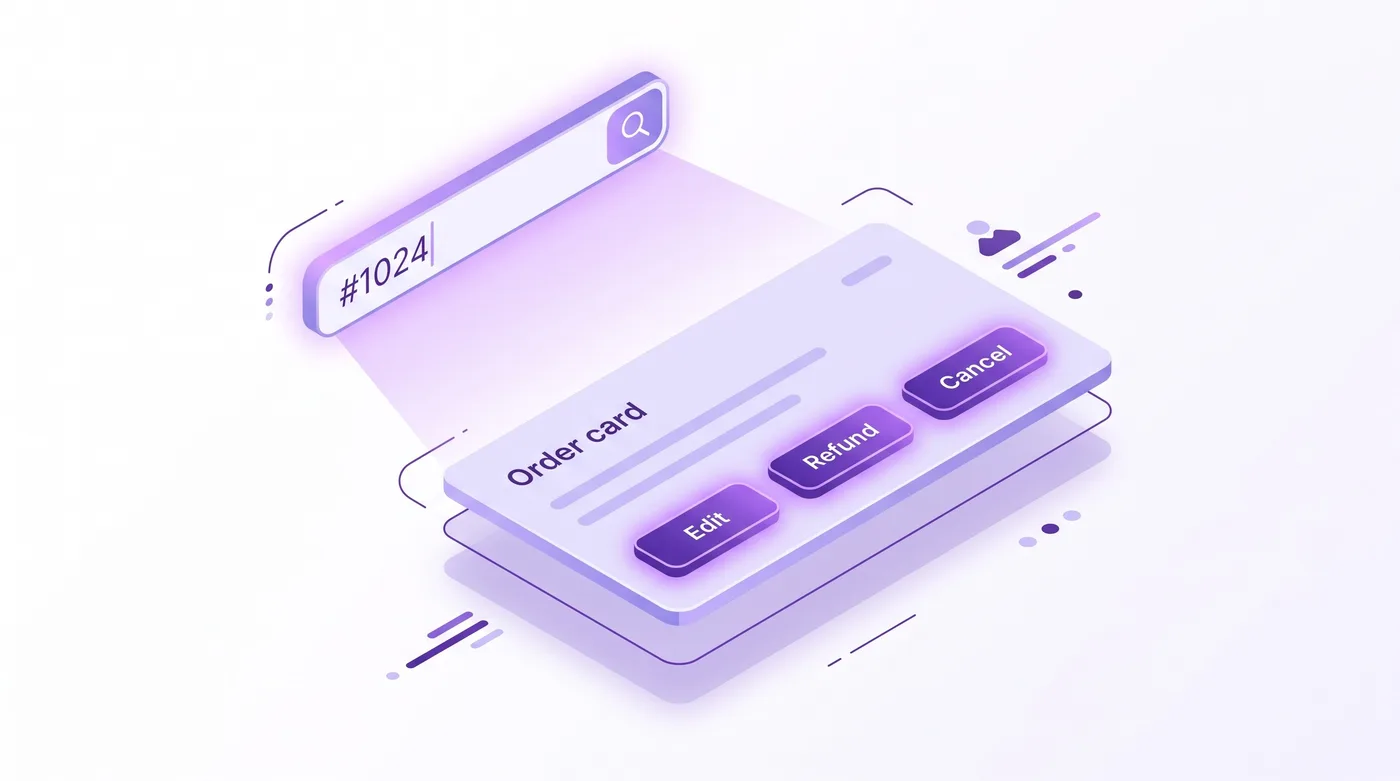
The order number is your fastest handle on an order: search it, open it, then act on it. In your admin, go to Orders and type the number (with or without the #) into the search bar. Shopify matches the friendly number, so 1024 or #1024 both work, and you land on the order in seconds.
From that order page, the number stops being a label and becomes a launch point for real work: viewing fulfillment status, printing a packing slip, issuing a refund, canceling, or editing line items. This is the moment the whole topic has been building toward, because "find order #1024" is almost never the end of the request. It is the setup for "now change it."
And this is where Shopify's rigidity returns. The native Edit order action on that page lets you add or remove products and adjust quantities, which covers a real slice of change requests. But a large share of what customers actually ask for after checkout, swapping a variant, correcting a shipping address, adding an item, canceling before fulfillment, is either fiddly or impossible to hand back to the customer through the admin alone. Your support team ends up as the manual middle layer for every "change order #1024" email. For the full mechanics of what the native tools do and do not cover, our Shopify order management guide walks through the placed-order model, and the Shopify edit order guide covers the admin editing surface in detail.
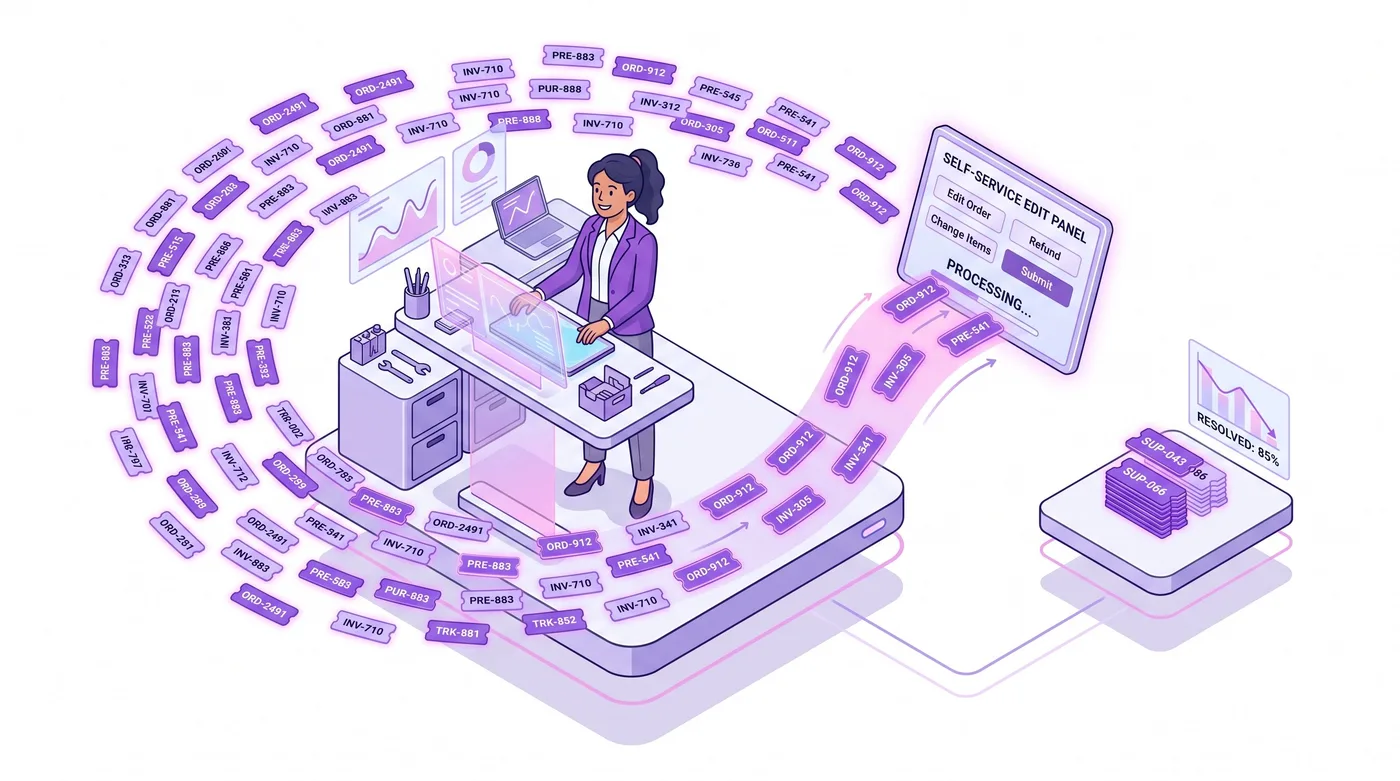
This is the problem a post-purchase editing app is built to solve. Tools like Revize let a customer act on their own order, by number, within rules you set: change a variant, update the address, or cancel inside a window you define, without emailing your team or waiting for a human to open the admin. High-volume brands, from apparel labels like AYBL to licensed-goods sellers like Square Enix, treat that self-service layer as throughput infrastructure, because at scale the cost is not any single edit, it is the pile of "change my order" tickets that each start with a customer reading a number off their confirmation email. The same self-service pattern is detailed in our Shopify Plus order editing guide, and for the cancellation path specifically, the cancel order guide covers what customers can safely do themselves.

Order numbers at scale, for high-volume and B2B stores
Once you process thousands of orders a month, the order number stops being cosmetic and becomes an operations tool. The prefix and suffix you set earlier do real work at scale: routing, filtering, and telling storefronts or customer segments apart at a glance.
For multi-store and wholesale operators, a consistent prefix scheme is the difference between an ops team that can eyeball an order's origin and one that has to open every record to check. Pair prefixes with saved order views and your fulfillment and support queues get sharply faster. The gaps discussed above also matter more here: at high volume, skipped numbers accumulate quickly, so any process that counts or reconciles by number rather than by report will drift.
The deeper point is that at scale, every order number is a potential support ticket waiting to happen. The stores that stay fast are the ones that made the jump from that number back to a self-service change, rather than routing each one through a person. That is an infrastructure decision, and the earlier you make it, the less your support load grows with your order volume.

Frequently Asked Questions
What is a Shopify order number?
A Shopify order number is the customer-facing label for an order, starting at #1001 by default and increasing by one for each new order. It appears on order confirmations, packing slips, and the customer's account, and it is the reference customers and support teams use to identify an order. It is separate from the internal order ID that Shopify's API uses.
Can I change my Shopify order number starting point?
No, Shopify does not let you change the starting number natively; every store begins at #1001. There is no admin setting to start at #1 or resume a sequence from another platform, and the counter cannot be reset once orders exist. Some third-party apps display a different number, but they relabel the order rather than change Shopify's underlying sequence.
How do I customize my Shopify order number format?
Go to Settings, then General, then the Order ID section, and set a prefix, a suffix, or both. A prefix of "EN-" and a suffix of "-A" turns order 1024 into EN-1024-A. You can change the text around the number at any time, but the number itself stays exactly as Shopify assigned it.
Why do my Shopify order numbers skip?
Skipped order numbers are normal and mean a number was claimed by a checkout or draft that never became a completed order. Abandoned checkouts, failed payments, test orders, and deleted orders all reserve a number that Shopify does not reuse or backfill. The gaps do not indicate lost orders or a bug.
Do abandoned carts use up Shopify order numbers?
Yes, in effect: when a checkout begins, Shopify claims the next number, and if that checkout is abandoned, the number is left unused. This is the single most common reason merchants see gaps in their sequence. It is more visible on high-traffic stores, where many checkouts start and never finish.
What is the difference between the order number and the order ID?
The order number (#1024) is the friendly, customer-facing label, while the order ID is a long system-generated value the API uses internally. Think of the number as the name on a coffee cup and the ID as the barcode the system scans. Integrations and developers usually need the long ID, which is why pasting a #1024-style number into a tool can return "not found."
How do I find an order by its number in Shopify?
Go to Orders in your admin and type the number, with or without the # symbol, into the search bar. Shopify matches the customer-facing number, so both 1024 and #1024 return the same order. From there you can view, fulfill, refund, cancel, or edit it.
Can I reuse or renumber a Shopify order?
No, Shopify order numbers are permanent: once assigned, a number is never edited, reused, or renumbered. This applies even to canceled or deleted orders, whose numbers stay retired. If you need different-looking references, the prefix and suffix are the only native levers.
Can customers change an order after they see its number?
Not through native Shopify, which keeps all order edits inside the merchant admin. Customers can view an order by number in their account, but any change (variant swap, address fix, cancellation) has to run through your team or through a post-purchase editing app that extends controlled self-service to the customer within rules you set.
Do order numbers reset or change across sales channels?
No, a Shopify store uses one continuous order-number sequence across all of its sales channels. An order from your online store, your point of sale, and a connected marketplace all draw from the same counter, so the numbers interleave in the order that checkouts were created rather than by channel.
Will changing my prefix or suffix affect past orders?
Updating the prefix or suffix changes how order numbers display going forward and generally re-renders existing ones with the new format, but it never alters the underlying number. The safest practice is to settle on a format early, since the number in the middle is what your records, customers, and integrations rely on.
How should I count orders if the numbers skip?
Always count orders from your Shopify reports or analytics, never by subtracting the first order number from the last. Because gaps are normal, "last number minus first number" overstates your true order count. Your reports count actual orders, which is the figure that matters for reconciliation.
The bottom line on Shopify order numbers
A Shopify order number looks like a simple counter, but it quietly encodes how the platform treats orders: issued once at #1001, brandable only at the edges with a prefix and suffix, sequential with gaps you cannot close, and permanent once assigned. Knowing the mechanics saves you from chasing settings that do not exist and lets you answer the "why did my number skip" question in one sentence. The more valuable shift is what happens after you find an order by its number. On most stores, "change order #1024" becomes a support ticket; on the fast ones, it becomes a self-service edit the customer handles themselves. Make that shift early, and your Shopify order numbers stay what they should be: a quick handle on an order, not the first step in a manual change queue.
Related reading
Shopify Order Management Guide 2026 - how the placed-order model works end to end
Shopify Edit Order Guide - the native admin editing surface, and its limits
Shopify Plus Order Editing and Self-Service - letting customers change orders by number themselves
How to Let Customers Cancel Orders on Shopify - the cancellation path, done safely
Shopify B2B Order Editing - prefixes, order streams, and edits for wholesale
A customer emails you: "Please change the size on order #1024 before it ships." Simple enough. You search #1024, find it in about five seconds, and then hit the real question, the one the order number quietly set up: can you actually change it? For a lot of merchants, the Shopify order number is the first place they discover how the platform thinks about orders: friendly on the surface, rigid underneath. You can't renumber it, you'll see gaps you can't explain, and the moment a customer references one to request a change, you're standing at the edge of post-purchase editing.
This guide covers what a Shopify order number actually is, how to customize the parts you're allowed to, why the sequence skips numbers, how to find and manage any order by its number, and what to do when that number turns into a change request.
Quick answer: A Shopify order number is the customer-facing label for an order, starting at #1001 by default and counting up. You can customize the prefix and suffix (for example,
EN-1024-A) in Settings, but you cannot change the starting number, renumber orders, or close the gaps where numbers skip. Skips are normal: Shopify assigns a number when a checkout or draft order is created, and abandoned checkouts, failed payments, test orders, and deleted orders all leave numbers unused. The order number is separate from the internal order ID (a long system value used by the API). To act on an order, search the number in your admin, then edit, cancel, or refund from there.

What a Shopify order number actually is
A Shopify order number is the human-friendly name for an order, and it is not the same thing as the order's real database ID. This distinction trips up merchants, developers, and support agents constantly, so it is worth getting straight before anything else.
Here is the plain-language version. Think of the order number (#1001) as the name written on a coffee-shop cup, and the order ID (a long value like 5473829101) as the barcode the system scans behind the counter. Customers, your support team, and your packing slips all use the friendly name. Shopify's software, its APIs, and most integrations use the barcode. Both point to the same order; they just serve different readers.
In technical terms, the #1001 value is stored as the order's name (and order_number) field, while the long numeric id is a globally unique identifier Shopify assigns internally. When an app, a report, or a developer references "the order ID," they usually mean the long one, not the #1001 a customer would recognize. If you have ever pasted an order number into an integration and gotten "not found," this is why: the tool wanted the ID, and you gave it the name.
For day-to-day operations, you will live in the friendly number. It appears on the order confirmation, the customer's account, the packing slip, and the admin. It is the reference everyone speaks out loud. Understanding that a second, invisible identifier exists underneath is mostly useful for two moments: wiring up integrations, and understanding why order numbers behave in ways that feel illogical, which we will get to.
Why Shopify order numbers start at #1001
Every new Shopify store begins its order numbers at #1001, and that default is deliberate, not arbitrary. Starting at a four-digit number instead of #1 makes a brand-new store look more established. Order #1 tells every customer they are your first-ever buyer; order #1024 does not.
You cannot change this starting point in the Shopify admin. There is no native setting to begin at #1, #5000, or any other number, and there is no way to reset the counter once orders exist. Merchants migrating from another platform often want to continue their old sequence (say, resume at #8400), and the honest answer is that Shopify does not support this natively. A handful of third-party apps rewrite the displayed number, but they layer a label on top; they do not change the underlying sequence Shopify counts.
This permanence is the theme that runs through the whole topic. The order number is issued once, counts forward, and is never edited or reused. That rigidity is fine until it collides with the two things merchants actually want to do: brand the number, and understand its gaps.
How to customize your Shopify order numbers
You can add a prefix and a suffix to every Shopify order number, but you cannot touch the number in the middle. That single sentence covers the entire native customization surface, so let's make the most of it.
In your admin, go to Settings, then General, and find the Order ID section (it sits near your store's standards and formats). There you will find two fields:
Prefix: text that appears before the number. Common uses are a channel or brand code, like
EN-so an order readsEN-1024, or a store identifier if you run multiple storefronts.Suffix: text that appears after the number, like
-CAfor a Canadian store, producing1024-CA.
Set a prefix of EN- and a suffix of -A, and order #1024 displays as EN-1024-A. The 1024 itself stays exactly as Shopify assigned it. Prefixes and suffixes are especially useful for multi-store operators and B2B sellers who need to tell at a glance which storefront or customer segment an order came from. If you run wholesale alongside your direct-to-consumer store, a prefix is the cleanest way to separate the two order streams visually, and it pairs well with the workflows in our Shopify B2B order editing guide.
What you cannot do natively is worth stating just as clearly, because it saves hours of searching for a setting that does not exist.
Element | Can you change it natively? | Where / why |
|---|---|---|
Prefix (before the number) | Yes | Settings, then General, then Order ID |
Suffix (after the number) | Yes | Settings, then General, then Order ID |
The starting number (#1001) | No | No admin setting exists |
The number sequence or skipped gaps | No | Sequential and permanent; gaps are never backfilled |
Renumbering an existing order | No | Assigned once, never edited or reused |
The internal order ID | No | System-generated and immutable |

Why your Shopify order numbers skip
If your orders jump from #1001 to #1003 with no #1002 in sight, nothing is broken. Skipped Shopify order numbers are normal, and they happen because a number gets claimed before an order is guaranteed to exist. This is one of the most common support questions merchants field from confused customers and bookkeepers, so understanding the mechanism lets you answer it in one sentence.
Here is what happens underneath. Shopify assigns the next sequential number at the moment a checkout or a draft order is created, not at the moment money changes hands. If that checkout is then abandoned, if the payment fails, if the order is a test, or if an order is later deleted, the number that was claimed is not handed back. Shopify does not reuse it and does not close the gap. So the visible sequence ends up with holes.
In plain terms: Shopify hands out the next number the way a deli counter hands out tickets. If someone takes ticket #1002 and then leaves before they are served, ticket #1002 is simply gone. The next customer gets #1003, and the counter never re-issues #1002. Multiply that across every abandoned cart and failed payment, and gaps are inevitable, especially on high-traffic stores.
This matters for two practical reasons. First, it is a reconciliation gotcha: a finance team counting orders by number will over-count if they assume the sequence is unbroken, so order counts should come from your reports, never from "last number minus first number." Second, it is a customer-trust moment: a shopper who notices they are order #1050 when a friend who bought minutes earlier got #1044 may wonder whether something went wrong. The answer is simply that a handful of checkouts in between were never completed. Nothing is missing from your records.

How to find and manage an order by its number
The order number is your fastest handle on an order: search it, open it, then act on it. In your admin, go to Orders and type the number (with or without the #) into the search bar. Shopify matches the friendly number, so 1024 or #1024 both work, and you land on the order in seconds.
From that order page, the number stops being a label and becomes a launch point for real work: viewing fulfillment status, printing a packing slip, issuing a refund, canceling, or editing line items. This is the moment the whole topic has been building toward, because "find order #1024" is almost never the end of the request. It is the setup for "now change it."
And this is where Shopify's rigidity returns. The native Edit order action on that page lets you add or remove products and adjust quantities, which covers a real slice of change requests. But a large share of what customers actually ask for after checkout, swapping a variant, correcting a shipping address, adding an item, canceling before fulfillment, is either fiddly or impossible to hand back to the customer through the admin alone. Your support team ends up as the manual middle layer for every "change order #1024" email. For the full mechanics of what the native tools do and do not cover, our Shopify order management guide walks through the placed-order model, and the Shopify edit order guide covers the admin editing surface in detail.
This is the problem a post-purchase editing app is built to solve. Tools like Revize let a customer act on their own order, by number, within rules you set: change a variant, update the address, or cancel inside a window you define, without emailing your team or waiting for a human to open the admin. High-volume brands, from apparel labels like AYBL to licensed-goods sellers like Square Enix, treat that self-service layer as throughput infrastructure, because at scale the cost is not any single edit, it is the pile of "change my order" tickets that each start with a customer reading a number off their confirmation email. The same self-service pattern is detailed in our Shopify Plus order editing guide, and for the cancellation path specifically, the cancel order guide covers what customers can safely do themselves.

Order numbers at scale, for high-volume and B2B stores
Once you process thousands of orders a month, the order number stops being cosmetic and becomes an operations tool. The prefix and suffix you set earlier do real work at scale: routing, filtering, and telling storefronts or customer segments apart at a glance.
For multi-store and wholesale operators, a consistent prefix scheme is the difference between an ops team that can eyeball an order's origin and one that has to open every record to check. Pair prefixes with saved order views and your fulfillment and support queues get sharply faster. The gaps discussed above also matter more here: at high volume, skipped numbers accumulate quickly, so any process that counts or reconciles by number rather than by report will drift.
The deeper point is that at scale, every order number is a potential support ticket waiting to happen. The stores that stay fast are the ones that made the jump from that number back to a self-service change, rather than routing each one through a person. That is an infrastructure decision, and the earlier you make it, the less your support load grows with your order volume.

Frequently Asked Questions
What is a Shopify order number?
A Shopify order number is the customer-facing label for an order, starting at #1001 by default and increasing by one for each new order. It appears on order confirmations, packing slips, and the customer's account, and it is the reference customers and support teams use to identify an order. It is separate from the internal order ID that Shopify's API uses.
Can I change my Shopify order number starting point?
No, Shopify does not let you change the starting number natively; every store begins at #1001. There is no admin setting to start at #1 or resume a sequence from another platform, and the counter cannot be reset once orders exist. Some third-party apps display a different number, but they relabel the order rather than change Shopify's underlying sequence.
How do I customize my Shopify order number format?
Go to Settings, then General, then the Order ID section, and set a prefix, a suffix, or both. A prefix of "EN-" and a suffix of "-A" turns order 1024 into EN-1024-A. You can change the text around the number at any time, but the number itself stays exactly as Shopify assigned it.
Why do my Shopify order numbers skip?
Skipped order numbers are normal and mean a number was claimed by a checkout or draft that never became a completed order. Abandoned checkouts, failed payments, test orders, and deleted orders all reserve a number that Shopify does not reuse or backfill. The gaps do not indicate lost orders or a bug.
Do abandoned carts use up Shopify order numbers?
Yes, in effect: when a checkout begins, Shopify claims the next number, and if that checkout is abandoned, the number is left unused. This is the single most common reason merchants see gaps in their sequence. It is more visible on high-traffic stores, where many checkouts start and never finish.
What is the difference between the order number and the order ID?
The order number (#1024) is the friendly, customer-facing label, while the order ID is a long system-generated value the API uses internally. Think of the number as the name on a coffee cup and the ID as the barcode the system scans. Integrations and developers usually need the long ID, which is why pasting a #1024-style number into a tool can return "not found."
How do I find an order by its number in Shopify?
Go to Orders in your admin and type the number, with or without the # symbol, into the search bar. Shopify matches the customer-facing number, so both 1024 and #1024 return the same order. From there you can view, fulfill, refund, cancel, or edit it.
Can I reuse or renumber a Shopify order?
No, Shopify order numbers are permanent: once assigned, a number is never edited, reused, or renumbered. This applies even to canceled or deleted orders, whose numbers stay retired. If you need different-looking references, the prefix and suffix are the only native levers.
Can customers change an order after they see its number?
Not through native Shopify, which keeps all order edits inside the merchant admin. Customers can view an order by number in their account, but any change (variant swap, address fix, cancellation) has to run through your team or through a post-purchase editing app that extends controlled self-service to the customer within rules you set.
Do order numbers reset or change across sales channels?
No, a Shopify store uses one continuous order-number sequence across all of its sales channels. An order from your online store, your point of sale, and a connected marketplace all draw from the same counter, so the numbers interleave in the order that checkouts were created rather than by channel.
Will changing my prefix or suffix affect past orders?
Updating the prefix or suffix changes how order numbers display going forward and generally re-renders existing ones with the new format, but it never alters the underlying number. The safest practice is to settle on a format early, since the number in the middle is what your records, customers, and integrations rely on.
How should I count orders if the numbers skip?
Always count orders from your Shopify reports or analytics, never by subtracting the first order number from the last. Because gaps are normal, "last number minus first number" overstates your true order count. Your reports count actual orders, which is the figure that matters for reconciliation.
The bottom line on Shopify order numbers
A Shopify order number looks like a simple counter, but it quietly encodes how the platform treats orders: issued once at #1001, brandable only at the edges with a prefix and suffix, sequential with gaps you cannot close, and permanent once assigned. Knowing the mechanics saves you from chasing settings that do not exist and lets you answer the "why did my number skip" question in one sentence. The more valuable shift is what happens after you find an order by its number. On most stores, "change order #1024" becomes a support ticket; on the fast ones, it becomes a self-service edit the customer handles themselves. Make that shift early, and your Shopify order numbers stay what they should be: a quick handle on an order, not the first step in a manual change queue.
Related reading
Shopify Order Management Guide 2026 - how the placed-order model works end to end
Shopify Edit Order Guide - the native admin editing surface, and its limits
Shopify Plus Order Editing and Self-Service - letting customers change orders by number themselves
How to Let Customers Cancel Orders on Shopify - the cancellation path, done safely
Shopify B2B Order Editing - prefixes, order streams, and edits for wholesale
Revize your Shopify store. Lead with customer experience.
© Copyright 2026, All Rights Reserved
Revize your Shopify store. Lead with customer experience.
© Copyright 2026, All Rights Reserved
Revize your Shopify store. Lead with customer experience.
© Copyright 2026, All Rights Reserved
Revize your Shopify store. Lead with customer experience.
© Copyright 2026, All Rights Reserved