
How to Cancel an Item on Shopify Without Canceling the Whole Order
How to Cancel an Item on Shopify Without Canceling the Whole Order
How to Cancel an Item on Shopify Without Canceling the Whole Order
Quick answer: Shopify has no cancel button for a single item. To cancel an item on Shopify, open the order, click Edit, remove the item or set its quantity to 0, keep Restock ticked, then issue the refund Shopify shows is owed. To let customers cancel one item themselves, with an automatic refund and no ticket, use Revize partial cancellation.
Why cancelling one item on Shopify costs more than it should
Cancelling one item is a small change, and it usually costs a full support ticket. Across 10 million+ Shopify orders, 5.2% are edited after checkout, about 1 in 19 (Revize, 2026). The Shopify order editing statistics break those edits down by type. Full cancellation is the second most common at 24.3% of edited orders, and quantity changes add another 9.0%.
For illustration only: at that aggregate rate, a hypothetical store shipping 10,000 orders a month would see roughly 520 change requests a month. Each one that arrives by email means a ticket, an order lookup, an edit, a refund and a reply. And if cancelling everything is the only obvious option, a customer who wanted one item gone may cancel the whole order.

What happens to an order in the minutes after checkout
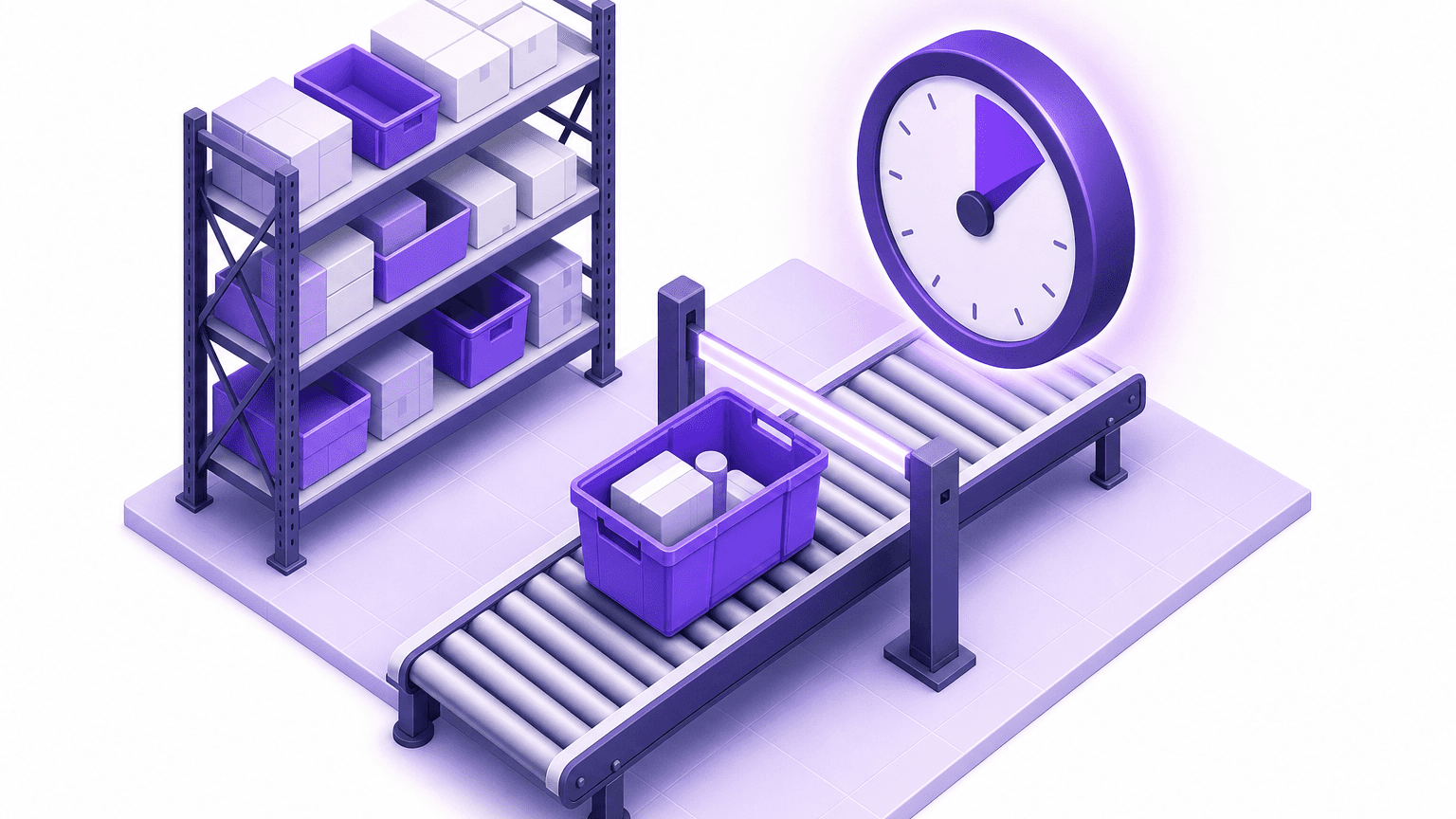
Once an order is placed, the customer's change of mind is racing your warehouse's pick list. Say a customer buys a jacket and two scarves, then decides a few minutes later that one scarf is enough. That timing is typical. The median post-checkout edit lands 4.6 minutes after the order is placed, and 80.6% of edits happen within the first hour (Revize, 2026).
Follow that order forward. Your 3PL (a third-party logistics warehouse that picks and ships your orders) may pull new orders straight away. If it does, the second scarf can be on a pick list before the customer's email reaches your inbox. From there the order ends one of three ways:
The scarf comes out before the pick. The order ships correctly and the refund covers one scarf.
The scarf ships anyway, and a fix that could have happened before shipping becomes a return.
The customer gives up and cancels the whole order, jacket included.
Only the first outcome is cheap, and the rest of this guide is about making it the default. Our recommendation: keep the order at the warehouse until the change window closes.
How to cancel an item on Shopify in the admin
Shopify's cancel action applies to the whole order, so to cancel a single item you use Edit or Refund. Shopify's canceling orders page covers full-order cancellation only. For that case, see our guide to cancelling a Shopify order.
Method 1: Edit the order
Open the order in Shopify admin and click Edit.
Remove the product, or lower its quantity.
Leave Restock units ticked unless the unit can't be sold again.
Check the updated total, which shows whether you owe the customer a refund.
Issue that refund yourself.
These steps follow Shopify's guide to editing products in an order.
Method 2: Refund the line item
When you refund an unfulfilled item, Shopify removes it from the order so it won't be fulfilled. You can also refund only some units of a line, according to Shopify's refunding orders page. Our partial refund walkthrough goes through each screen.
Where the native route stops
Your team does every step. The customer can only ask for the change.
Order discounts don't update automatically, and shipping isn't recalculated when you edit an order (Shopify Help Center).
Fulfilled items can't be removed or have their quantity changed in an edit (editing considerations).
Neither method holds the order at the warehouse while the ticket sits in a queue.
In plain terms: in the admin, your team makes every change, one ticket at a time.
How to cancel an item on Shopify with Revize
With Revize, the customer removes the item on the order status page and Shopify refunds that portion automatically; with Hold orders on in a time-based or scheduled window, the warehouse waits until the window closes. Revize is a Shopify app for customer self-serve post-purchase order editing, letting shoppers change the shipping address, swap a variant or product, cancel, and get a refund or store credit before fulfillment, without a support ticket.
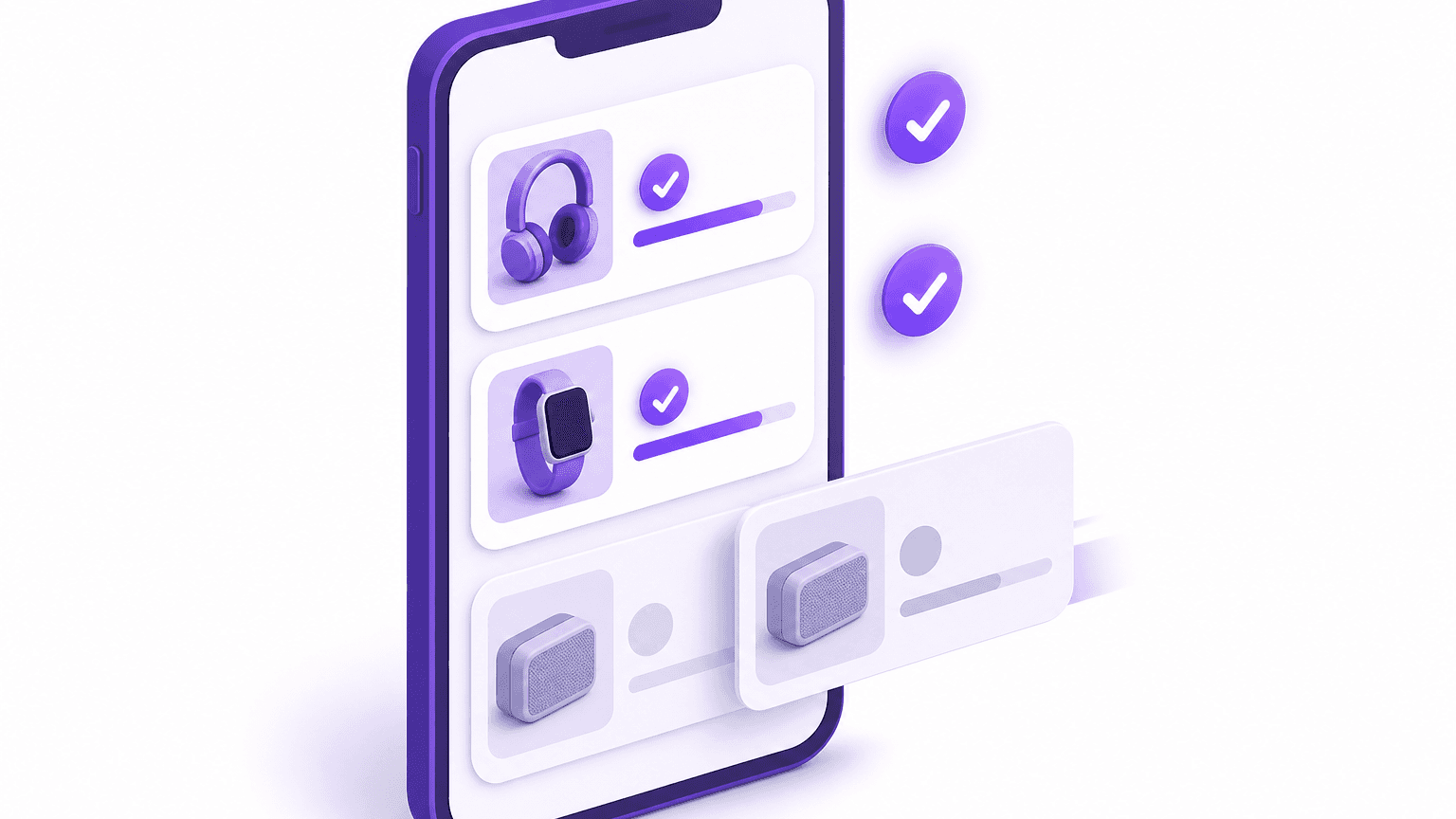
Customers can drop an item in two ways. In the order editor they can lower a quantity or remove a line entirely; the refund is automatic and the unit is restocked (product and quantity edits). Or they click Cancel order, tick the line items to cancel (and, if you allow it, some units of a line, such as 2 of 5), pick a reason and confirm. The remaining items go on to fulfillment, and the refund covers only the cancelled portion (Revize cancel order docs).
Set it up in this order:
Set where refunds go. In Order Editing > Refund options, choose Refund to original payment or Refund as store credit (store credit requires Pro). Avoid No refund, because it hides the cancel button and blocks edits that lower the order value (payments and refunds).
Turn on the modules. In Order Editing > Customer edit options, switch on Cancel order, tick quantity changes under Edit product details, and click Save.
Allow partial cancellation. In Settings > Order editing > Cancel order, switch on Enable partial cancellation. Add Allow partial quantities if customers may cancel only some units of a line.
Set the window. In Order Editing > Order edit window, choose a preset (15, 30 or 60 minutes), a custom duration of up to 48 hours, until fulfillment, or a scheduled cutoff (edit window setup). The store-wide until fulfillment mode places no fulfillment hold; to get one with that mode, use the rules engine's Hold fulfillment action, which is Pro and above.
Keep the hold on. For time-based and scheduled windows, leave Hold orders selected in Order Editing > Order processing. Revize puts a Shopify fulfillment hold on the order when it is created and releases it when the window closes. Any 3PL or WMS (warehouse management system) that respects Shopify holds will wait (order processing).
Lock items that must never be removed. Add a product tag under Settings > Order edit restrictions. The tag blocks quantity changes, swaps and removal for that item only; the rest of the order stays editable (edit restrictions).
Test it. Turn on the Revize app block for the order status page in the theme customizer, create a Shopify draft order, and remove an item yourself.
Revize carries the Built for Shopify badge. Install Revize from the Shopify App Store and have partial cancellation live before your next busy week.
Edit, refund, cancel or self-serve: which method to use
Use self-serve for anything inside the edit window, Edit for changes your team must make, and Refund when the customer only wants money back.
Method | Cancels one item | Who does the work | Refund | Ticket needed |
|---|---|---|---|---|
Revize partial cancellation | Yes, down to single units | The customer | Automatic, per Refund options | No |
Edit order in Shopify admin | Yes | Your team | You issue the amount owed | Yes |
Refund the line item | Yes, if unfulfilled | Your team | Issued with the refund | Yes |
Cancel order in Shopify admin | No, whole order | Your team | Whole order | Yes |
Judge the methods by outcomes. First, tickets per change: a removal the customer completes inside the window never reaches your inbox. Second, revenue kept: a customer who can drop one scarf keeps the jacket, the case made in comparing order editing with outright cancellation. Third, settlement: the refund happens on the same order, handled by Shopify.

Discounts, shipping and the refund math when one item leaves
Removing an item changes more than the subtotal, and Shopify's native editing doesn't redo the discount or shipping for you. As Shopify's editing guide notes, order discounts don't update automatically and shipping isn't recalculated.
An illustration with round numbers: a store offers 10% off orders over $100. A three-item order totals $120, and the customer removes a $40 item, leaving $80, below the threshold. After a native edit the discount stays as it was, so someone on your team has to decide whether the customer keeps it and then explain that decision.
On Pro, Revize recalculates your existing store discounts whenever the order changes, including percentage and fixed-amount codes, buy X get Y offers and Shopify automatic discounts. If a removal takes the order below a threshold, Revize adjusts or drops the discount and tells the customer their own edit caused the change (apply discounts docs). When one edit includes both a discount change and a paid change, Revize nets the two, so the customer either pays or is refunded, never both.
In plain terms: the numbers are settled when the edit happens, using rules you already set.
Edge cases that block cancelling an item
Most failed removals come from a small number of order states, and each has a documented rule.
Partially fulfilled orders. Shopify won't cancel an order once any part of it is fulfilled (canceling orders). The unfulfilled lines can still be removed through Edit or refunded; only fulfilled items are locked (editing considerations). Revize is built for changes before fulfillment, and its portal hides once the order is fulfilled, so items that have already shipped go through Shopify's refund or return flow.
Orders Shopify won't edit. Shopify's editing considerations page lists order types that can't be edited. Compare it against your payment methods and sales channels, and confirm on a test order.
Free gifts. The Revize portal shows a standing "Free gifts can't be edited" notice (customer portal).
The last item. The minimum order quantity defaults to 1, so edits can't empty an order. Removing everything goes through cancellation, if it's enabled (advanced settings).
Social and third-party channel orders. On channels such as TikTok Shop, Revize supports address, contact, delivery date, cancelling eligible orders and contacting support. Line-item removal is not on that list.
3PLs that ignore holds. For these, Revize uses manual payment capture: the payment stays Authorized during the window, so systems that only download paid orders wait until Revize captures at close (integrations). It does not stop a system that pulls unpaid orders from picking and shipping, so confirm your 3PL's import filter on a test order.
What to do this week
Move single-item cancellations out of your inbox and into a held edit window, in this order:
Count last month's tickets asking to cancel or remove one item. That count is your baseline.
Choose where refunds go: the original payment method, or store credit on Pro.
Install Revize and turn on Cancel order, partial cancellation and quantity changes.
Set an edit window, keep Hold orders on, and confirm that your 3PL respects Shopify holds.
Tag final-sale and personalised products so they can't be removed.
Test on a draft order before you tell customers about the option.
Once this is in place, cancelling an item on Shopify takes your customer a few steps on the order status page, and it happens before the warehouse picks the order.

Frequently Asked Questions
Can you cancel just one item in a Shopify order?
Not with the Cancel button, but yes through Edit or Refund: you cancel one item by editing out or refunding that line, or customers do it themselves with Revize. If the order is partially fulfilled, the fulfilled items are locked while the unfulfilled lines can still be removed. For shipped items, Shopify points you to cancelling the fulfillment, refunding or processing a return.
Does removing an item automatically refund the customer?
Not in Shopify admin: the updated total shows what you owe, and you issue the refund yourself. With Revize, Shopify processes the refund automatically to the destination set in Refund options. Arrival time depends on the payment provider. Store credit, a Pro option, keeps the value in your store for the customer's next order, which some stores prefer for low-value removals.
Does Shopify restock an item when I remove it from an order?
Shopify's edit screen includes a Restock option, and you can untick it for stock you can't sell again. Personalised or damaged units are typical examples. If you stock from several warehouses, check on a test order which location the units return to. When a customer cancels items through Revize, those units are restocked automatically and sellable straight away.
Is the shipping refunded when one item is canceled?
Only if you refund it: Shopify's refund screen lets you refund shipping as a separate amount. Shopify's refunding orders page sets out the limits on shipping refunds, so read it before setting a store policy. On Revize Pro, shipping is recalculated as part of the edit, and the customer sees any change before confirming.
Can customers cancel an item from their Shopify order themselves?
Yes, as long as Revize partial cancellation is on and the edit window is still open. Customers pick a reason from a list you control under Translations > Customer Portal > Cancellation Reasons. Each partial cancellation appears in the Shopify order timeline and is saved as JSON in the revize_app metafield under the key partial_cancellation, where Shopify Flow or reporting tools can read it.
Is there an API to cancel Shopify orders from a chatbot or email?
Yes: Revize's Public Cancellation API on Pro cancels orders from emails, help pages or chatbots. It takes an order number and an email address and needs no API keys. It applies the same window, tag and refund rules as the portal. Statuses such as ORDER_FULFILLED and NOT_EDITABLE let your chatbot tell the customer why a request didn't go through.
How do I cancel one vendor's item in a multi-vendor order?
Treat that vendor's product like any other line: remove or refund it and leave the rest of the order alone. In Revize, the customer ticks only that line in the cancel checklist. If the order is split across several fulfillments, you need split shipping support, which Revize support enables for your store on request.
Can a customer cancel an item after the edit window closes?
No: once the window closes, the cancel option disappears and the order moves to fulfillment. Your warehouse can also close it early. If your WMS or Shopify Flow adds a tag such as picked, and that tag is listed under Order edit restrictions, editing stops on that order immediately. How to cancel an item on Shopify comes down to timing: before the pick, the customer can do it in a few steps.
Related Articles
Quick answer: Shopify has no cancel button for a single item. To cancel an item on Shopify, open the order, click Edit, remove the item or set its quantity to 0, keep Restock ticked, then issue the refund Shopify shows is owed. To let customers cancel one item themselves, with an automatic refund and no ticket, use Revize partial cancellation.
Why cancelling one item on Shopify costs more than it should
Cancelling one item is a small change, and it usually costs a full support ticket. Across 10 million+ Shopify orders, 5.2% are edited after checkout, about 1 in 19 (Revize, 2026). The Shopify order editing statistics break those edits down by type. Full cancellation is the second most common at 24.3% of edited orders, and quantity changes add another 9.0%.
For illustration only: at that aggregate rate, a hypothetical store shipping 10,000 orders a month would see roughly 520 change requests a month. Each one that arrives by email means a ticket, an order lookup, an edit, a refund and a reply. And if cancelling everything is the only obvious option, a customer who wanted one item gone may cancel the whole order.
What happens to an order in the minutes after checkout
Once an order is placed, the customer's change of mind is racing your warehouse's pick list. Say a customer buys a jacket and two scarves, then decides a few minutes later that one scarf is enough. That timing is typical. The median post-checkout edit lands 4.6 minutes after the order is placed, and 80.6% of edits happen within the first hour (Revize, 2026).
Follow that order forward. Your 3PL (a third-party logistics warehouse that picks and ships your orders) may pull new orders straight away. If it does, the second scarf can be on a pick list before the customer's email reaches your inbox. From there the order ends one of three ways:
The scarf comes out before the pick. The order ships correctly and the refund covers one scarf.
The scarf ships anyway, and a fix that could have happened before shipping becomes a return.
The customer gives up and cancels the whole order, jacket included.
Only the first outcome is cheap, and the rest of this guide is about making it the default. Our recommendation: keep the order at the warehouse until the change window closes.
How to cancel an item on Shopify in the admin
Shopify's cancel action applies to the whole order, so to cancel a single item you use Edit or Refund. Shopify's canceling orders page covers full-order cancellation only. For that case, see our guide to cancelling a Shopify order.
Method 1: Edit the order
Open the order in Shopify admin and click Edit.
Remove the product, or lower its quantity.
Leave Restock units ticked unless the unit can't be sold again.
Check the updated total, which shows whether you owe the customer a refund.
Issue that refund yourself.
These steps follow Shopify's guide to editing products in an order.
Method 2: Refund the line item
When you refund an unfulfilled item, Shopify removes it from the order so it won't be fulfilled. You can also refund only some units of a line, according to Shopify's refunding orders page. Our partial refund walkthrough goes through each screen.
Where the native route stops
Your team does every step. The customer can only ask for the change.
Order discounts don't update automatically, and shipping isn't recalculated when you edit an order (Shopify Help Center).
Fulfilled items can't be removed or have their quantity changed in an edit (editing considerations).
Neither method holds the order at the warehouse while the ticket sits in a queue.
In plain terms: in the admin, your team makes every change, one ticket at a time.
How to cancel an item on Shopify with Revize
With Revize, the customer removes the item on the order status page and Shopify refunds that portion automatically; with Hold orders on in a time-based or scheduled window, the warehouse waits until the window closes. Revize is a Shopify app for customer self-serve post-purchase order editing, letting shoppers change the shipping address, swap a variant or product, cancel, and get a refund or store credit before fulfillment, without a support ticket.
Customers can drop an item in two ways. In the order editor they can lower a quantity or remove a line entirely; the refund is automatic and the unit is restocked (product and quantity edits). Or they click Cancel order, tick the line items to cancel (and, if you allow it, some units of a line, such as 2 of 5), pick a reason and confirm. The remaining items go on to fulfillment, and the refund covers only the cancelled portion (Revize cancel order docs).
Set it up in this order:
Set where refunds go. In Order Editing > Refund options, choose Refund to original payment or Refund as store credit (store credit requires Pro). Avoid No refund, because it hides the cancel button and blocks edits that lower the order value (payments and refunds).
Turn on the modules. In Order Editing > Customer edit options, switch on Cancel order, tick quantity changes under Edit product details, and click Save.
Allow partial cancellation. In Settings > Order editing > Cancel order, switch on Enable partial cancellation. Add Allow partial quantities if customers may cancel only some units of a line.
Set the window. In Order Editing > Order edit window, choose a preset (15, 30 or 60 minutes), a custom duration of up to 48 hours, until fulfillment, or a scheduled cutoff (edit window setup). The store-wide until fulfillment mode places no fulfillment hold; to get one with that mode, use the rules engine's Hold fulfillment action, which is Pro and above.
Keep the hold on. For time-based and scheduled windows, leave Hold orders selected in Order Editing > Order processing. Revize puts a Shopify fulfillment hold on the order when it is created and releases it when the window closes. Any 3PL or WMS (warehouse management system) that respects Shopify holds will wait (order processing).
Lock items that must never be removed. Add a product tag under Settings > Order edit restrictions. The tag blocks quantity changes, swaps and removal for that item only; the rest of the order stays editable (edit restrictions).
Test it. Turn on the Revize app block for the order status page in the theme customizer, create a Shopify draft order, and remove an item yourself.
Revize carries the Built for Shopify badge. Install Revize from the Shopify App Store and have partial cancellation live before your next busy week.
Edit, refund, cancel or self-serve: which method to use
Use self-serve for anything inside the edit window, Edit for changes your team must make, and Refund when the customer only wants money back.
Method | Cancels one item | Who does the work | Refund | Ticket needed |
|---|---|---|---|---|
Revize partial cancellation | Yes, down to single units | The customer | Automatic, per Refund options | No |
Edit order in Shopify admin | Yes | Your team | You issue the amount owed | Yes |
Refund the line item | Yes, if unfulfilled | Your team | Issued with the refund | Yes |
Cancel order in Shopify admin | No, whole order | Your team | Whole order | Yes |
Judge the methods by outcomes. First, tickets per change: a removal the customer completes inside the window never reaches your inbox. Second, revenue kept: a customer who can drop one scarf keeps the jacket, the case made in comparing order editing with outright cancellation. Third, settlement: the refund happens on the same order, handled by Shopify.
Discounts, shipping and the refund math when one item leaves
Removing an item changes more than the subtotal, and Shopify's native editing doesn't redo the discount or shipping for you. As Shopify's editing guide notes, order discounts don't update automatically and shipping isn't recalculated.
An illustration with round numbers: a store offers 10% off orders over $100. A three-item order totals $120, and the customer removes a $40 item, leaving $80, below the threshold. After a native edit the discount stays as it was, so someone on your team has to decide whether the customer keeps it and then explain that decision.
On Pro, Revize recalculates your existing store discounts whenever the order changes, including percentage and fixed-amount codes, buy X get Y offers and Shopify automatic discounts. If a removal takes the order below a threshold, Revize adjusts or drops the discount and tells the customer their own edit caused the change (apply discounts docs). When one edit includes both a discount change and a paid change, Revize nets the two, so the customer either pays or is refunded, never both.
In plain terms: the numbers are settled when the edit happens, using rules you already set.
Edge cases that block cancelling an item
Most failed removals come from a small number of order states, and each has a documented rule.
Partially fulfilled orders. Shopify won't cancel an order once any part of it is fulfilled (canceling orders). The unfulfilled lines can still be removed through Edit or refunded; only fulfilled items are locked (editing considerations). Revize is built for changes before fulfillment, and its portal hides once the order is fulfilled, so items that have already shipped go through Shopify's refund or return flow.
Orders Shopify won't edit. Shopify's editing considerations page lists order types that can't be edited. Compare it against your payment methods and sales channels, and confirm on a test order.
Free gifts. The Revize portal shows a standing "Free gifts can't be edited" notice (customer portal).
The last item. The minimum order quantity defaults to 1, so edits can't empty an order. Removing everything goes through cancellation, if it's enabled (advanced settings).
Social and third-party channel orders. On channels such as TikTok Shop, Revize supports address, contact, delivery date, cancelling eligible orders and contacting support. Line-item removal is not on that list.
3PLs that ignore holds. For these, Revize uses manual payment capture: the payment stays Authorized during the window, so systems that only download paid orders wait until Revize captures at close (integrations). It does not stop a system that pulls unpaid orders from picking and shipping, so confirm your 3PL's import filter on a test order.
What to do this week
Move single-item cancellations out of your inbox and into a held edit window, in this order:
Count last month's tickets asking to cancel or remove one item. That count is your baseline.
Choose where refunds go: the original payment method, or store credit on Pro.
Install Revize and turn on Cancel order, partial cancellation and quantity changes.
Set an edit window, keep Hold orders on, and confirm that your 3PL respects Shopify holds.
Tag final-sale and personalised products so they can't be removed.
Test on a draft order before you tell customers about the option.
Once this is in place, cancelling an item on Shopify takes your customer a few steps on the order status page, and it happens before the warehouse picks the order.
Frequently Asked Questions
Can you cancel just one item in a Shopify order?
Not with the Cancel button, but yes through Edit or Refund: you cancel one item by editing out or refunding that line, or customers do it themselves with Revize. If the order is partially fulfilled, the fulfilled items are locked while the unfulfilled lines can still be removed. For shipped items, Shopify points you to cancelling the fulfillment, refunding or processing a return.
Does removing an item automatically refund the customer?
Not in Shopify admin: the updated total shows what you owe, and you issue the refund yourself. With Revize, Shopify processes the refund automatically to the destination set in Refund options. Arrival time depends on the payment provider. Store credit, a Pro option, keeps the value in your store for the customer's next order, which some stores prefer for low-value removals.
Does Shopify restock an item when I remove it from an order?
Shopify's edit screen includes a Restock option, and you can untick it for stock you can't sell again. Personalised or damaged units are typical examples. If you stock from several warehouses, check on a test order which location the units return to. When a customer cancels items through Revize, those units are restocked automatically and sellable straight away.
Is the shipping refunded when one item is canceled?
Only if you refund it: Shopify's refund screen lets you refund shipping as a separate amount. Shopify's refunding orders page sets out the limits on shipping refunds, so read it before setting a store policy. On Revize Pro, shipping is recalculated as part of the edit, and the customer sees any change before confirming.
Can customers cancel an item from their Shopify order themselves?
Yes, as long as Revize partial cancellation is on and the edit window is still open. Customers pick a reason from a list you control under Translations > Customer Portal > Cancellation Reasons. Each partial cancellation appears in the Shopify order timeline and is saved as JSON in the revize_app metafield under the key partial_cancellation, where Shopify Flow or reporting tools can read it.
Is there an API to cancel Shopify orders from a chatbot or email?
Yes: Revize's Public Cancellation API on Pro cancels orders from emails, help pages or chatbots. It takes an order number and an email address and needs no API keys. It applies the same window, tag and refund rules as the portal. Statuses such as ORDER_FULFILLED and NOT_EDITABLE let your chatbot tell the customer why a request didn't go through.
How do I cancel one vendor's item in a multi-vendor order?
Treat that vendor's product like any other line: remove or refund it and leave the rest of the order alone. In Revize, the customer ticks only that line in the cancel checklist. If the order is split across several fulfillments, you need split shipping support, which Revize support enables for your store on request.
Can a customer cancel an item after the edit window closes?
No: once the window closes, the cancel option disappears and the order moves to fulfillment. Your warehouse can also close it early. If your WMS or Shopify Flow adds a tag such as picked, and that tag is listed under Order edit restrictions, editing stops on that order immediately. How to cancel an item on Shopify comes down to timing: before the pick, the customer can do it in a few steps.
Related Articles


Revize your Shopify store. Lead with customer experience.

© Copyright 2026, All Rights Reserved
Revize your Shopify store. Lead with customer experience.
© Copyright 2026, All Rights Reserved
Revize your Shopify store. Lead with customer experience.
© Copyright 2026, All Rights Reserved
Revize your Shopify store. Lead with customer experience.
© Copyright 2026, All Rights Reserved