
On this page
Check fulfillment before changing quantity
Open the order in Shopify admin and check the target line. Fulfilled units are locked. Shopify documents order editing for unfulfilled line items.
Say a customer wants another unit of an item already ordered. The merchant can adjust the existing order’s quantity through Shopify’s order editor. An increase can leave a balance to collect. A decrease can leave a refund to issue.
The merchant’s workflow is:
- Open Orders in Shopify admin and select the order.
- Click Edit and adjust the item’s quantity.
- Review the revised total and save the edit.
- Send an updated invoice if the customer owes a balance, or issue the refund if the total falls.
Support performs those steps when the customer sends a quantity request. With Revize, the customer makes an eligible correction on the order status page, before the merchant’s editing deadline.
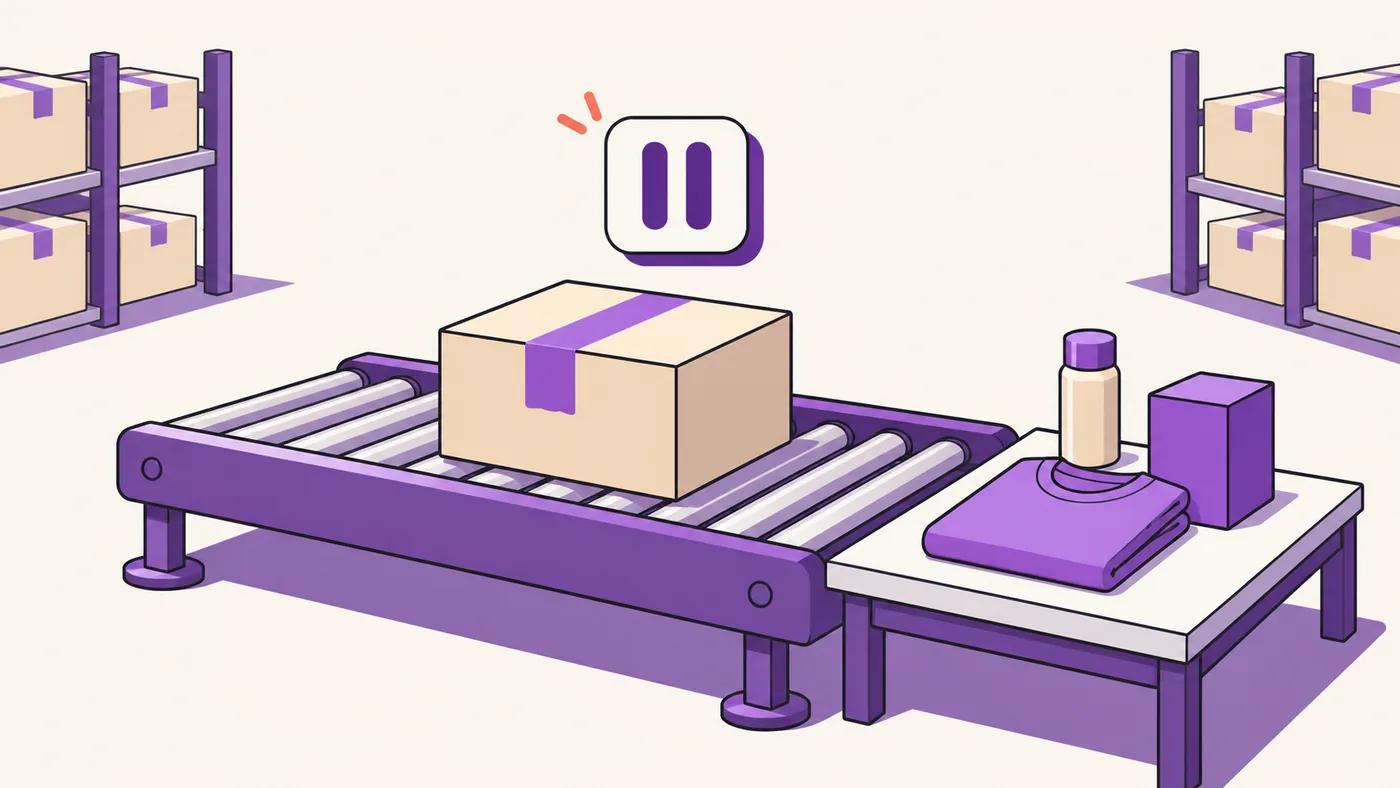
The warehouse sets the practical limit. A quantity corrected in Shopify after picking begins can conflict with the warehouse’s existing pick instructions.
Enable quantity changes in Revize
Open Order Editing → Customer edits in Revize. Quantity and variant editing are available from the Free plan. The permissions are separate.
Complete the Revize Quickstart and enable the required Revize app block on the order status page. Then configure quantity editing:
- Turn on Change variant or quantity under Order Editing → Customer edits.
- Select that feature and enable Allow modify product quantity under Product edit permissions.
- Click Save.
Leave Allow modify product variants off if customers should only change quantities. A quantity permission does not require a variant permission.
Revize has two settings screens with order editing in their names. Order Editing in the sidebar contains customer permissions and the editing policy. Settings → Order editing contains restrictions and the minimum quantity.
Keep those paths distinct when support documents the setup. An enabled quantity permission can still be limited by the order’s deadline or a blocking tag.
Set the minimum and item restrictions
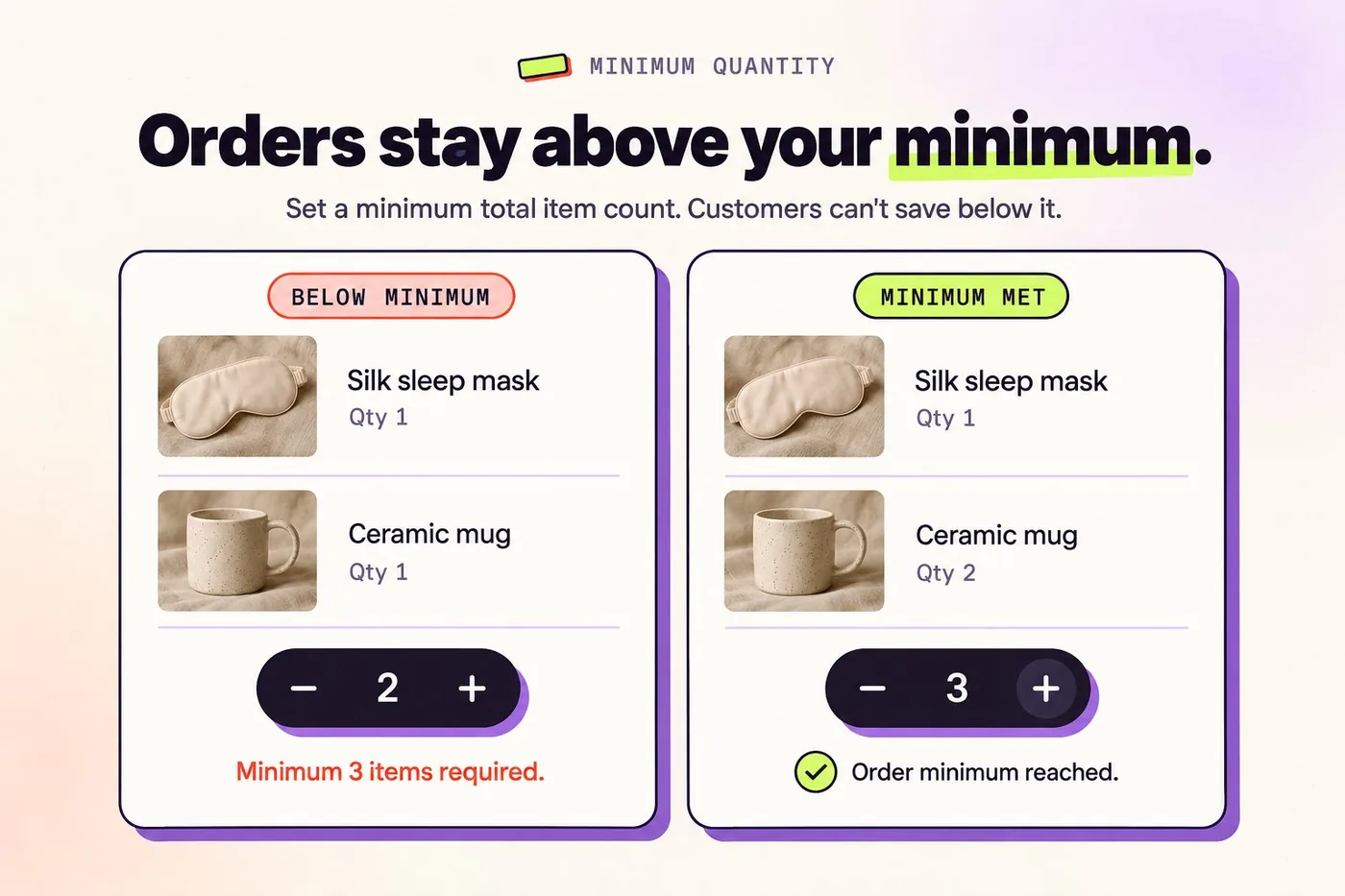
A customer reducing an order reaches the floor set under Settings → Order editing → Minimum order quantity. Revize applies that floor to the total item count across the order.
Set it yourself:
- Open Settings → Order editing → Minimum order quantity.
- Enter a value of 1 or more.
- Click Save.
The default is 1 item. A customer cannot empty the order through quantity reductions at that setting.
The minimum order quantity documentation gives a concrete example: a floor of 3 lets an order containing 5 items fall to 3, while blocking a reduction to 2. Customers see a message when their edit would cross the floor.
Use Settings → Order editing → Editing restrictions → Product tags for products whose quantities must stay fixed. A product-tag restriction blocks quantity changes, variant switches, and removal for that item. Other products in the order remain editable.
An Order tags restriction locks the whole order. Choose that scope when the warehouse needs the entire order frozen.
Let the customer confirm the quantity
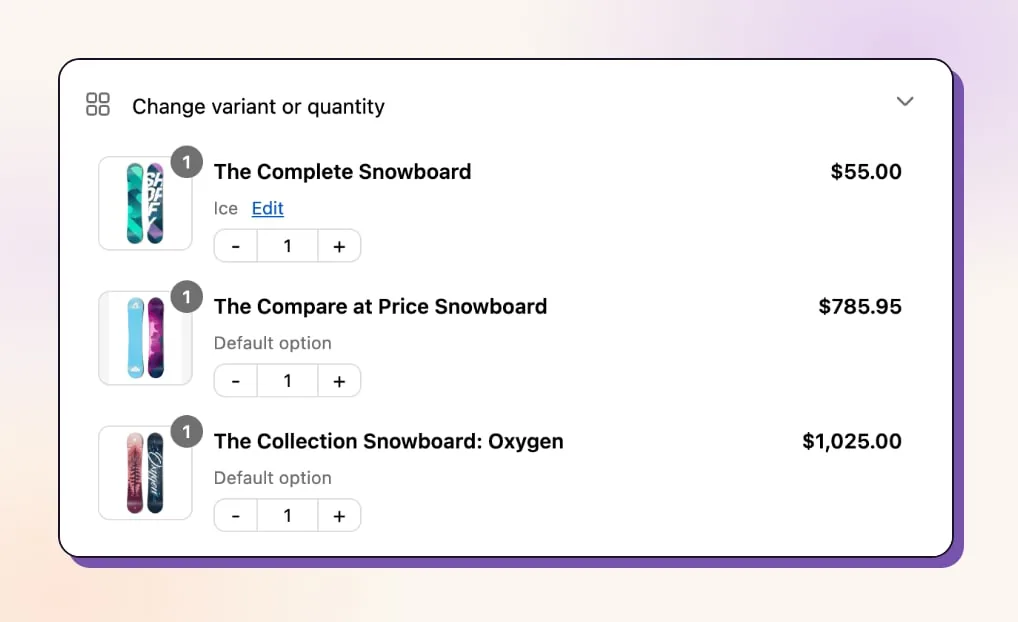
The customer opens the Shopify order status page and finds Change variant or quantity. Clicking Edit beside the product opens the editing modal.
In the documented quantity-editing flow, the customer chooses the new quantity and sees its effect on the order total. The total determines the action.
Pay now appears when the total increases. A permitted decrease presents Refund, while an unchanged total presents Confirm.
The customer can discard a pending change with Undo before committing.
Revize checks live stock at the warehouse or fulfillment location serving the customer’s delivery zone. It blocks an increase when that location cannot supply the additional units. And stock elsewhere in the merchant’s network can remain unavailable to that customer.
Install Revize: Order Editing & Upsell to put this quantity flow on eligible customers’ order status pages.
Settle the quantity difference
A customer increasing the total clicks Pay now and goes to Shopify checkout to pay the difference. Shopify processes the payment against the existing order.
The warehouse must wait for settlement. An unpaid additional balance keeps the order on fulfillment hold until Shopify confirms payment. Cash-on-delivery orders are the documented exception to that payment hold.
For reductions, configure Order Editing → Editing policy → Refunds using the Payments & Refunds documentation. The options are No refunds, Original payment method, and Store credit. Store credit requires Pro.
No refunds blocks value-reducing edits. The customer must restore the order’s value before confirming such a change. That policy also hides the cancellation button.
On Pro, Revize recalculates existing store discounts against the revised order. When a customer reduces quantity below a discount’s qualifying threshold, Revize adjusts or removes that discount before calculating the final difference between the original and revised order totals.
For eligible abandoned increases, Pro’s Reverse Unpaid Edits is off by default. When enabled, it removes only the unpaid change after the merchant’s grace period. Revize keeps the order held if money remains owed.
Keep picking behind the edit deadline
Open Order Editing → Editing policy → Fulfillment while editing and select the method your warehouse respects. Hold orders is the recommended option.
Under the hold-based processing policy, Revize places a Shopify fulfillment hold during the editing window. The hold releases when editing ends, subject to any outstanding payment.
Set the editing deadline under Order Editing → Editing policy → Edit deadline. Time-based deadlines are available from Free. Scheduled cutoffs require Pro.
The store-wide Until fulfillment option places no fulfillment hold. Use a time-based deadline, or a Pro scheduled cutoff, when the warehouse depends on the store-wide hold.
Some warehouse systems ignore Shopify holds. Revize’s documented fallback is manual payment capture, which keeps orders Authorized during the window. That method depends on the warehouse waiting for Paid orders.
Under Skip hold, the release tag is a signal. But if the warehouse cannot filter orders by that tag, Skip hold leaves it able to pick an order while the customer still has permission to change its quantity.
The fulfillment synchronization guide covers release timing and tags. A warehouse stop tag registered under Settings → Order editing → Editing restrictions → Order tags can close editing immediately when picking starts.
Match that tag’s spelling in both systems. The restriction ignores letter case.
Open quantity editing this week
Start with the warehouse’s first irreversible action. Set the editing deadline before that action, then follow this launch sequence:
- Enable quantity editing and save the full-order minimum.
- Choose the refund policy and any product-tag restrictions.
- Configure the warehouse’s hold, payment-status, or release-tag method.
- Use Shopify draft orders, Revize’s documented initial test path, to exercise an increase and a permitted decrease.
- Check the revised Shopify quantities, payment or refund, and warehouse record.
Keep picking blocked during those checks. For orders requiring payment before dispatch, release only after the warehouse record matches the customer’s confirmed quantity and Shopify confirms any additional balance is settled.
Frequently asked questions
Can customers edit a partially fulfilled order through Revize?
Keep partially fulfilled corrections with support. Revize’s portal documentation does not establish whether customers can edit remaining unfulfilled lines after partial fulfillment. Route that correction to support: Shopify permits editing unfulfilled line items, while fulfilled units remain locked.
Can a customer remove the final item?
Whole-order cancellation remains available when the merchant enables cancellation. The quantity floor also applies to partial cancellations, which require Pro, so customers cannot leave an order below its minimum by cancelling individual units. Use the single-item cancellation guide when the customer wants to remove only part of an order.
What happens if I change the refund policy mid-edit?
The customer’s current editing session keeps the refund policy active when they started. Revize applies policy changes forward. Changing Order Editing → Editing policy → Refunds therefore does not switch the destination for an edit already underway.
Can customers change prepaid subscription quantities?
Shopify restricts this order type. It blocks quantity changes on prepaid subscription orders with multiple scheduled fulfillments. Revize’s subscription editing workflow also leaves the subscription contract unchanged. Future recurring quantities belong in the subscription app’s portal.
Can I allow physical-item edits while blocking digital items?
Revize has separate digital-product controls under Settings → Order editing → Digital products. Select Disable editing for all digital products, Allow editing only for specific tagged products, or Allow editing for all digital products. Save the choice. When allowing specific products, add their tags under Digital product tags.