
On this page
How to Redirect Customers After Login with New Customer Accounts
Shopify’s default routes.account_login_url sends customers to the customer-account sign-in flow and then to their account order index. In a theme login link, routes.storefront_login_url returns them to the storefront page they came from; a return_to parameter can send them to another relative storefront path. The URL in the theme controls the destination, so test the exact sign-in link you use. Shopify documents these options in its customer sign-in links and redirects guide.
That route matters for post-purchase support, too. Revize reports that 5.2% of orders are edited after checkout (about 1 in 19; Revize, 2026), and its customer portal can be opened from the order status page. This guide shows how to set the storefront destination with Shopify’s documented routes and test the sign-in flow.
Why Customize the Post-Login Redirect?
- Seamless User Experience (UX): Redirecting to the last visited page reduces friction and lets customers pick up right where they left off.
- Consistent Branding: Sending users to the homepage reinforces your brand and presents current promotions or curated collections.
- Targeted Engagement: Directing users to specific pages (like “New Arrivals” or a “My Account” dashboard) can guide their next steps effectively.
- Reduced Confusion: Prevents the potential jarring experience of landing on an order page when the customer simply intended to continue shopping.
Before You Begin: Always Backup Your Theme!
Safety first! Before diving into code edits, create a backup of your live theme. This ensures you can easily revert if anything unexpected happens.
- From your Shopify admin, navigate to Online Store > Themes.
- Find your current theme, click the ⋯ menu.
- Select Duplicate.
- Rename the duplicated theme for clarity (e.g., “Theme Backup - Pre Login Redirect Mod”).
Step 1: Locate the Correct Shopify Theme Files
The login link code is usually found in header-related files. The exact file depends on your theme:
-
Most Themes (including Shopify’s free themes like Dawn):
- Desktop Header:
sections/header.liquid - Mobile Header/Drawer: Often in
sections/header.liquidas well, or sometimessnippets/header-drawer.liquidorsnippets/mobile-nav.liquid.
- Desktop Header:
-
Third-Party Themes: Look for similar files. Common names include:
sections/header.liquidsnippets/navigation.liquidsnippets/account-links.liquid
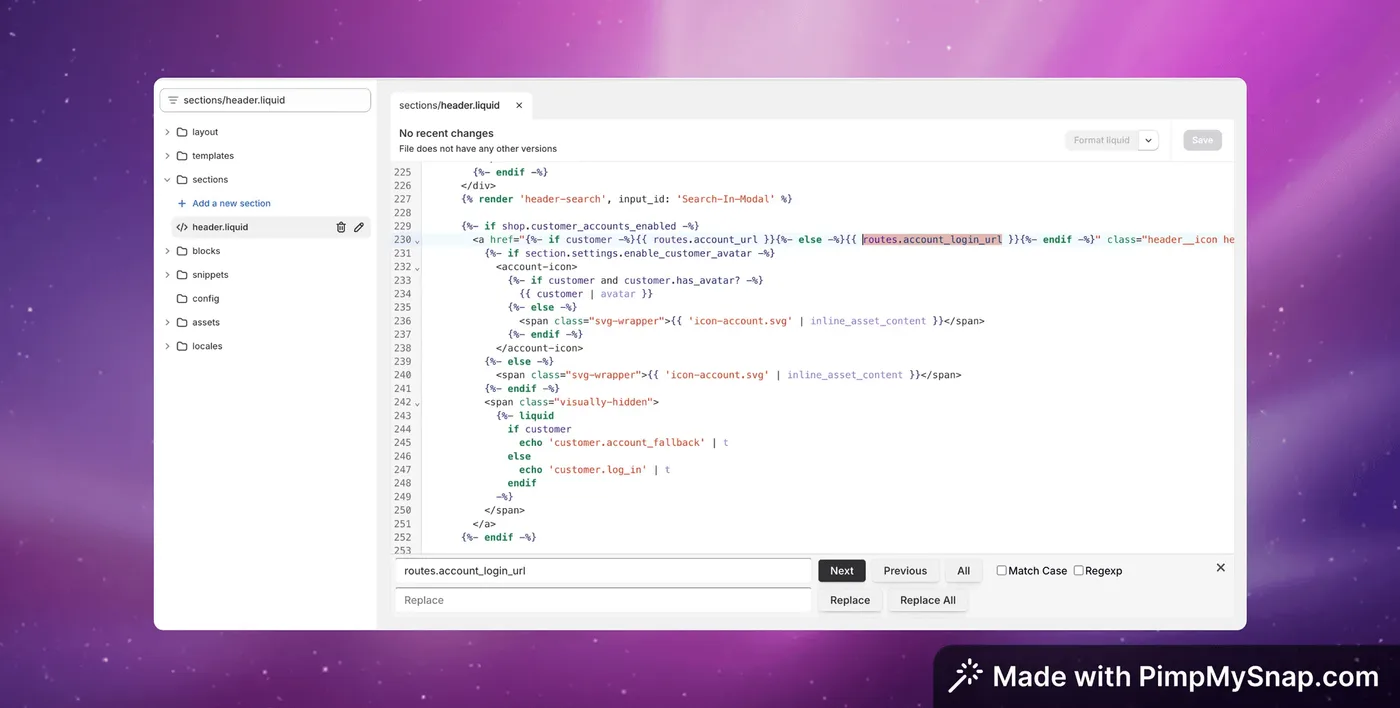
Tip: Open the theme code editor (⋯ > Edit code) and use the search bar within the editor to look for routes.account_login_url or parts of the account icon/link code to pinpoint the exact location(s). Remember to check both desktop and mobile views.
Step 2: Modify the Login Redirect URL
Once you’ve found the file(s) containing the login link, locate the following Liquid code snippet:
{{ routes.account_login_url }}
Now, replace it based on your desired redirect behavior:
Option A: Redirect Customers to the Last Visited Page
This is often the most user-friendly option. Replace the original code with:
{{ routes.storefront_login_url }}
This variable automatically captures the page the customer was on when they clicked ‘login’.
Option B: Redirect Customers to Your Store’s Homepage
To consistently send logged-in customers to your homepage, replace the original code with:
/customer_authentication/login?return_to=%2F
The %2F is the URL-encoded version of /, representing the root (homepage).
Option C: Redirect Customers to a Specific Page (e.g., “New Arrivals”)
To direct customers to a custom page, like a specific collection or a dedicated account dashboard page, replace the original code with:
/customer_authentication/login?return_to={{ "/collections/new-arrivals" | url_encode }}
Important: Change /collections/new-arrivals to the relative URL of your desired landing page (e.g., /pages/welcome or /collections/all). The | url_encode filter ensures the URL is formatted correctly.
Step 3: Save, Test, and Publish
- Save the changes in the theme file editor.
- Preview your theme. Log out of your customer account (if logged in) and test the login process. Try logging in from different pages (homepage, product page, collection page) to ensure the redirect works as expected for the option you chose. Check both desktop and mobile views.
- Once you’re confident everything is working correctly, go back to Online Store > Themes, find your edited theme (it might still be the duplicate you worked on), and click Publish.
Taking Control Further: Enhancing the Post-Purchase Journey
Customizing the login redirect is a fantastic way to refine the customer journey before they potentially make a purchase or check their orders. But what about after the order is placed?
A seamless experience shouldn’t stop at login. Customers may need to correct an address, change a variant, or cancel an order before fulfillment. Revize provides a customer self-serve editing portal on the Shopify order status page during a merchant-configured editing window.
To show it, enable the Revize app block in the order status page editor. Customers can also open the portal from the Edit Order link in their order confirmation email. Which edits are available depends on the merchant’s settings and the Revize plan; product additions and discount application are Pro features.
Wrapping Up
Adjusting the post-login redirect in Shopify’s customer account sign-in can return shoppers to the storefront page they came from when a theme uses routes.storefront_login_url. For a specific destination, use a relative storefront path in the return_to parameter and test the sign-in flow on your published theme. These changes affect the storefront login link; they do not change the customer account’s sign-in or security settings.
Happy customizing and selling!
Related Reading
Shopify Customer Accounts: Upgrade Guide and Checkout Deadlines (2026) · Shopify Order Editing Statistics (2026) · How to Let Customers Edit Their Own Orders on Shopify (2026)