
On this page
Swap the wrong size from the existing order
Yes, a shopper can correct the wrong size themselves with Revize before fulfillment, inside the merchant’s editing window. The store must enable variant changes, and the desired variant must be available.
Follow these customer steps:
- Open your existing order. Use the order link in the confirmation email or the store’s customer account to reach the order-status page.
- Find Change variant or quantity. Click Edit beside the item with the wrong size.
- Choose the correct size. Select another available variant of that product. Revize checks live inventory before allowing the swap.
- Review the total. Check the selected size, quantity, and any price difference before saving.
- Complete the displayed action. Use Confirm for an unchanged total, Pay now for an increase, or Refund for a decrease that the store’s policy permits.
- Check the updated item. Verify that the order shows the intended size. If editing is unavailable, contact the store promptly with the order number and desired variant.
The variant-editing documentation shows this flow. The shopper changes the existing order rather than placing a replacement order.
92.2% of post-purchase edits are completed by the customer without a support agent, and 80.6% happen within the first hour of checkout (Revize, 2026). Those figures describe Revize customers with self-service editing available; they do not measure the reduction in your store’s support tickets.
Revize lets you set the edit window, enable or hide edit options, and restrict orders or products by tag. Coordinate that window with a fulfillment system that respects Shopify holds or waits for the release tag. A configured stop tag from your WMS or Shopify Flow can close editing when processing starts. Shopify handles the payment or refund.
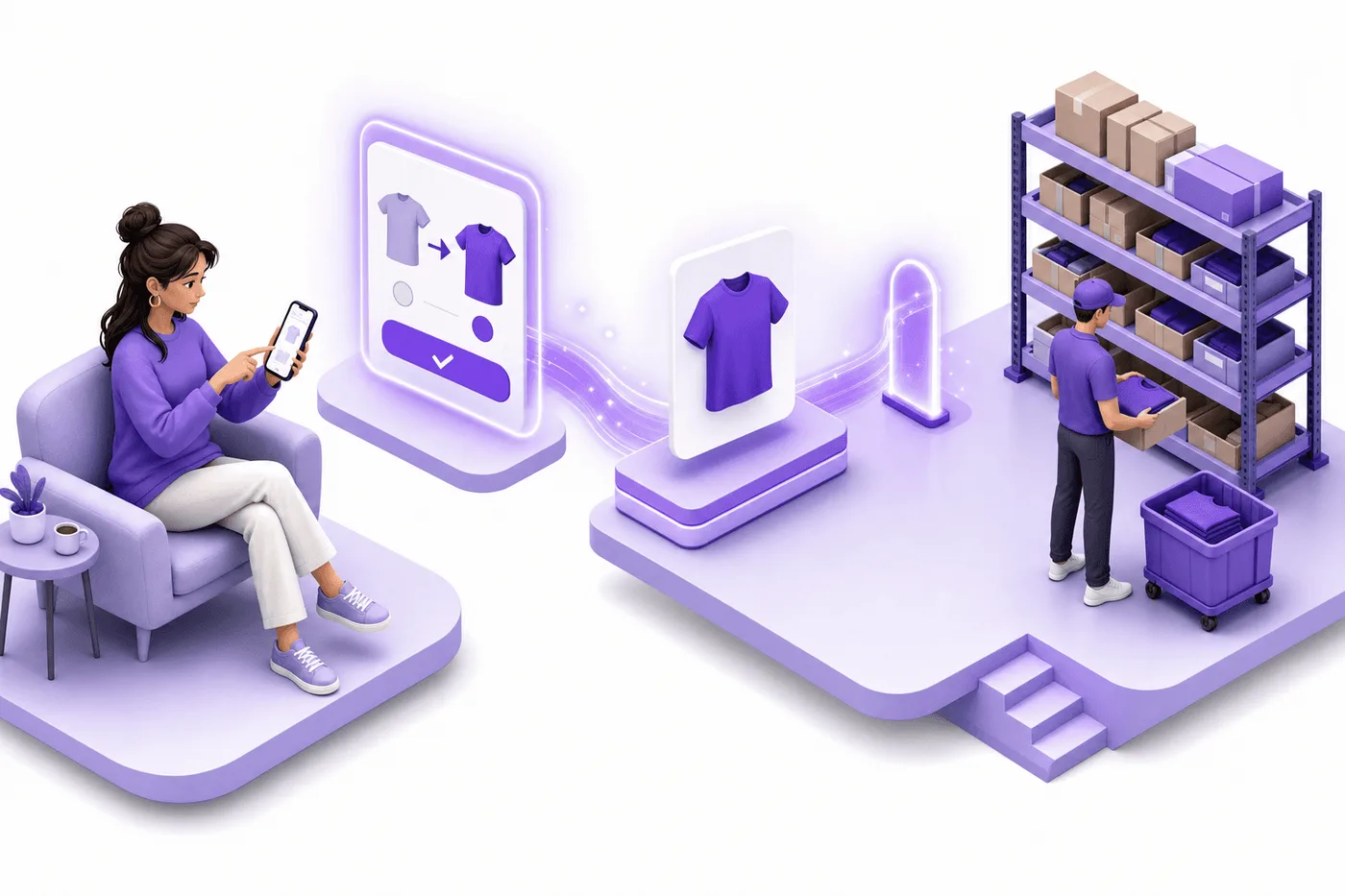
Revize is available on the Shopify App Store, with a free plan to test self-serve variant swaps on real orders.
Same-product variant or a different product?
Changing a shirt from one size to another is a variant swap. Replacing the shirt with a different product is product switching, which requires Pro. Core variant and quantity changes are available from the Free plan, subject to the store’s enabled features and restrictions.
| Intended correction | Customer action | Plan boundary |
|---|---|---|
| Another size or color of the same product | Use Change variant or quantity | Core variant editing |
| A different product | Use product replacement when enabled | Pro required |
| An additional product alongside the original | Use Add products | Pro required |
Check Revize’s plan comparison before promising a different-product replacement. The fact that two products have the same price does not turn replacement into a same-product variant swap.
What do Confirm, Pay now, and Refund mean?
| Action shown | Change in order total | What happens |
|---|---|---|
| Confirm | Unchanged | The customer confirms the even-value edit. |
| Pay now | Increases | The customer goes through Shopify checkout to pay the difference. |
| Refund | Decreases | Shopify processes the decrease using the merchant’s configured refund policy. Store-credit refunds require Pro. |
The action follows the net order-total difference. Review the displayed total rather than assuming every size change is free. Under No refund, a value-reducing swap is blocked unless the shopper adds enough value back; an even swap remains allowed. The payment settings explain the policy.
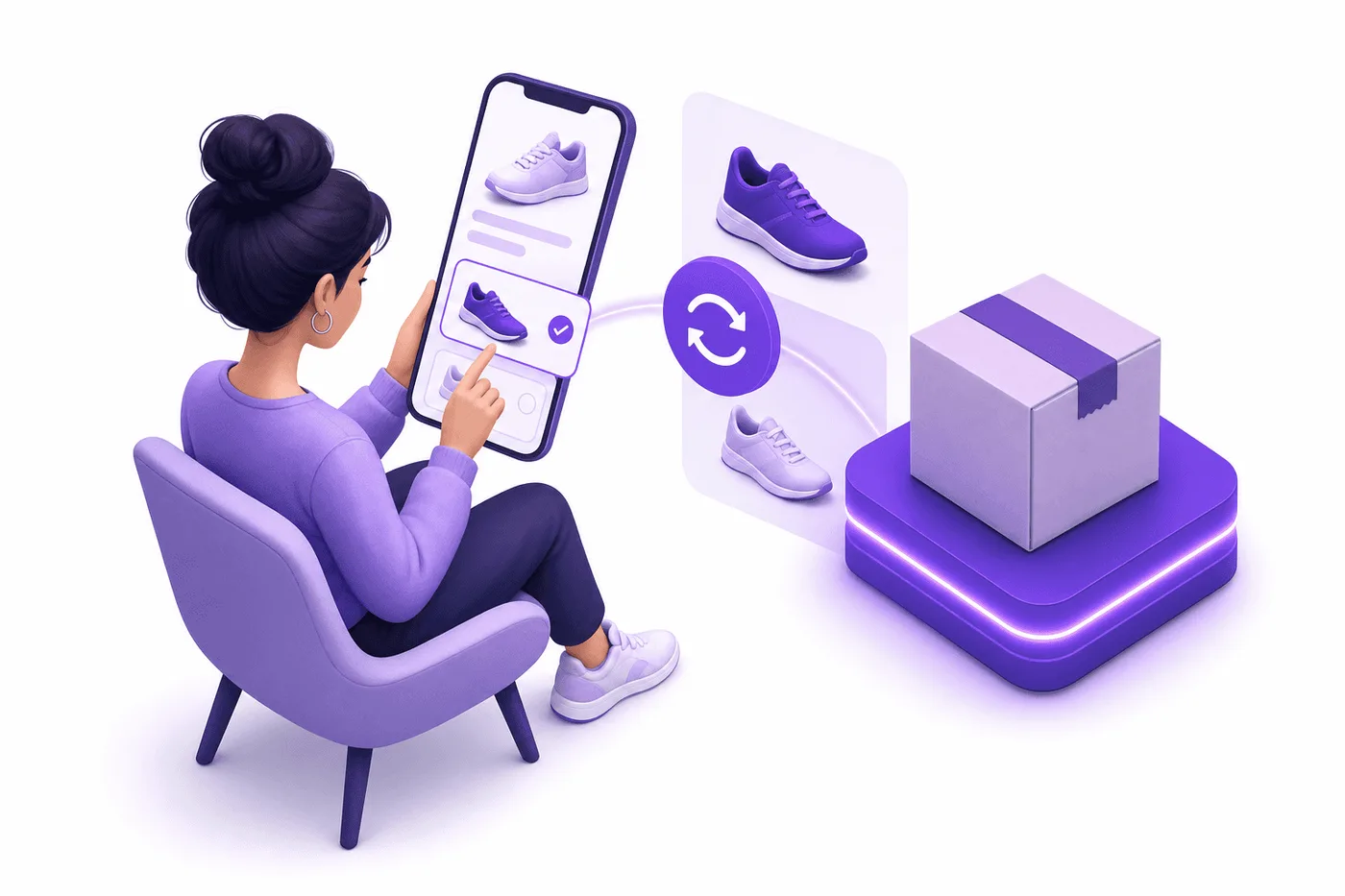
Can you change an item on a Shopify order after checkout?
Shopify lets merchants edit eligible unfulfilled items after checkout. Staff remove the unwanted variant, add the intended one, and settle any balance or refund. A customer uses Revize only while the store allows self-service. Check warehouse activity before making a staff edit.
80.6% of order edits happen within the first hour of checkout (Revize, 2026). Use that timing to inform your editing policy, then verify the safe cutoff against actual warehouse activity.
Your response depends on the order’s real state:
| Order state | Correct action | Main risk |
|---|---|---|
| Unfulfilled, no label | Edit the order: remove the wrong variant, add the correct one | Warehouse automation exports the old item during the edit |
| Label created, not shipped | Stop packing; check whether the label needs replacement after the edit | The warehouse continues using an old packing slip |
| Sent to a 3PL | Pause the fulfillment request, update both systems, confirm acceptance | The 3PL already picked the original variant |
| In transit | Request an intercept, or handle it as an exchange on arrival | Carrier fees and failed interception |
| Delivered | Process an exchange or return under your policy | Return shipping cost, restocking, fraud |
Treat “label created” as fulfillment in motion, even before the parcel is scanned. Check whether picking has begun even if Shopify still shows the order as unfulfilled.
Change the wrong variant in Shopify Admin
Edit the order in Shopify Admin: remove the incorrect variant, add the correct one, and Shopify calculates the balance to collect or refund. Here is the native sequence for an unfulfilled order.
- Hold fulfillment first. If you use automated fulfillment or a 3PL, place the order on hold before editing, and confirm your fulfillment system respects the hold.
- Open the order in Admin and choose Edit.
- Remove the wrong item. Reduce its quantity to zero or remove the line.
- Add the correct variant. Search the product, pick the right size or option, and add it.
- Reconcile the difference. If the new variant costs more, Shopify creates a balance for the customer to pay. If it costs less, you issue the difference as a refund.
- Update inventory and re-release the order to fulfillment once the corrected line is confirmed.
Shopify’s product-editing guide documents removal and addition for swaps. Its editing considerations warn that some fulfillment services do not recognize edits. Verify the corrected line before warehouse release.
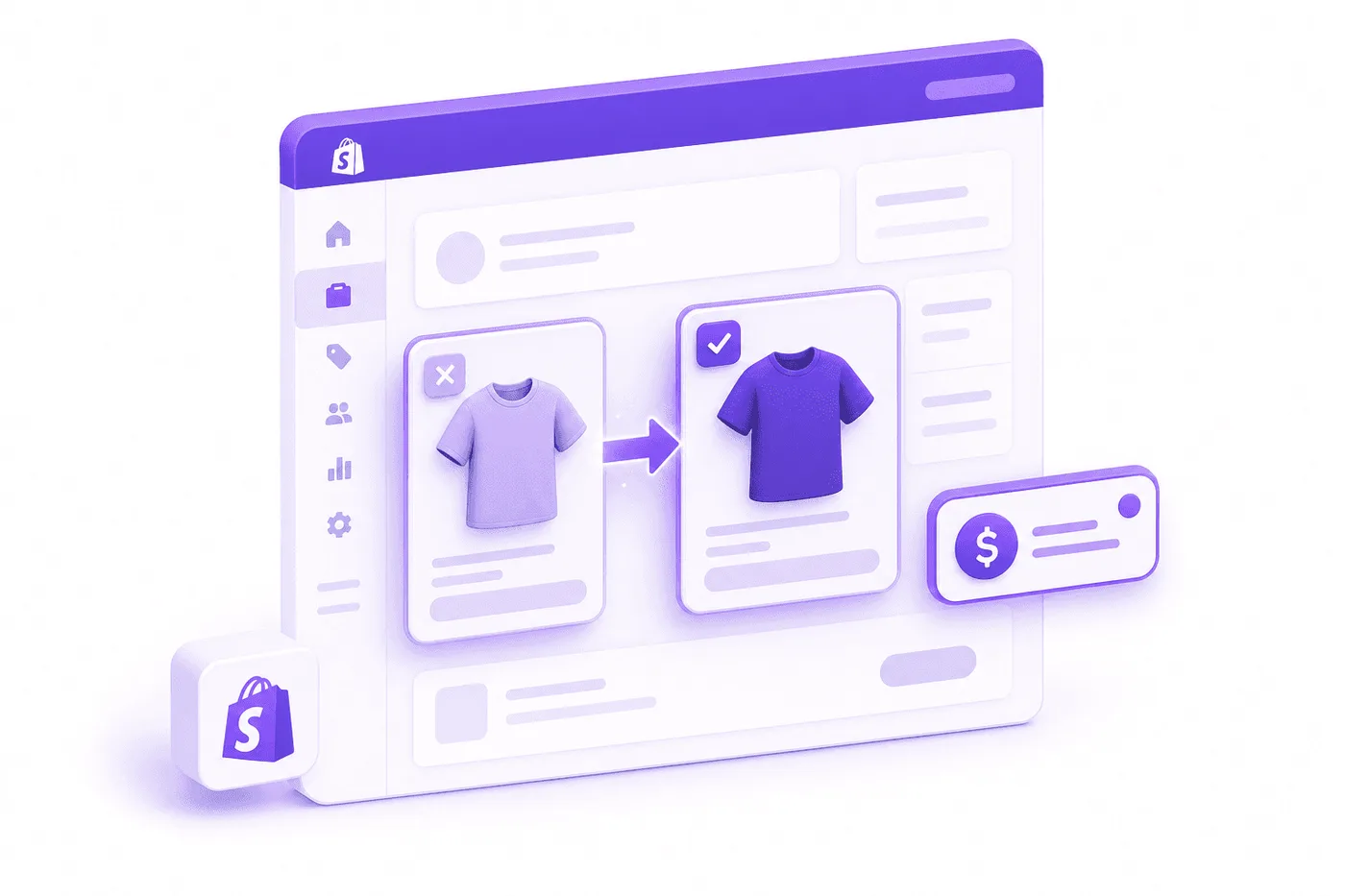
Why is the size unavailable or the swap blocked?
| Problem | Explanation | Next step |
|---|---|---|
| Desired size is unavailable | Revize validates live stock for locations that can serve the delivery address | Choose an available variant or contact the store. Stock elsewhere does not guarantee the swap is eligible. |
| Change variant or quantity is missing | Variant changes are disabled, the app block is absent, or restrictions apply | The merchant should check the app block, variant toggle, and visibility settings. |
| The portal says editing is closed | The deadline passed, fulfillment started, or an operational restriction closed the order | Ask the store whether the warehouse can still stop the original item. |
| A warehouse stop tag was added | A configured WMS or Flow tag closes editing immediately | Confirm warehouse status with the store; remaining timer time does not override the tag. |
| Only one item is locked | A product-tag restriction can block that item while other items remain editable | The merchant should inspect that product’s restriction tags. |
| A cheaper variant cannot be confirmed | No refund prevents reducing the total | Choose an allowed even-value correction or contact the store about the policy. |
The product restriction guide distinguishes an order-wide block from a protected product. The edit-window guide explains deadlines and warehouse stop tags.
Do not repeatedly resubmit a blocked swap or assume it succeeded because the desired size appeared in the selector. Check the order’s final line item. If the customer cannot finish, staff need the order number, original variant, requested variant, and current fulfillment state to investigate.
Make sure the corrected item reaches the warehouse
A swapped variant only helps if the correction reaches the warehouse before picking starts, not merely if Shopify shows the right item. Because 80.6% of order edits happen within the first hour (Revize, 2026), a short fulfillment hold plus a reliable update path matter more than any feature list.
Quick definitions for every reader: a 3PL (third-party logistics provider) stores and ships your stock; a WMS (warehouse management system) runs the picking; an OMS (order management system) coordinates orders across channels. A change in Shopify needs to reach the WMS before the original item is picked.
Prove these cases with whatever tool you choose:
- Edit before import: swap a variant while the order is held, and confirm the WMS receives the corrected line.
- Edit after import: swap after the first warehouse pull, and verify the connector updates, cancels, or recreates the pick task.
- Change the total: swap to a cheaper variant, and confirm the refund, inventory, and warehouse removal all agree.
- Miss the deadline: attempt a swap after fulfillment begins, and confirm the customer sees a clear refusal, not a false success.
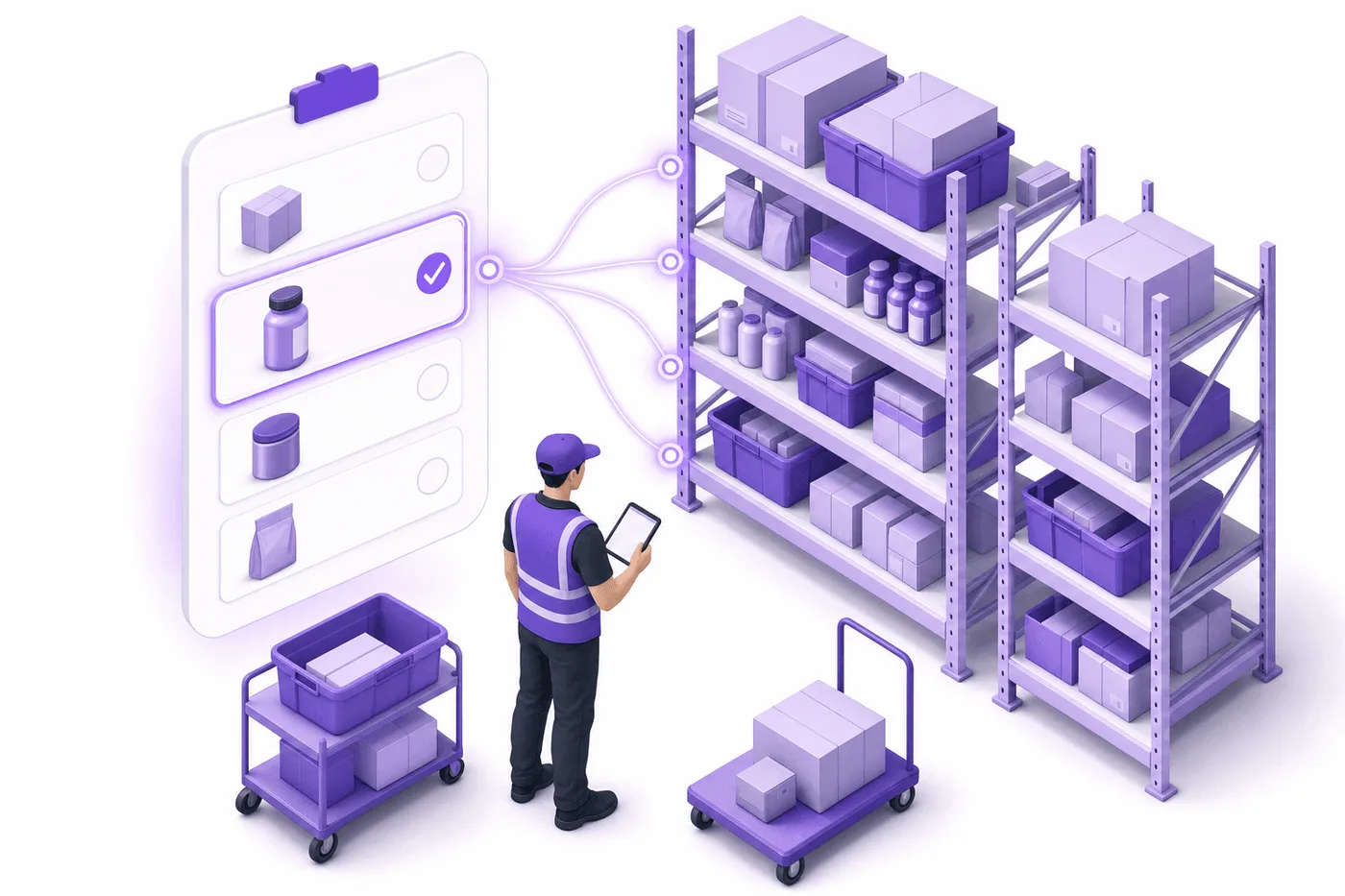
Prevent wrong-item orders from becoming tickets
Set a self-serve edit window and clear variant options at checkout so customers can correct eligible wrong-item mistakes before fulfillment. Confirm that each permitted change reaches the warehouse before picking.
- Open a self-serve edit window. Give customers a short, merchant-controlled period to change size or variant right after checkout, closing before picking begins.
- Make variants unambiguous. Clear size guides and option labels reduce the wrong-size order in the first place.
- Confirm the details in the order email. A confirmation that clearly shows size and variant prompts the customer to catch a mistake in that first hour.
- Close the window before fulfillment, automatically. A good policy never lets an edit land after the warehouse has started.
Warning: Never release an order to a 3PL and assume you can pull it back. Confirm how your warehouse handles updates, swaps, and holds before enabling customer edits storewide.
For the full mechanics, read the guide to letting customers edit their own Shopify orders, and for the broader workflow see how to edit an order on Shopify.
Frequently asked questions
These answers separate customer self-service from staff changes. Shopify sources were checked on October 21, 2026.
Can I change the size or variant on a Shopify order after it is placed?
Yes, when the store enables Revize variant changes and the order is still editable before fulfillment. Open the existing order, edit the item under Change variant or quantity, and select the correct size. Staff can also replace eligible unfulfilled items through Shopify Admin.
What happens to the price difference when I swap a variant?
Shopify calculates the difference automatically: the customer pays a balance for a more expensive variant, or you refund the difference for a cheaper one. Accelerated wallet payments can be restricted during post-edit collection, so test the swap with the payment methods your customers actually use, including wallets and installments, before enabling it storewide.
Can customers change the wrong item themselves without contacting support?
Yes, with a self-serve editing tool like Revize. The customer opens a branded portal, swaps the size or variant, and pays or receives the difference, inside a window you control and before fulfillment. In Revize’s data, 92.2% of post-purchase edits are completed by the customer with no agent involved (Revize, 2026).
The order already has a shipping label. Can I still swap the item?
Ask the store to stop packing and check whether the edit is still safe. If label details need to change, Shopify documents voiding an eligible label and buying it again. An existing label does not prove the warehouse can still accept a swap.
What if the order was already sent to my 3PL?
Pause or cancel the fulfillment request with the 3PL, update the variant in both Shopify and the 3PL system, then confirm acceptance before re-releasing. The risk is that the 3PL already picked the original item, so confirm the corrected line was received rather than assuming the Shopify edit propagated on its own.
How is swapping a variant different from an exchange?
A variant swap happens before fulfillment and changes the order itself; an exchange happens after delivery and replaces an item the customer already received. Swapping before the item ships is faster and cheaper because it avoids return shipping and restocking. Handle wrong-item catches early as swaps, and reserve exchanges for orders that have already arrived.
Can I swap a variant on a partially fulfilled order?
Staff can edit eligible unfulfilled items in Shopify Admin, subject to Shopify’s order-edit restrictions. Orders carrying duties cannot be edited once any item is fulfilled. Do not assume Revize self-service remains available after partial fulfillment. Contact the store to check the remaining items; shipped items need its exchange or return process.
Will editing the order confuse my warehouse or fulfillment app?
It can, if the fulfillment service does not recognize the edit. Shopify warns that some fulfillment services do not recognize edits, so a removed variant can remain on a warehouse copy and an added one may never reach the pick list. Hold fulfillment during the edit and verify that your integration receives the corrected order.
How long should the customer self-serve edit window be?
Set the window to close before your warehouse starts picking. The median post-checkout edit lands 4.6 minutes after checkout (Revize, 2026). Test your actual fulfillment timing rather than assuming a 30-minute window captures most variant swaps.
Does letting customers swap items increase returns or fraud?
A pre-fulfillment swap can correct the item before it becomes a return, but this article does not establish a measured effect on fraud or returns. Limit the allowed changes and close editing before warehouse processing; track both outcomes in your own pilot.
Revize is a Shopify app for customer self-serve post-purchase order editing, letting shoppers change the shipping address, swap a variant or product, cancel, and get a refund or store credit before fulfillment, without a support ticket. Learn more about letting customers edit their own Shopify orders, or find Revize on the Shopify App Store. Product replacement and store-credit refunds require Pro.