
On this page
Order confirmation emails are transactional messages customers use to check that their purchase details are correct. They are also a practical place to link to order status and support information. Across more than 10 million Shopify orders, 5.2% were edited after checkout (Revize, 2026; see Shopify Order Editing Statistics (2026)).
This guide explains how to edit the Shopify notification, where Klaviyo can support separate follow-up messaging, and how a link in the confirmation email can take a customer to a post-purchase order editing portal. Customers can add or switch products with Revize Pro; when an edit adds cost, the customer reviews and pays the difference through Shopify checkout.
Why the Confirmation Email Is Your Most Valuable Real Estate
Before we get into the how-to, it’s worth understanding why this matters so much.
Focus on useful information
There is no open-rate or upsell benchmark that applies to every store. Make the confirmation accurate and easy to scan: include the order summary, delivery information that is available, support contact details, and a clear route to the order status page. If you test additional content, compare results against your own baseline.
The psychology behind it
When a customer places an order, they’re in a state of high engagement. The purchase decision is made. Buyer’s remorse hasn’t set in yet. They’re excited. They’re reading your email carefully to confirm everything looks right.
This is the exact moment to:
- Show them something complementary they didn’t add
- Let them fix a mistake before it ships
- Ask them to upgrade their shipping
- Collect their preferences (gift wrapping, personalisation)
A clear order confirmation can give customers a useful next step while their order details are in front of them.
Method 1: Edit the Native Shopify Order Confirmation Email
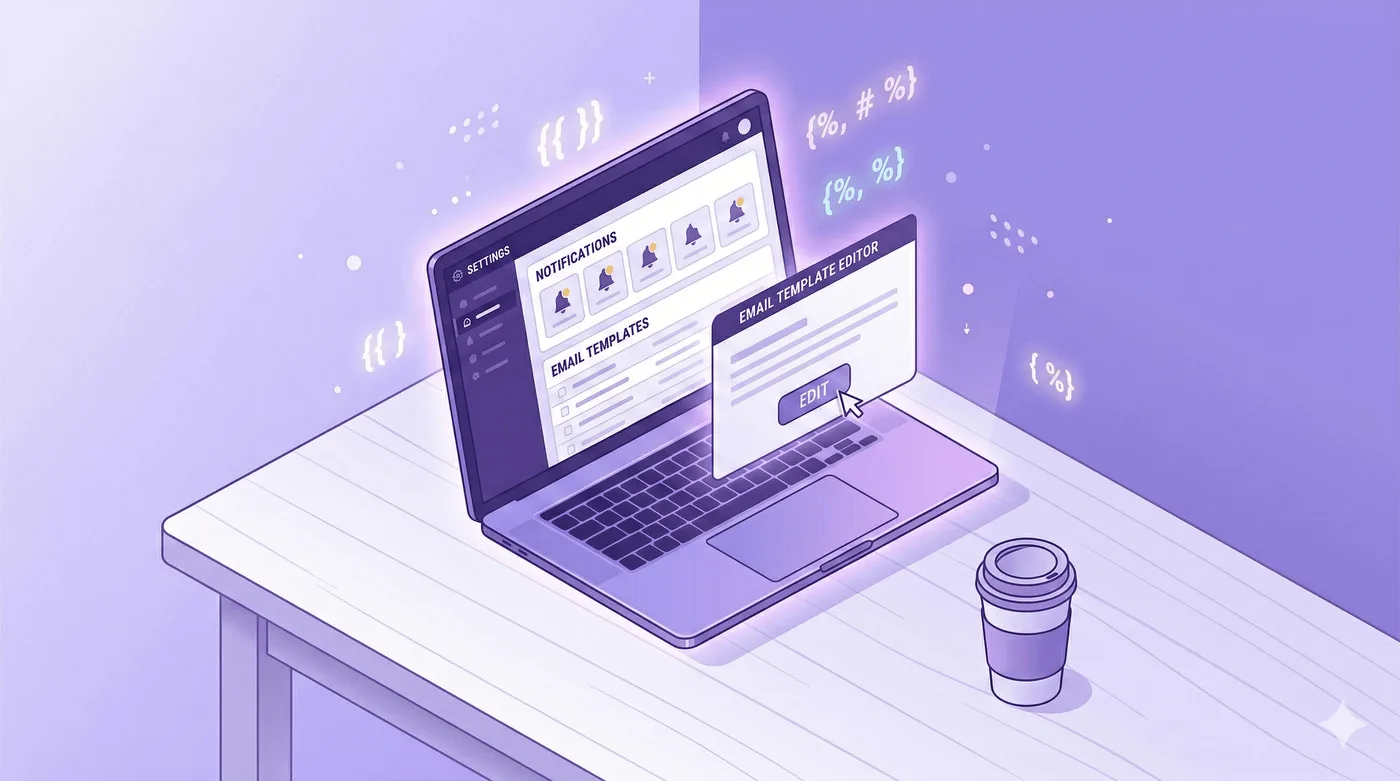
Shopify sends an order confirmation notification when a customer places an order. You can edit its notification template in the Shopify admin.
Here’s how to customise it:
Step 1: Open Settings → Notifications
From your Shopify admin, go to Settings → Notifications.
Step 2: Find Order Confirmation
Click Customer notifications, then open Order confirmation in the order-processing section.
Step 3: Open the code editor
Click Edit code to open the notification template. Shopify uses Liquid variables and tags in notification templates. Save a copy of custom code before changing it, and preview the email after editing.
Step 4: Review the subject and message
Use the subject and message fields available in the notification editor to make the wording clear and consistent with your brand. Preview the result before saving.
Step 5: Edit the Body
Notification templates expose order properties directly: use {{ order_name }} for the order name and loop over line_items to render items. Check Shopify’s notification variables reference rather than assuming storefront Liquid variables work here. You can add sections before or after the order summary.
What you can add natively
- A thank-you message with your brand voice
- A note about your return policy or next steps
- Social media handles
- A discount code for their next purchase
- A link to your FAQ or help centre
- Your support contact details
What you can’t do natively
- A turnkey recommendation engine that selects complementary products from the order
- A built-in action that adds a product to an existing paid order and collects only the difference
- A/B testing for confirmation-email content
For product recommendations or testing, use an email platform that supports the specific features you need. Adding a product to an existing order requires a separate order-editing flow.
Method 2: Use Klaviyo for follow-up messaging
Klaviyo can send order-triggered flows and marketing messages. Treat those as a separate messaging setup from Shopify’s transactional order confirmation. Review the trigger, consent, and sending settings in both platforms so customers receive the required transactional information without duplicate messages.
Step 1: Build and test the Klaviyo flow
In Klaviyo, choose a suitable order event or flow template, then review its trigger, timing, content, and transactional status. Test it with a controlled order and check the delivered message.
Step 2: Check Shopify notification settings
Shopify sends order confirmations automatically, and most customer notifications can’t be deactivated. Don’t assume there is a general Disable control for the email. If your store needs a different transactional-notification arrangement, confirm the available option with Shopify and Klaviyo support before changing the live setup.
Step 3: Customise the Klaviyo Email
This is where Klaviyo earns its place. You get access to:
Order-event data — properties supplied by the selected trigger; available fields vary, so inspect the event preview before using them.
Profile data — profile or custom properties that exist in your account, such as saved location or segment fields. Confirm the exact property names before personalizing the message.
Product catalogue — if your Klaviyo account and template have catalog data available, you can use it to build product recommendations. Check the event properties and preview each message variant before sending.
A useful structure for a Klaviyo order email
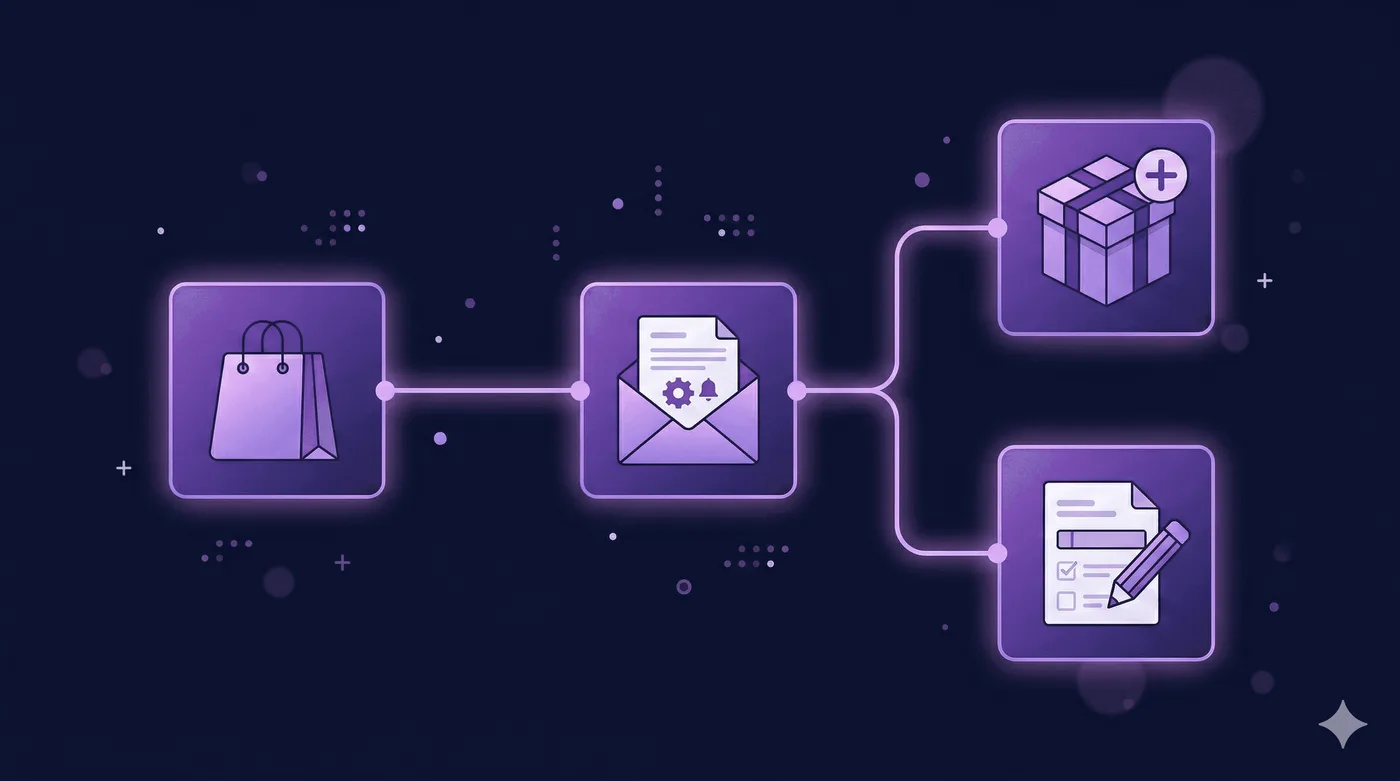
A Klaviyo order email can include the sections that fit your flow and the data available:
- Subject line — personalised, not generic (Your [product name] is confirmed, [first name])
- Hero section — branded thank-you with warmth, not corporate-speak
- Order summary block — item names, images, quantities, price
- Shipping address confirmation
- Expected delivery (if you have this data)
- Upsell or cross-sell block — the revenue layer (more on this below)
- Edit your order CTA — the customer service layer (more on this too)
- Footer — returns policy, contact, social
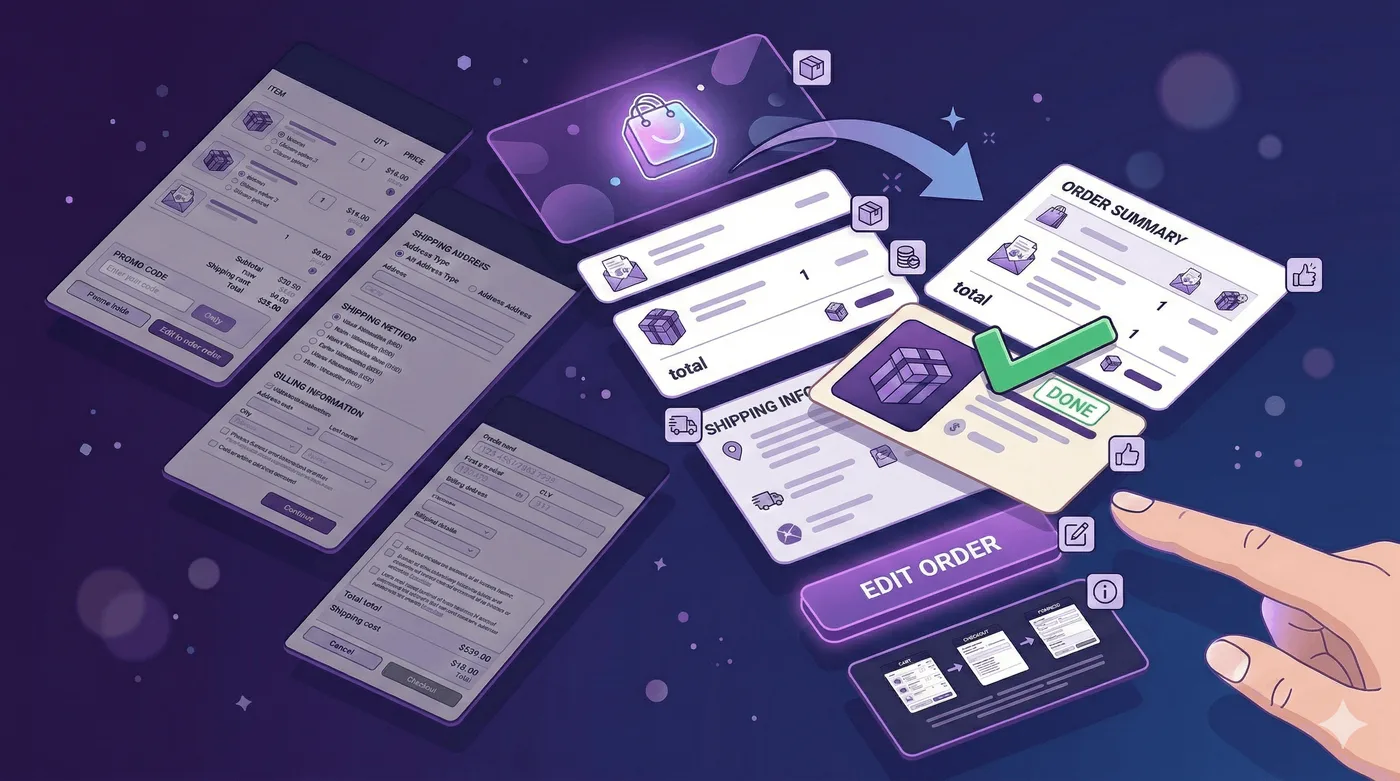
The Upsell Layer: How to Add Complementary Products to Your Confirmation Email
A related product can be useful when it is relevant to the original order.
A post-purchase upsell in the confirmation email works differently from a standard promotional email. The customer isn’t in browsing mode — they’re in confirmation mode. The upsell has to feel like a natural extension of what they just bought, not an ad.
What works
- “Customers who bought [X] also got [Y]” — with a specific, relevant product
- A consumable that pairs — “Don’t forget the batteries / filters / case”
- Bundle completion — “You got the starter kit — the add-on ships separately”
- Quantity-based offers — explain the quantity offer clearly and show the updated total
What doesn’t work
- Generic “You might also like” blocks with unrelated products
- Percentage-off discounts on anything in the catalogue
- Upsells that cost more than the original purchase without a strong reason
Setting this up in Klaviyo
If your Klaviyo account includes a catalogue or product block, configure its recommendation source and conditions using the current Klaviyo documentation. A manually curated product can also be shown with conditional content. Preview each branch and confirm the product, price, and destination link before sending.
The friction problem
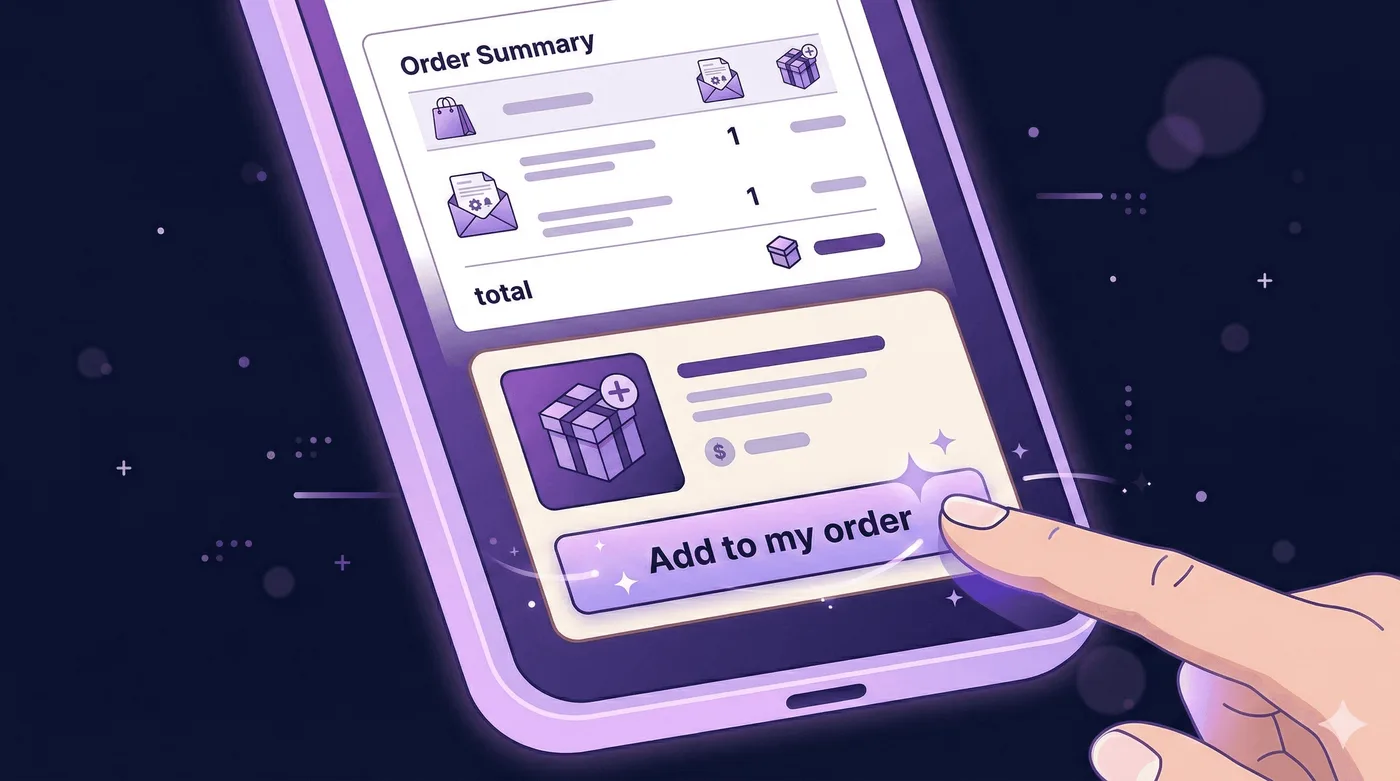
A product link in a post-purchase email often starts a separate checkout. Revize’s product-specific link can open the existing order with the selected product added, but the customer still reviews the revised order and pays any amount due through Shopify checkout. Product additions require Revize Pro.
Link customers to post-purchase order editing
A link in a confirmation email can give a customer a route to make eligible changes before fulfillment. Adding an item or switching to another product requires the Pro tier. When an edit changes the amount due, the customer reviews the updated order and completes payment through Shopify checkout; the app does not silently charge the original card.
Make the choice and payment clear
Explain what the customer can change, show the revised order total, and let them review the change before they pay. Avoid promising a conversion uplift: results depend on the store, the offer, and the customer experience.
How it works with Revize + Klaviyo
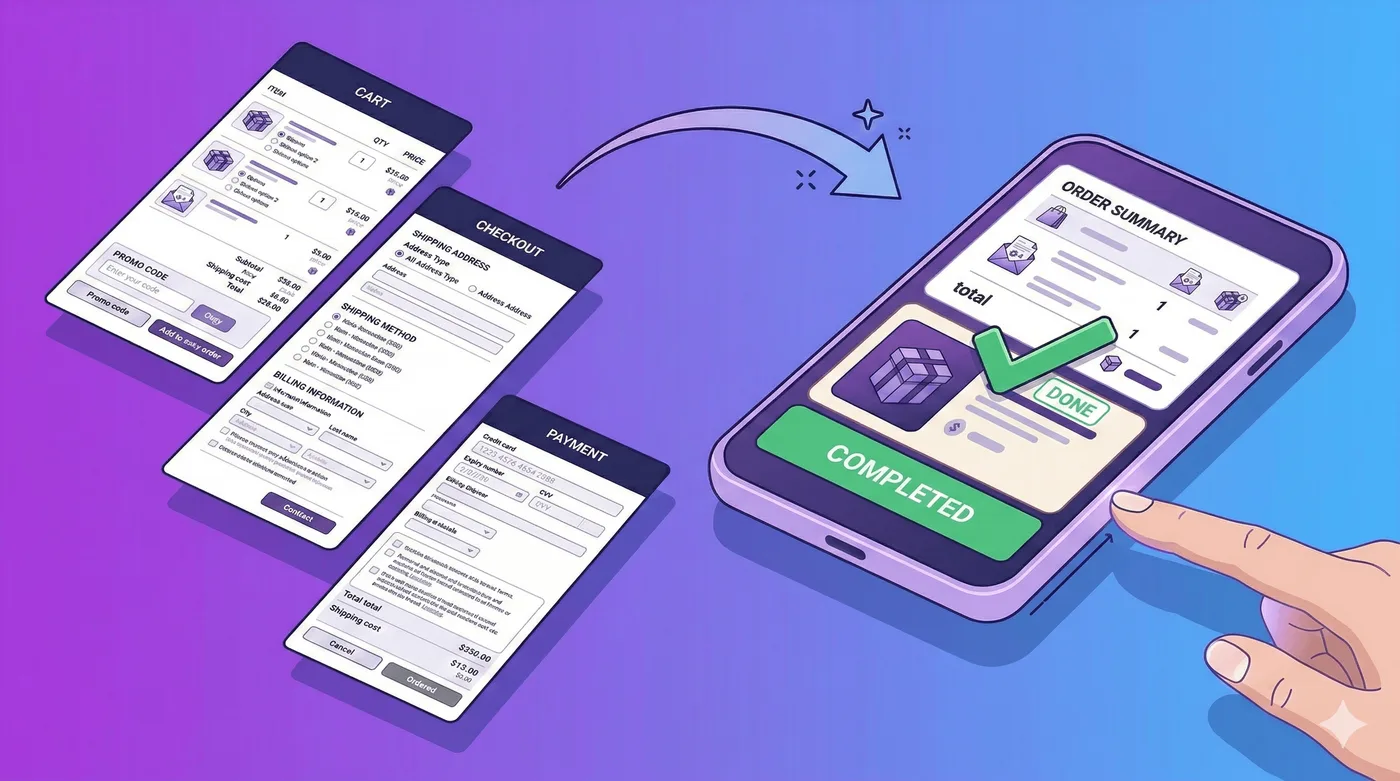
Revize provides a customer-facing portal for eligible post-purchase order edits before fulfillment. Customers open it from the order status page or a link in the confirmation email. Product additions and product switches require Revize Pro. The customer reviews an added amount and pays the difference through Shopify checkout.
Here’s the setup:
Step 1: Configure Revize’s Edit Window
In Revize settings, set the merchant-controlled edit window so eligible edits close before fulfillment. Configure the available editing options for your store; adding products requires Revize Pro.
Step 2: Understand the two types of links
You can include two kinds of call to action in a Klaviyo email, then test whether both are useful for your customers.
Link type 1: The order edit portal link
Add the current portal link supplied for your Revize setup to the email. Confirm that the link opens the intended order for the customer, and test the full flow before sending it to customers.
This is your general “Edit your order” link. It opens the customer’s order editing portal. Available changes depend on the store’s settings and the order’s eligibility; product additions and product switches require Revize Pro.
Link type 2: Product-specific add-to-order links
For an add-on, use a Revize product link only if that option is available in your current setup. The customer should be able to review the updated order and complete the payment through Shopify checkout. Product additions require Revize Pro.
This is the difference between “go to a store and find what you want” and “here, this is already in your bag.”
Step 3: Build the Upsell Block in Klaviyo
Now you combine both. Add a section to your confirmation email template:
The upsell cards — with product-specific links:
Forgot something? Add it to this order. [Product image + name + price] → [Add to my order →]
Each product card should link to the appropriate Revize flow. Have the customer review the updated order and pay any amount due through Shopify checkout.
The general edit button — with the portal link:
Want to make other changes? [Edit your order →]
This button should open the customer’s order editing portal. Make the eligible changes clear, and label product additions or switches as Pro features where they are offered.
Two buttons. Two different jobs. One email.
Step 4: Segment by Product
Use Klaviyo’s visual show/hide logic with profile or custom properties that exist in your account. If a branch depends on order-event data, Klaviyo may require a custom-coded condition rather than the visual builder. Confirm the data and property names available in your flow, then test each branch. Only include a product-specific Revize link when your current setup provides a valid URL for that product, and preview the destination before sending.
Test the email link, the edit window, and the customer’s review and payment steps with a test order before using the flow in a live campaign.
What Else to Include in a High-Converting Confirmation Email
Beyond the upsell, here’s what the best confirmation emails get right.
An edit order link (even without the upsell)
Need to change something? Check whether your order is still within its edit window.
A clear link can help customers find the self-service editing portal when an eligible change is still available. It does not guarantee fewer support tickets; measure the effect in your own store.
Related Reading
How to Add a Discount to a Shopify Order After Checkout (2026)
Clear delivery expectations
If you have a reliable estimated delivery date from your shipping or fulfillment setup, include it and explain that it is an estimate. Preview the date and time-zone formatting before sending.
A single, specific next step
Most confirmation emails try to do too many things — follow us on Instagram, join our loyalty programme, refer a friend, download the app.
Pick one. Our guide to 5 Post-Purchase Email Sequences to Build Customer Relationships (2026) can help you plan the follow-up.
Possible next steps include:
- Join our loyalty programme (if you have one)
- Leave a review after delivery (set a follow-up flow for this)
- Add to your order (if the upsell is relevant)
Your return policy in plain language
Not a link to your returns page. One sentence:
Not happy? Free returns within 30 days, no questions asked.
Use only the return promise your store actually offers. Clear policy wording helps customers understand the process; it does not guarantee fewer returns.
Measuring What’s Working
Once your confirmation email is live in Klaviyo, track these metrics weekly:
| Metric | What it tells you | Benchmark |
|---|---|---|
| Delivery and bounce rate | Deliverability and address quality | Compare with your normal transactional-mail baseline |
| Click rate | Link relevance and CTA clarity | Compare versions in your own store |
| Order edit link use | Whether customers open the portal | Track over the edit window |
| Additional amount paid | Results from eligible add-on changes | Measure against your own baseline |
Set up a Klaviyo report that tracks these weekly. The upsell block and the edit link are the two variables worth testing — try different products, different copy, different placement.

Frequently Asked Questions
Will customers get two confirmation emails if I set up Klaviyo?
You might. Shopify sends order confirmations automatically, and Klaviyo can send a separate order-triggered message. Most Shopify customer notifications can’t be deactivated in the admin, so confirm the available options with Shopify and Klaviyo before changing transactional messaging; don’t rely on a general Disable button.
Can I include an order-edit link in other post-purchase emails?
You can include a link in another appropriate message while the merchant-set edit window is open. Check the link and edit eligibility in your setup; don’t promise that an edit remains available after fulfillment or after the window closes.
What happens if the customer adds a product but their card declines?
For an added amount, the customer reviews the revised order and completes payment through Shopify checkout. The checkout reports whether payment succeeded; don’t describe this as an automatic charge to the original card.
How do I show different upsells to different customers in Klaviyo?
Use Klaviyo’s show/hide logic builder for profile or custom properties that exist in your account. Event data may require custom-coded conditions; confirm property names and test each branch with representative profiles or events. See Klaviyo’s conditional logic guide.
Does this work with payment providers other than Shopify Payments?
Payment options depend on the checkout and payment methods available to the customer. Revize uses Shopify checkout for an amount due after an order edit. Confirm any payment-provider-specific behavior in your own store before promising compatibility.
Can I customise the order confirmation email without knowing HTML?
Shopify lets you edit notification content in the template editor; changing the code-based template requires familiarity with HTML and Liquid. Klaviyo provides a visual editor for its own messages, but it does not automatically replace Shopify’s transactional confirmation.
What’s the ideal edit window duration for post-purchase upsells?
There is no universal edit-window duration. Set the merchant-controlled window so customers have time to correct eligible details while the order can still be changed before fulfillment. Test the timing against your fulfillment process.
The Bottom Line
Most merchants set up their order confirmation email once, forget about it, and never touch it again.
Use the confirmation to communicate order details and give customers a clear route to support or eligible self-service changes. If you test follow-up marketing in Klaviyo, keep it separate from the required transactional message. Product additions and product switches with Revize require Pro, and any amount due is paid through Shopify checkout.
Make the confirmation clear, useful, and easy to act on.
Related Reading
Best Shopify Customer Service Apps 2026 (Tested & Ranked) · How to Let Customers Edit Their Own Orders on Shopify (2026)
External resources: Klaviyo Flows Documentation · Shopify Notifications Guide